

Training cost setup
Training Cost Setup is where you enter what your training costs and what a completion is worth. Moodle holds no cost data, so these figures are what the Training ROI dashboard prices every course against, giving cost per completion, cost per certification and the ROI ratio. Budget Utilisation reads its spend from the same cost figures.
At a glance
- Who can open it: the Admin role, with Manage training cost inputs (
manage.training-costs). Anyone else sees “You do not have permission to manage training cost inputs.” - Where: Admin console, Training Cost Setup, at
/admin/training-costs. - Two cards: Rate defaults for the whole workspace, and Per-course development costs for courses that differ.
- A new workspace starts with no rates at all, so Training ROI never prints a figure that looks measured but is not.
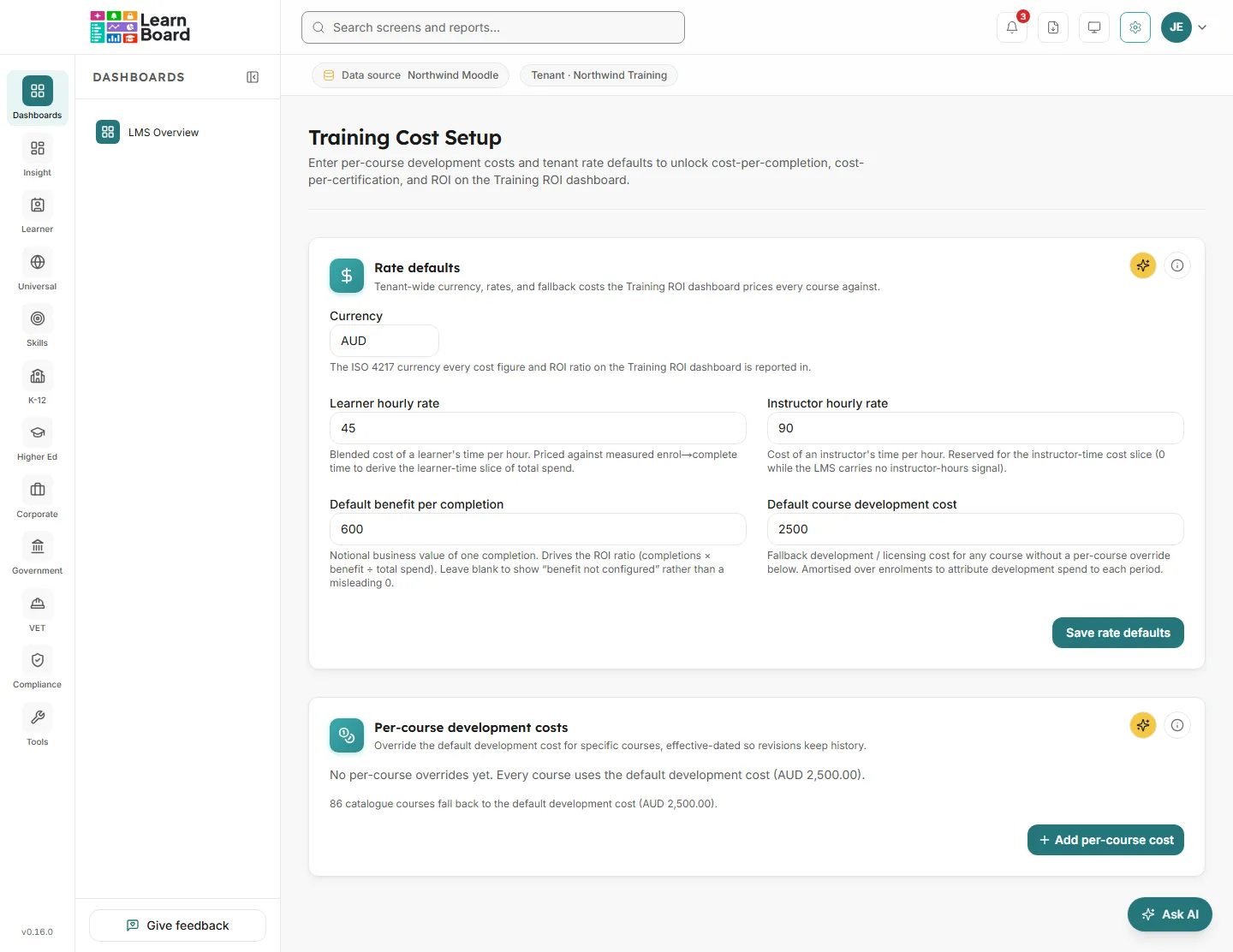
Rate defaults
Section titled “Rate defaults”Workspace-wide currency, rates and fallback costs.
| Field | What it means |
|---|---|
| Currency | The three-letter currency code every cost figure and ROI ratio on Training ROI is reported in, for example AUD, USD or GBP. |
| Learner hourly rate | The blended cost of a learner’s time per hour. It is multiplied by the measured time from enrolment to completion to give the learner-time part of total spend. |
| Instructor hourly rate | The cost of an instructor’s time per hour. Kept for the instructor-time part of spend, which stays at 0 while Moodle records no instructor hours. |
| Default benefit per completion | The business value of one completion. It drives the ROI ratio: completions times benefit, divided by total spend. Leave it blank and Training ROI says “benefit not configured” rather than showing a misleading 0. |
| Default course development cost | The development or licensing cost for any course without its own cost below. It is spread over the course’s enrolments to give each period its share of development spend. |
Press Save rate defaults. The card says when it was saved.
Per-course development costs
Section titled “Per-course development costs”Give a course its own development cost instead of the default. Each cost has a date range, so a revised cost keeps the history of the old one.
-
Press Add per-course cost.
-
Fill in the form.
Field What to enter Course Choose from your Moodle courses. Courses hidden in Moodle are listed too, marked “hidden in Moodle”, because their learners still count on Training ROI. Development cost The cost in your currency, 0 or more. Effective from The date the cost starts to apply. Today is filled in. Effective to (optional) The date it stops applying. It must be after Effective from. Notes (optional) Anything worth recording, such as an initial build or a licence renewal. -
Press Add cost.
The table lists each course’s Development cost, Effective from and Effective to. Edit a row with the pencil or delete it with the bin. Under the table, LearnBoard says how many courses fall back to the default development cost.