

Add a block
The LearnBoard block puts live LearnBoard charts on a Moodle page. This page shows how to add one, for managers, teachers with editing rights and Moodle administrators.
At a glance
Section titled “At a glance”- The block can go on any page: the Dashboard, a course page, the site front page, and others.
- A page can hold several LearnBoard blocks.
- A new block starts with a starter layout: six stat tiles, Activity trend and Completion funnel.
- Adding a block needs
block/learnboard:addinstance, orblock/learnboard:myaddinstanceon your own Dashboard. - The site must be connected first, or the block says the connection is not set up yet.
Add it to a page
Section titled “Add it to a page”-
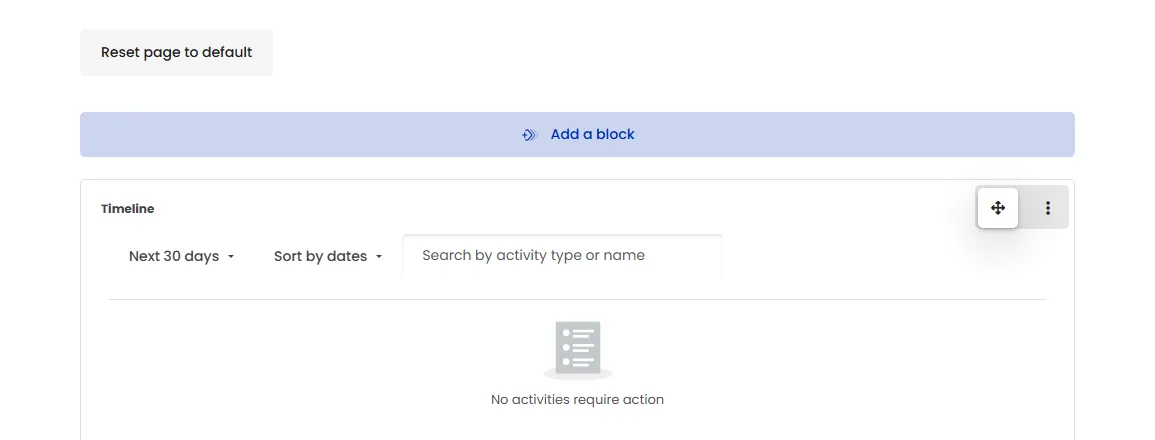
Open the page and turn Edit mode on.
-
Click Add a block.
-
Pick LearnBoard from the list.
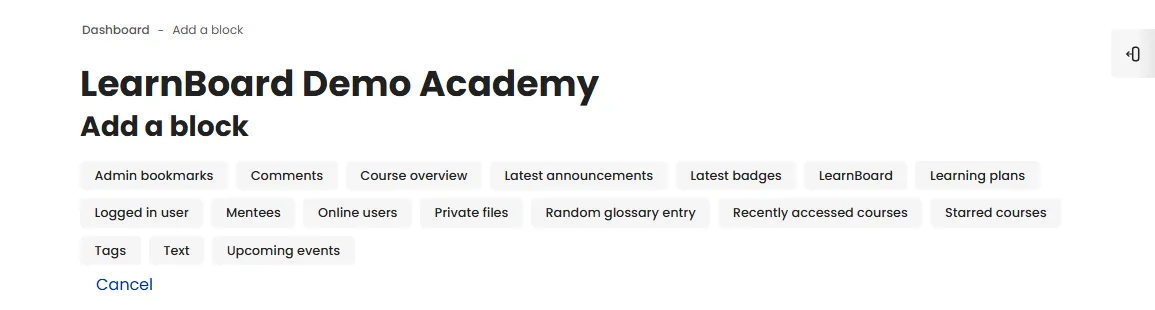
LearnBoard in Moodle's Add a block list. -
The block appears with its starter layout. Drag it where you want it with Moodle’s move handle.
Then decide what it shows, from the block’s menu, Configure LearnBoard block. See Block settings.
Where to put it
Section titled “Where to put it”Your own Dashboard (/my/) is the quickest place to try the block. It needs block/learnboard:myaddinstance, which Managers have by default.
To give everyone the block on their Dashboard, add it to the default Dashboard instead: Site administration > Appearance > Default Dashboard page, turn Edit mode on and add the block there. People who have not changed their own Dashboard see it. Use per-role rules so each role sees the right view.
On a course page, Moodle puts blocks in the block drawer at the side. Turn Edit mode on in the course, open the block drawer and click Add a block. It needs block/learnboard:addinstance, which Teachers and Managers have by default.
See Course pages.
Go to Site home, turn Edit mode on and add the block. Front page blocks are seen by everyone who can open the front page, so restrict the block with Show to or give each role its own view with per-role rules.
The block can be added on every page type Moodle allows blocks on, including category pages and activity pages. Use Where this block appears in the block settings to choose which pages of that kind show it.
What a new block shows
Section titled “What a new block shows”A brand-new block opens on a starter layout, the headline figures from LearnBoard’s LMS Overview and two of its charts, so it never starts empty:
- Total users, Active users (30 days), Total courses, Total enrolments, Site completion rate, At-risk learners
- Activity trend
- Completion funnel
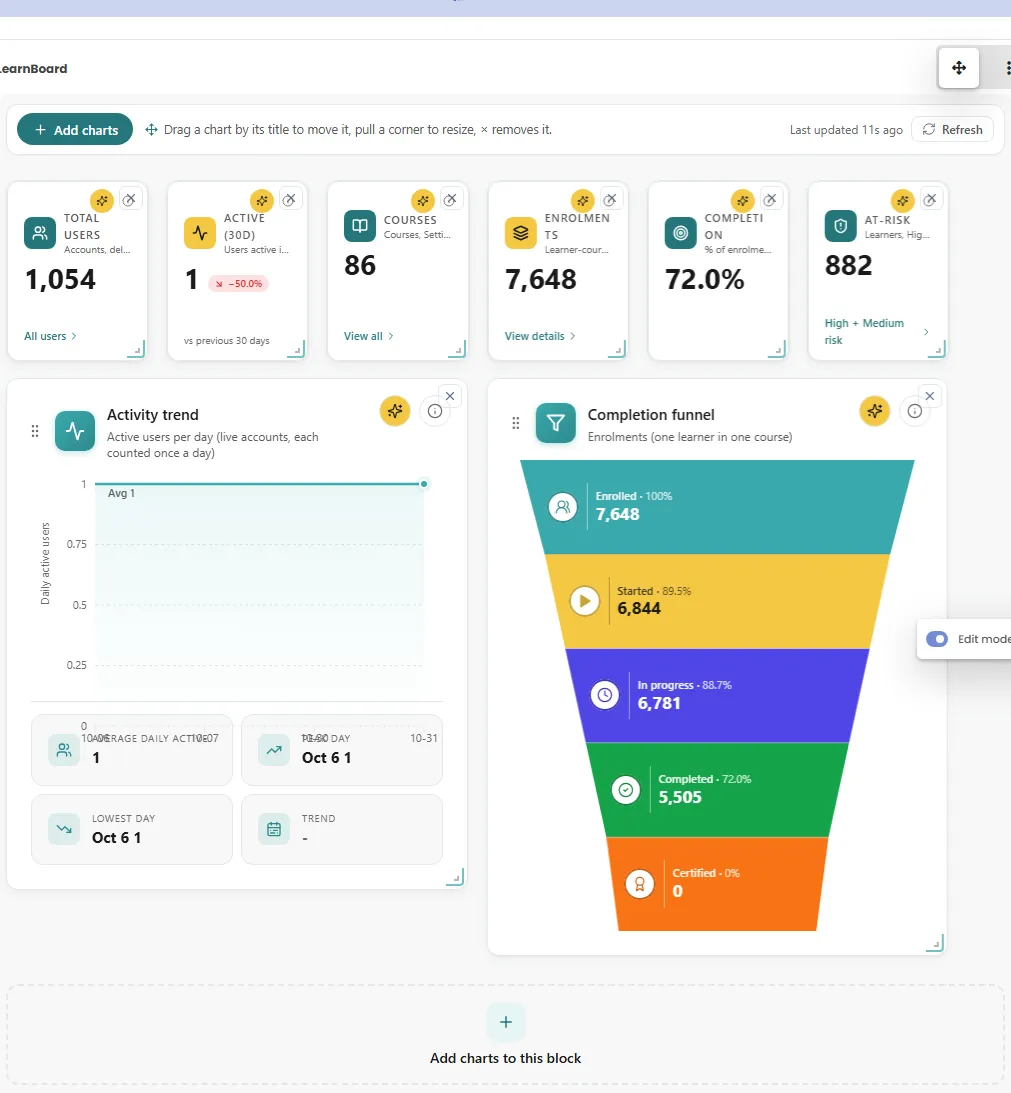
In a narrow column the stat tiles sit two to a row; in a thin side column they stack. The first time you add, move or remove a chart, the block saves its own layout and the starter layout no longer applies.
Several blocks on one page
Section titled “Several blocks on one page”You can add more than one LearnBoard block to a page, for example one linked to a dashboard for managers and one showing My learning for students. Each block keeps its own settings and layout.