

Skills-Gap & Workforce-Readiness
The Skills-Gap & Workforce-Readiness screen compares the skills each role in your organisation requires with the capability the people in those roles actually hold, so you can drive hiring, training and succession decisions. It is for workforce planners, L&D leads, HR partners, managers and team leads.
It has two views. Demand measures each role against its required skills and needs your roles and requirements set up first. Supply shows who holds which skill across your cohorts and works straight away, with no setup.
At a glance
Section titled “At a glance”- Route:
/skills/skills-gap. In the sidebar it sits under Skills & Capability as Skills-Gap & Workforce-Readiness. - Who can open it: the Admin and Manager roles by default. The Viewer role does not get it by default, because the specialist modules are held back from Viewer. Roles are managed for the whole LearnBoard installation, not from your workspace admin screens. The Learner role never sees it.
- Team leads: can open it. Every figure is limited to the learners in their own Moodle groups.
- Plan: part of the Skills & Capability pack. On the standard plans that is Business, Scale and Enterprise. Without the pack the screen shows “Part of the Skills & Capability pack, not included in your current plan.”
- Filters: View (Demand or Supply), Source, and in the Demand view Cohort, Roles, Severity and Single points of failure only. Every choice is kept in the page address.
- Data it needs: for the Demand view, org roles, the skills each role requires and the people assigned to each role, all set up in Workforce Setup. Skill levels come from your Moodle data, read the same way as the Skills / Competency Matrix.
- Who is counted: a role’s holders are the people assigned to it who are learners now, with an active learner enrolment in any course. A suspended account, or someone with no active learner enrolment, is not counted. Their evidence from any course counts, including courses they have since left.
Before you start: Workforce Setup
Section titled “Before you start: Workforce Setup”- Open Workforce Setup (or press Go to Workforce Setup on this screen).
- Create your org roles, for example Fire warden or Team leader.
- For each role, add the skills it requires, with an importance (Mandatory, Desirable or Nice to have) and a minimum level (Emerging, Proficient or Advanced).
- Assign people to their roles.
- Come back to this screen. The Demand view now shows the tiles, heatmap, critical gaps and bench strength.
A required skill is matched to a course, certificate or tag by name, depending on the Source. Where several share the name, the one with the most learners is used. A skill that matches nothing cannot be measured yet, and the readiness detail says so.
How readiness is worked out
Section titled “How readiness is worked out”- Each holder’s level in a skill (None, Emerging, Proficient or Advanced) comes from the chosen Source, using the same rules as the Competency Matrix:
- Certificates (the default): a held certificate is Advanced; no certificate is None.
- Course mastery: a completed course is Proficient, or Advanced with a best course grade of 85% or more; a course started, graded or enrolled in but not completed is Emerging; no record is None.
- Tags: the highest course-mastery level a learner reaches across the courses carrying the tag.
- A holder meets a requirement when their level is at or above the required minimum.
- Each role and skill pair gets a severity from the share of the role’s holders who meet it:
- Met: 80% or more.
- Low: 60 to 79%.
- Medium: 40 to 59%.
- High: 20 to 39%.
- Critical: under 20%.
Filters
Section titled “Filters”The bar at the top of the screen.
- View: Demand (the default) or Supply.
- Source: Certificates (the default), Course mastery or Tags. A source your data cannot support reads “not available” and cannot be picked; if the screen cannot use the source you asked for, it switches to one it can.
- Cohort (Demand view): “All learners” or one cohort, each with its member count. Cohorts are your Moodle groups. Picking one limits every role’s holders to that cohort’s members.
- Roles (Demand view, once roles exist): a button per role. Pick one or more to narrow every card to those roles; clear removes the role filter.
- Severity (Demand view): Critical, High, Medium, Low and Met. Pick one or more to show only cells at those severities in the heatmap; clear removes it.
- Single points of failure only (Demand view): narrows every card to roles where a required skill rests on exactly one holder.
The Roles filter and Single points of failure only change every card, so the tiles always add up to what the heatmap shows. The Severity filter changes the heatmap only.
Stat tiles
Section titled “Stat tiles”Four tiles appear in the Demand view. Each has an info tooltip, Ask AI about this and Pin to dashboard. When the Roles filter or Single points of failure only is set, each unit line says so (for example “in the filter” or “filtered roles only”) and the figures count only those roles.
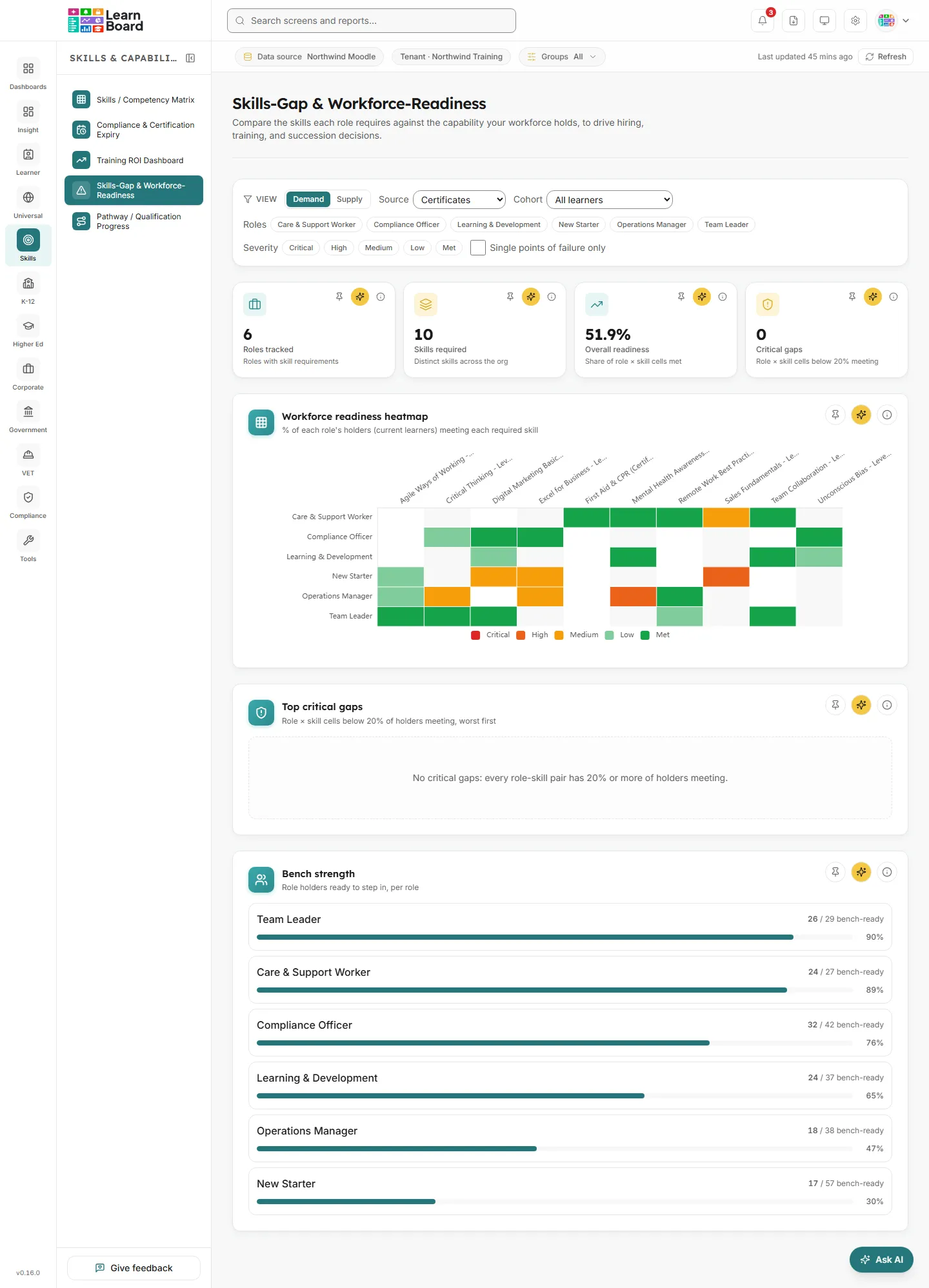
Roles tracked
Section titled “Roles tracked”
How many org roles have at least one required skill set up.
- How to read it: roles with no requirements are not tracked yet and are left out.
Skills required
Section titled “Skills required”How many distinct skills your tracked roles require.
- How to read it: the same skill required by two roles counts once. This is the number of columns in the heatmap.
Overall readiness
Section titled “Overall readiness”The share of role and required skill pairs that are Met.
- How it is worked out: a pair is Met when at least 80% of the role’s current holders meet the required minimum level. The tile counts every role the heatmap shows, across all of its pages.
- How to read it: a dash means there are no pairs to measure.
Critical gaps
Section titled “Critical gaps”How many role and required skill pairs are Critical.
- How it is worked out: pairs where fewer than 20% of the role’s current holders meet the requirement, across every role the heatmap shows.
- What you can do: the worst five are charted in Top critical gaps.
Charts and tables
Section titled “Charts and tables”Workforce readiness heatmap
Section titled “Workforce readiness heatmap”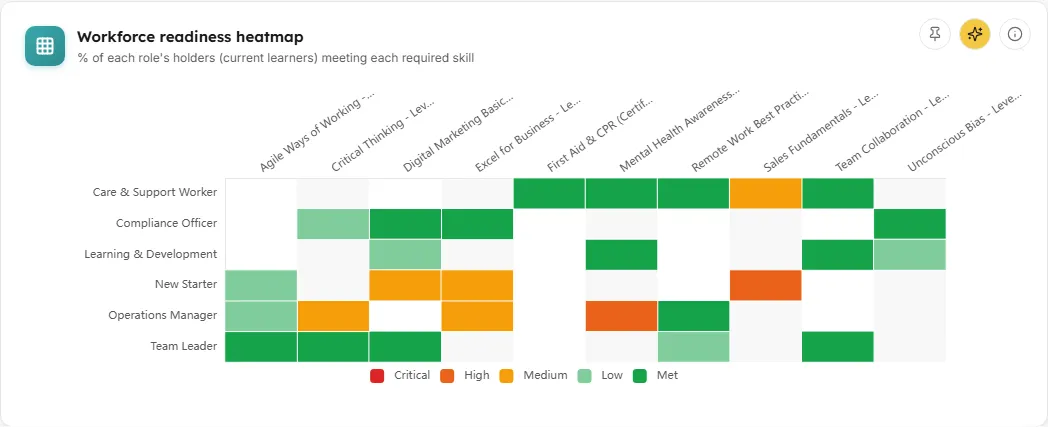
The Demand view’s grid: one row per role, one column per required skill, each cell coloured by severity.
- How to read it: the legend under the grid runs from Critical (red) to Met (green). A blank cell means the role does not require that skill. Hover a cell for the role, the skill, the share meeting the requirement, “N of N holders” and the minimum level. “No proficiency data for this skill yet” means the skill matched nothing in the chosen source.
- Pages: the heatmap shows 15 roles at a time, with “N roles · page N of N” and Prev and Next when there are more.
- What you can do: click a cell to open the Readiness detail drawer. Info tooltip, Ask AI about this, Pin to dashboard.
- Empty states: “No roles or required skills to display for the current filters.” With Single points of failure only on and no such roles: “No single points of failure”, “No tracked role currently depends on a single person for any required skill. Clear the toggle to see the full readiness map.”
Skill supply heatmap
Section titled “Skill supply heatmap”The Supply view’s grid: one row per cohort, one column per skill, shaded by the share of the cohort’s learners who hold the skill. There is no comparison with requirements, so it is useful for seeing who knows what, whatever their role.
- How to read it: the scale runs from 0% (pale) to 100% (your chart colour). A learner holds a skill at Proficient or above. Hover a cell for the share holding the skill and “N of N members”. A cohort with no members is left blank.
- Pages: 15 cohorts at a time, with Prev and Next when there are more.
- What you can do: info tooltip, Ask AI about this, Pin to dashboard. Cells do not open a drawer in this view.
- Empty state: “No cohorts or skills to display.”
Top critical gaps
Section titled “Top critical gaps”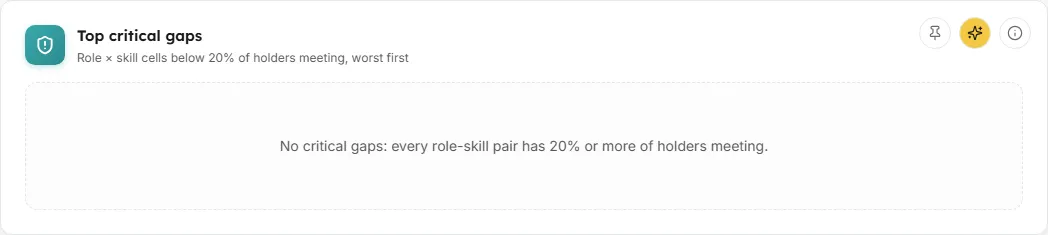
A bar chart of up to five Critical role and skill pairs, lowest share meeting first. Demand view only.
- How to read it: each bar is labelled “Role: Skill” with its percentage. When there are more than five, the unit line adds “the worst 5 of N”. Low, Medium and High gaps are not listed.
- Hover a bar for the share meeting, “N of N holders” and a suggested action, for example “Enrol N role-holders who fall short in (skill) to close the gap.”
- What you can do: use it to prioritise hiring and training. Info tooltip, Ask AI about this, Pin to dashboard.
- Empty state: “No critical gaps: every role-skill pair has 20% or more of holders meeting.”
Bench strength
Section titled “Bench strength”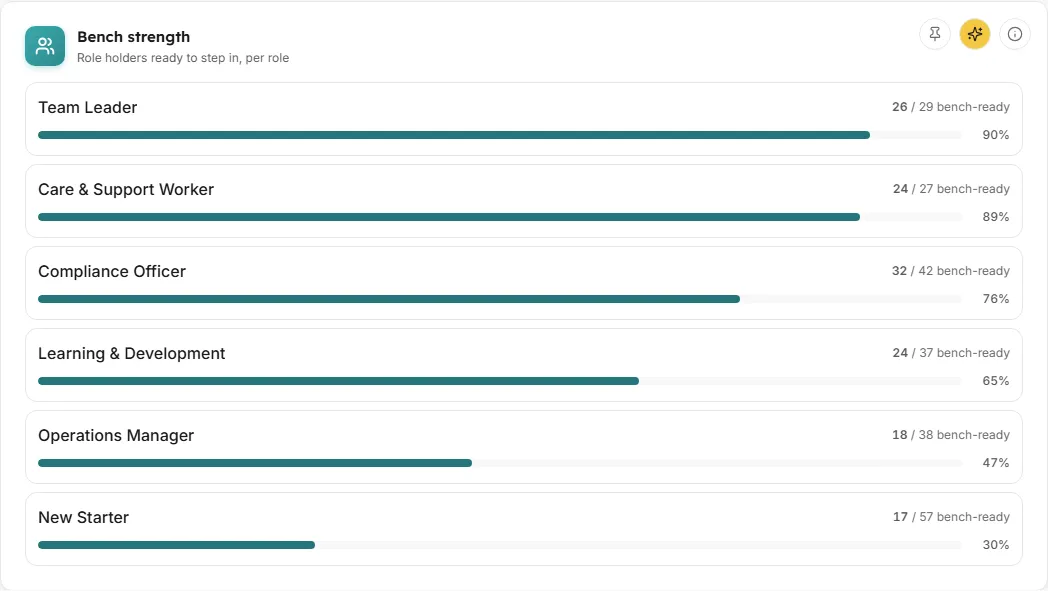
For each role, how many of its holders are ready to step in, and a warning where a skill rests on one person. Demand view only.
- How to read it: each role shows “N / N bench-ready” and a bar with the bench-ready share. A SPOF badge and the line “Single point of failure on: (skills)” mark a role where a required skill is met by exactly one holder. Up to ten roles are listed, strongest bench first.
- How it is worked out: a holder is bench-ready when they meet at least 80% of the role’s required skills.
- What you can do: info tooltip, Ask AI about this, Pin to dashboard.
- Empty state: “No tracked roles with holders to assess.”
Readiness detail
Section titled “Readiness detail”The drawer that opens when you click a cell in the Workforce readiness heatmap.
- It shows the role, the skill and the Source; the severity, the share meeting and “N of N holders”; the requirement’s importance and minimum level; which course, certificate or tag the skill is measured against (and, where several share its name, that the one with the most learners is used); and Role-holders, each with their level and a tick when they meet the requirement.
- Suggested action: “Enrol N holders in (course)” for the course that would close the gap, where there is one.
- Not matched: “This required skill is not yet matched to a tracked course, certificate, or tag, so holders cannot be measured against it.” Check the skill’s name in Workforce Setup against your course, certificate or tag names.
- No holders: “No holders are currently assigned to this role.”
- Close it with the close button, by clicking outside it, or with Escape.
Common questions
Section titled “Common questions”Why is a role 0% when people clearly have the skill?
Section titled “Why is a role 0% when people clearly have the skill?”Check the Source. A skill named after a course needs Course mastery; a certificate’s name needs Certificates. Also check that the people are assigned to the role and still have an active learner enrolment somewhere.
Why do the tiles change when I filter by role?
Section titled “Why do the tiles change when I filter by role?”The Roles filter and Single points of failure only narrow every card, so the tiles count only the roles you can see in the heatmap.