

Enrolment-Source and Funnel Analytics
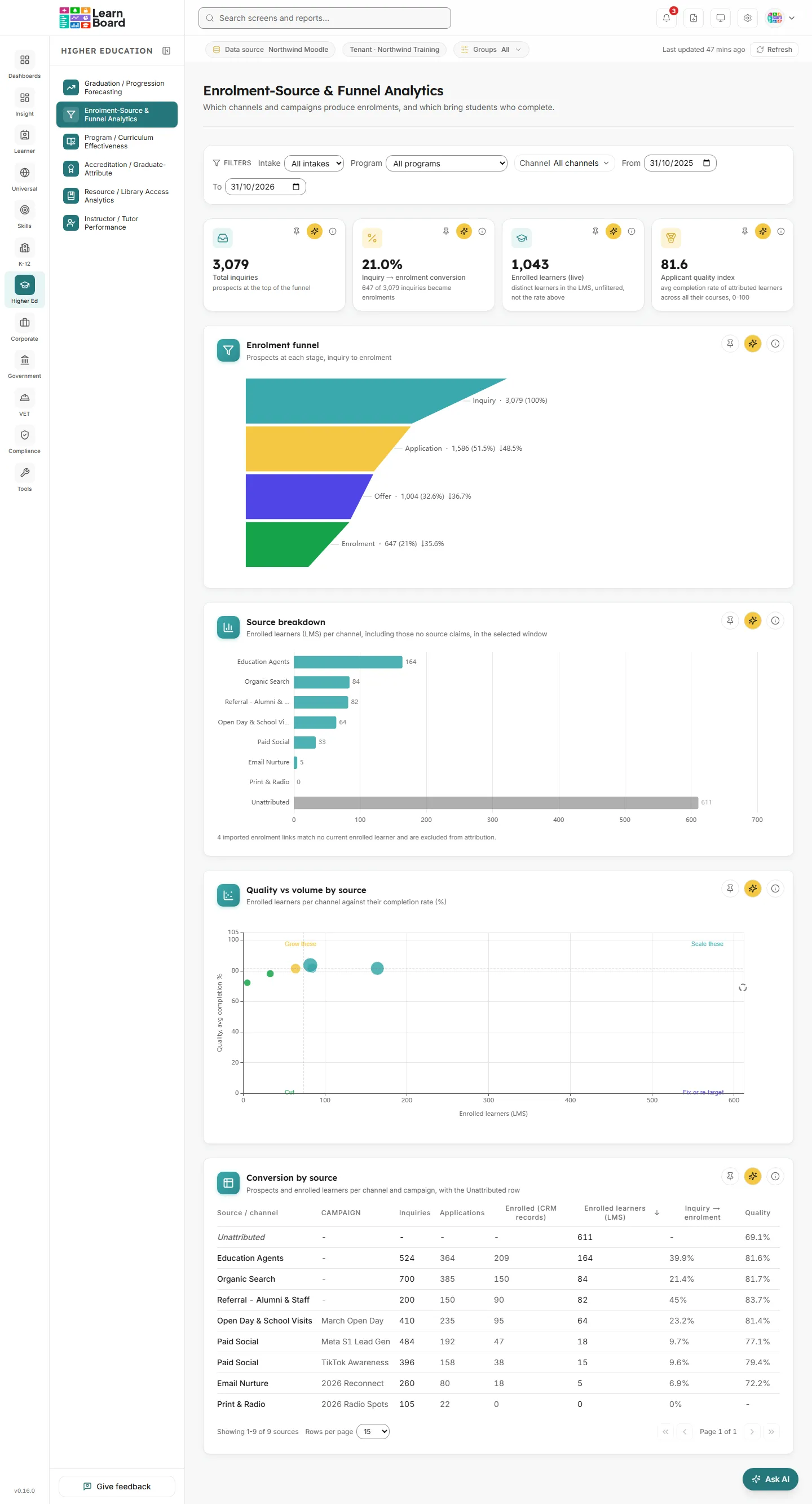
The Enrolment-Source and Funnel Analytics screen shows which recruitment channels and campaigns produce enrolments, and which of them bring learners who go on to complete. Admissions, marketing and recruitment teams use it to compare channels on volume, conversion and the completion record of the learners each channel brings in.
The screen header reads: “Which channels and campaigns produce enrolments, and which bring students who complete.”
At a glance
Section titled “At a glance”- Route:
/he/enrolment-funnel. In the sidebar it sits under Higher Ed as Enrolment-Source & Funnel Analytics. - Who can open it: the Admin and Manager roles by default. The Viewer role does not get it by default. A Learner never sees it: opening the link sends them to their home page with the notice “You don’t have access to that screen, so you are on your home page instead.” See roles and permissions.
- Team leads: the Team lead role does not include this screen.
- Plan: part of the Higher Education sector pack. If your plan does not include the pack, the page shows “Enrolment Funnel is locked” with an upgrade prompt instead of the cards.
- Filters: Intake, Program, Channel, From and To, plus the Groups control in the bar under the top bar.
- Data it needs: two kinds of data meet here.
- The upper funnel (inquiries, applications, offers) comes from recruitment records your organisation supplies to LearnBoard: one record per prospect with their channel, campaign, intake, program and the furthest stage they reached. LearnBoard has no screen for entering these records yet; the screen says “the entry screen for source records is coming in a follow-up release”. Until records exist, the funnel, source breakdown and quality cards show a waiting state.
- The enrolment side always comes from your connected Moodle site: real learners with an active course enrolment. See data sources.
- Shared words: learners are distinct people with an active student enrolment; completion rate is completed enrolments divided by enrolments.
Before source data is connected
Section titled “Before source data is connected”When no recruitment records have been supplied yet, the screen still opens and stays honest about what it can show:
- Enrolment funnel shows “Enrolment-source data not connected yet”.
- Source breakdown and Quality vs volume by source show “Awaiting source data”.
- The message on each reads: “Enrolment-source data hasn’t been connected yet. Once inquiry, application, and campaign records are imported, this funnel shows how each channel converts, and which channels bring students who complete. Real enrolled learners already show below as a single Unattributed group; the entry screen for source records is coming in a follow-up release.”
- Enrolled learners (live) always shows your real Moodle learners.
- Conversion by source shows a single Unattributed row: every real enrolled learner, because no source claims them yet.
- The Intake, Program and Channel filters only offer “All” until records exist; the Channel list reads “No channels yet, they appear once source records are imported.”
Filters
Section titled “Filters”The filter bar sticks to the top as you scroll. Every choice is saved in the page address, so a refresh or a shared link opens the same view. Changing a filter sends the table back to page 1.
- Intake: “All intakes” or one intake period, from the intake values in your recruitment records, newest first.
- Program: “All programs” or one program, from the program values in your recruitment records.
- Channel: a checkbox list. The button reads “All channels”, the channel’s name when one is ticked, or “N channels”. Close it with Escape or by clicking elsewhere.
- From and To: a date range. It defaults to the last 365 days ending today. A prospect is in range when the date of the furthest stage they reached falls inside it; records with no stage dates at all are always kept. The longest range LearnBoard accepts is three years.
- Clear all: appears once anything differs from the defaults and resets every filter, including the dates.
Stat tiles
Section titled “Stat tiles”Four tiles sit across the top. Each has a Pin to dashboard button, an Ask AI about this button and an info (i) button. See Ask AI and pinning.
Total inquiries
Section titled “Total inquiries”
The number of distinct prospects at the top of the recruitment funnel for the current filters.
- How to read it: every prospect record counts once at Inquiry, whatever stage they later reached. It reads 0 until inquiry and application records are supplied.
- How it is worked out: a count of prospect records matching the Intake, Program, Channel and date filters.
- What you can do: pin it, Ask AI, open the info text.
Inquiry → enrolment conversion
Section titled “Inquiry → enrolment conversion”The share of prospects who reached the Enrolment stage.
- How to read it: the line under the figure states the numbers behind it, for example “69 of 2,114 inquiries became enrolments”, or “no inquiries recorded in this scope” with a dash when there are none.
- How it is worked out: prospects whose furthest stage is Enrolment divided by all prospects at Inquiry, within the current filters. It uses recruitment records only and never mixes in enrolments no source claims.
- What you can do: pin it, Ask AI, open the info text.
Enrolled learners (live)
Section titled “Enrolled learners (live)”The number of distinct enrolled learners in your Moodle site right now.
- How to read it: this is the ground truth the funnel reconciles against. It ignores the screen’s filters on purpose.
- How it is worked out: active learners with at least one active course enrolment, each counted once however many courses they are on.
- Why it differs from other screens: it is not the same figure as Total enrolments on the Executive overview, which counts enrolments, so a learner on three courses counts three times there and once here.
- What you can do: pin it, Ask AI, open the info text.
Applicant quality index
Section titled “Applicant quality index”How well the learners your channels recruit go on to complete, on a 0 to 100 scale.
- How to read it: higher means the channels you recruit from bring learners who finish. A dash means no enrolled learner is linked to a source yet, so the index is withheld rather than guessed.
- How it is worked out: the average completion rate of enrolled learners who can be traced to a source. Each learner’s rate is their completed enrolments divided by their enrolments across all of their courses, not only the course the source recruited them to. Only courses they take as a learner count; courses they teach, suspended enrolments and courses hidden from analytics are left out. A course counts as complete with a course completion, every tracked activity shown in the course done, or a certificate.
- What you can do: pin it, Ask AI, open the info text.
Charts
Section titled “Charts”Enrolment funnel
Section titled “Enrolment funnel”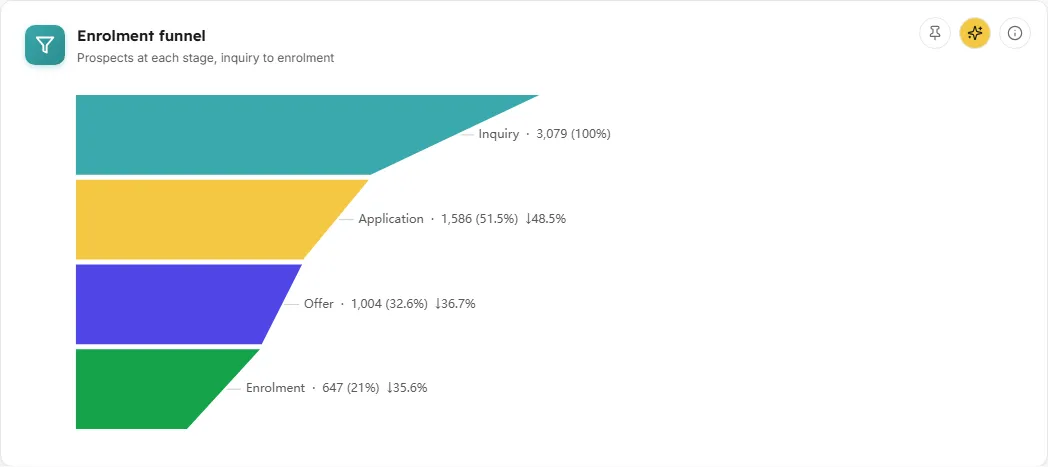
A funnel of how many prospects reached each recruitment stage.
- How to read it: the stages run Inquiry, Application, Offer (only when your organisation records offers) and Enrolment. Each segment shows its count, its share of Inquiry, and the drop from the stage before, for example “↓38%”.
- How it is worked out: each prospect is stored once with the furthest stage they reached, and a stage counts every prospect at or beyond it. So each stage is always less than or equal to the one before. This funnel covers recruitment records only; the enrolment total on the tile above comes from real Moodle data instead.
- What you can do: hover a stage for its count, share of Inquiry and drop from the previous stage; pin it; Ask AI; open the info text.
- Empty states: “Enrolment-source data not connected yet” before any records exist; “No prospects in this scope” with “Adjust the intake, program, channel, or date filters to see the funnel.” when the filters leave nothing.
Source breakdown
Section titled “Source breakdown”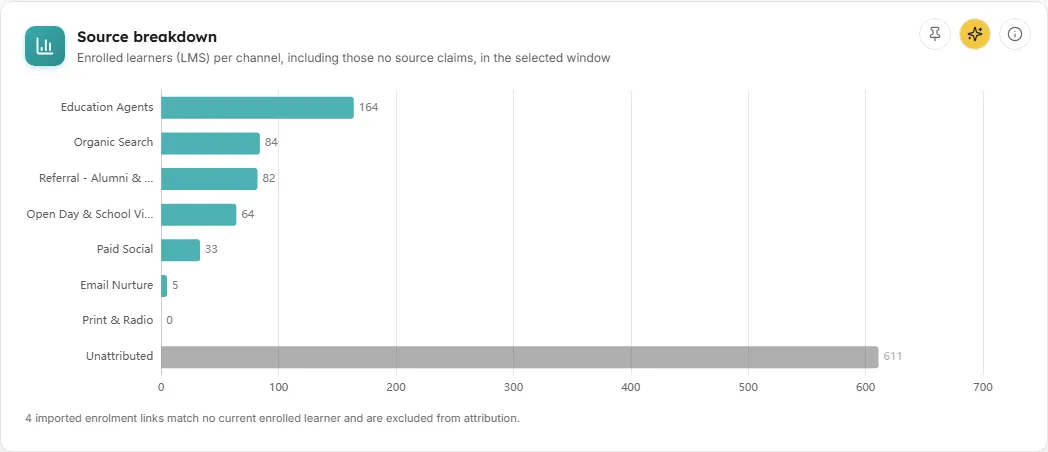
A horizontal bar chart with one bar per channel, ranked by enrolled learners, plus an Unattributed bar.
- How to read it:
- Each bar is the number of real Moodle learners that channel’s enrolled prospects match, labelled at the end of the bar.
- The Unattributed bar, drawn in a muted tone, is real enrolled learners minus those any source claims. A chart that is mostly Unattributed means source records still need supplying, not that recruitment produced nothing.
- Long channel names are shortened; the tooltip has the full name.
- How it is worked out: a prospect at the Enrolment stage is linked to a Moodle user. Links that match a real enrolled learner are counted for that channel. Links that match no current enrolled learner are left out of attribution, and a note under the chart says how many, for example “3 imported enrolment links match no current enrolled learner and are excluded from attribution.” The info text states how many enrolled learners are attributed and how many are Unattributed right now.
- What you can do: hover a bar for its learners, conversion rate and quality; click a bar to open the source detail panel; pin it; Ask AI; open the info text.
- Empty state: “Awaiting source data” before any records exist.
Quality vs volume by source
Section titled “Quality vs volume by source”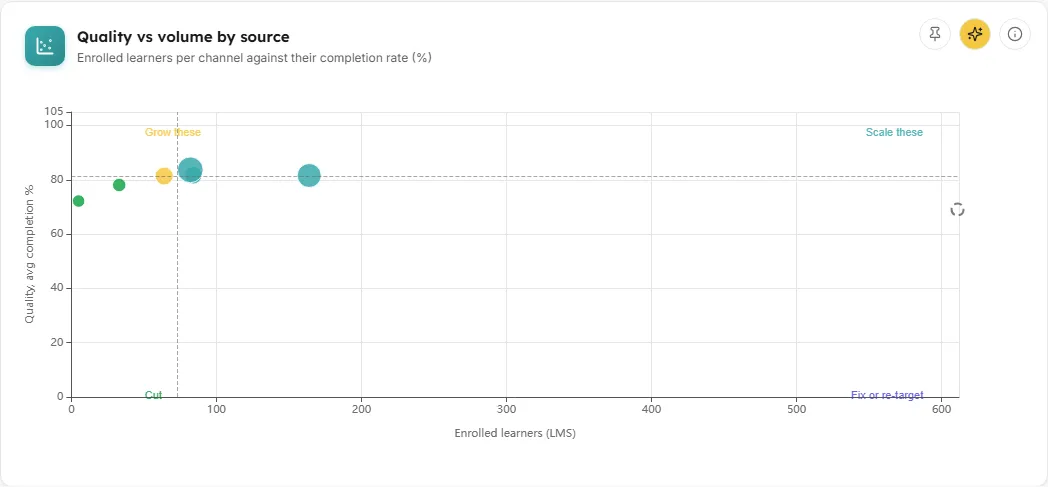
A scatter chart with one dot per channel, placing how many learners it brings against how well they complete.
- How to read it:
- Across: “Enrolled learners (LMS)”, the channel’s volume.
- Up and down: “Quality, avg completion %”, the average completion rate of the channel’s attributed learners.
- Dot size grows with the channel’s inquiry to enrolment conversion rate.
- Dashed lines sit at the median volume and median quality of the plotted channels and frame four areas: Scale these (high volume, high quality), Grow these (low volume, high quality), Fix or re-target (high volume, low quality) and Cut (low volume, low quality).
- A channel with a quality score but no conversion rate is drawn grey and hollow, and its tooltip explains why: the channel recorded no inquiries in the period, or, for Unattributed, there is no inquiry count to convert from.
- How it is worked out: each learner’s completion rate is completed enrolments divided by enrolments across all of their courses as a learner. Channels with no attributed enrolled learners cannot be scored and are left off.
- What you can do: hover a dot for enrolled learners, quality and conversion; click a dot to open the source detail panel; pin it; Ask AI; open the info text.
- Empty states: “Awaiting source data” before any records exist; “No scorable sources yet” when no channel has attributed enrolled learners: “Quality needs at least one source with attributed enrolled students. As enrolment links are imported, each channel earns its place on this plot.”
Conversion by source
Section titled “Conversion by source”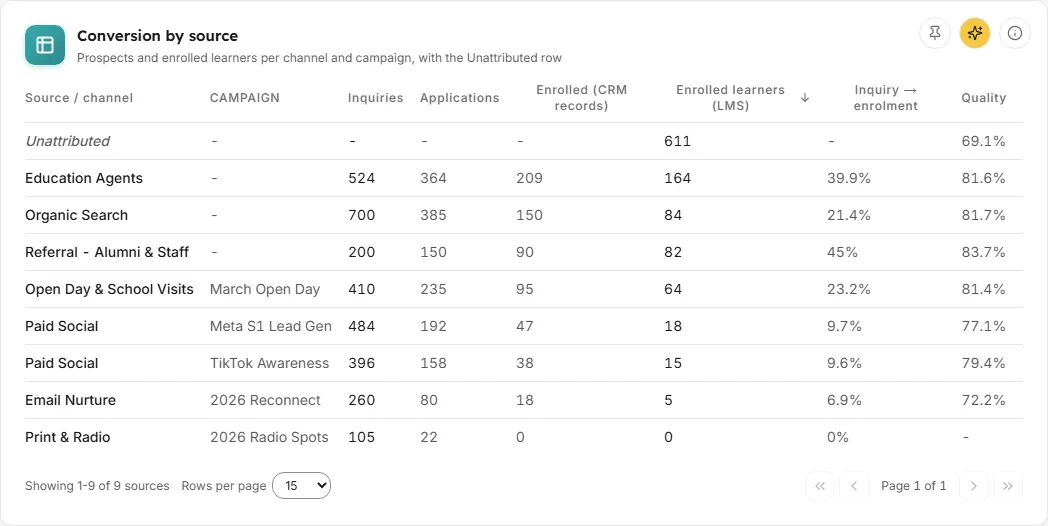
One row per channel and campaign, with the prospect count at each stage, enrolled learners, the conversion rate and quality, plus the Unattributed row.
- Columns:
- Source / channel and Campaign (a dash when the record has no campaign).
- Inquiries and Applications: prospects at or beyond each stage.
- Enrolled (CRM records): prospect records that reached the Enrolment stage.
- Enrolled learners (LMS): real Moodle learners those records match.
- Inquiry → enrolment: the conversion rate.
- Quality: the average completion rate of that row’s attributed enrolled learners.
- How to read it: the Unattributed row is shown in italics. Its inquiry, application and conversion cells show a dash, because no source claims those learners and no inquiry figure exists. By default the table sorts by Enrolled learners (LMS), most first.
- How it is worked out: the same rules as the source breakdown. When some links match no current enrolled learner, the info text says how many are left out of attribution.
- What you can do: sort by any column except Campaign; page through with First, Previous, Next and Last; choose 15, 50 or 100 rows per page; click a row (or press Enter) to open the source detail panel. Pin it, Ask AI, open the info text. There is no CSV download on this card.
- Empty state: “No sources in this scope.”
Source detail panel
Section titled “Source detail panel”Clicking a bar, a dot or a table row opens a side panel for that channel. For the Unattributed group it reads “Enrolled learners no imported source claims yet.”
- Source funnel: the same stages, for this channel only. For Unattributed it says how many enrolled learners sit outside the imported funnel, and that their stages appear once their inquiry and application records are supplied.
- Enrolled learners: Enrolled (CRM records), Enrolled learners (LMS), and Quality, the average completion rate of these learners, or “No attributed students to score yet”.
- Recent engagement: how many of this source’s enrolled learners were active in the last 30 days, as a share and a count. Active means any recorded activity, a sign-in included, the same active rule as every other screen. If there are none it reads “No enrolled learners (LMS) to measure yet.”
The panel follows the screen’s filters. Close it with the close button, by clicking outside it, or with Escape.
Common questions
Section titled “Common questions”Why does the conversion rate not match Enrolled learners (live)?
Section titled “Why does the conversion rate not match Enrolled learners (live)?”They count different things. The conversion rate divides prospect records at the Enrolment stage by prospect records at Inquiry, within your filters. Enrolled learners (live) counts real Moodle learners and ignores the filters.
Why is almost everyone Unattributed?
Section titled “Why is almost everyone Unattributed?”Unattributed is real enrolled learners minus those a source record claims. Until recruitment records with linked users are supplied, almost every learner is Unattributed. It is a measure of attribution coverage, not of recruitment.
Why does the Unattributed row show n/a?
Section titled “Why does the Unattributed row show n/a?”You have an Intake or Program filter set. Those exist only in recruitment records, so there is no honest Unattributed figure to show for them.
Why are some channels missing from the scatter?
Section titled “Why are some channels missing from the scatter?”A channel needs at least one attributed enrolled learner to have a quality score. Channels without one cannot be placed on the quality axis and are left off.
Why is the Offer stage missing?
Section titled “Why is the Offer stage missing?”The Offer stage only appears when your organisation records offers. Without any offer records the funnel runs Inquiry, Application, Enrolment.
How fresh are the figures?
Section titled “How fresh are the figures?”The Moodle side is calculated and kept for up to an hour. The recruitment side is read each time the screen loads.