

Course detail
The Course detail page shows how one Moodle course is doing: how its enrolments move through the stages from Enrolled to Certified, and how many enrolments were completed each month over the last year. It is for anyone who reads Course performance and wants to look closer at a single course, such as a manager checking a programme or a team lead checking a course they run.
At a glance
Section titled “At a glance”- Route:
/courses/followed by the Moodle course id, for example/courses/42. It is not in the menu; you reach it from a course list. - Who can open it: any role holding the
view.coursespermission: by default Admin, Manager, Viewer and Team lead. The server checks the permission when the page asks for the figures, and refuses them for any other role. - Plan: part of the Insight pack, as Course performance is, so it is included on every plan, Free included.
- Team leads: every figure counts only the people in their own Moodle groups, and the sub-bar shows a Your groups only badge.
- Filters: the Groups filter in the sub-bar (Programme, Department, Campus, Learner category, Cohort).
- Buttons: the cards on this page are plain cards. They have no Info, Ask AI, Pin or Download buttons.
How do I open a course’s detail page?
Section titled “How do I open a course’s detail page?”- Open Course performance from the Insight section of the menu.
- Find the course in the All courses table. Use the search box (“Search by full or short name…”) or the Sort by buttons if it is not on the first page.
- Click the course name. The Course detail page opens.
- To go back, click Back to courses at the top of the page.
A copy of the All courses table pinned to one of your dashboards links to the same pages. You can also bookmark or share the address of a Course detail page; it opens for anyone whose role can open Course performance.
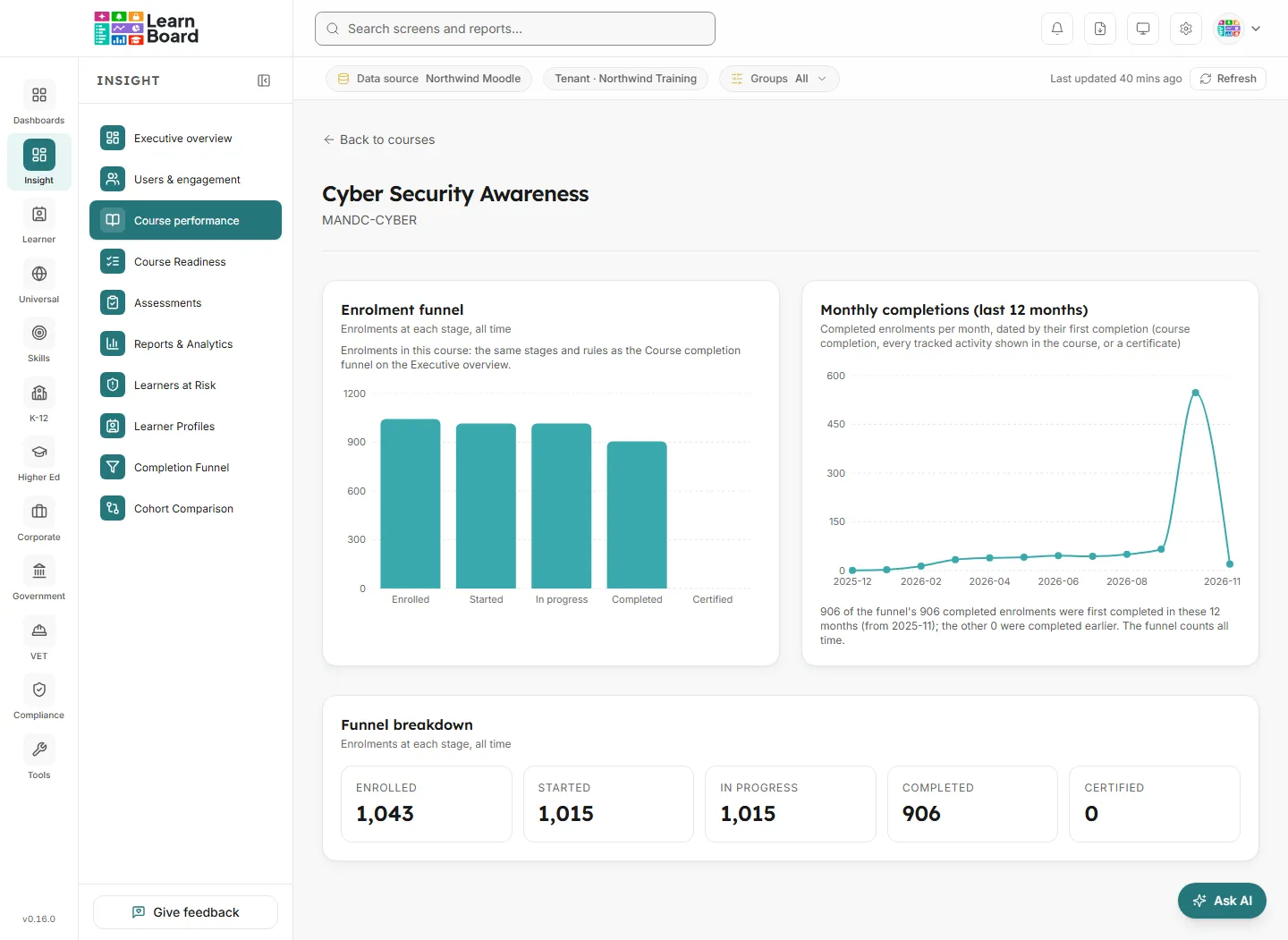
The page heading is the course’s full name, with its short name underneath.
Cards on this page
Section titled “Cards on this page”Enrolment funnel
Section titled “Enrolment funnel”A bar chart of this course’s enrolments at each of five stages: Enrolled, Started, In progress, Completed and Certified. The card says: “Enrolments in this course: the same stages and rules as the Course completion funnel on the Executive overview.”
- How to read it: each bar counts enrolments, not learners, and each stage is a subset of the one before. The gap between two bars is how many enrolments stopped at that stage. A big drop from Enrolled to Started means people were enrolled but never began; a drop from In progress to Completed means they began but did not finish.
- How it is worked out: the course’s slice of the workspace completion funnel, with the same rules:
- Enrolled: active learner enrolments in the course, each learner once. Staff, suspended enrolments and suspended or deleted accounts are left out.
- Started: enrolments with any sign the learner began: a started course completion record, any completion record on an activity shown in the course, or a completion.
- In progress: enrolments with at least one tracked activity actually completed, plus every completed enrolment.
- Completed: a course completion, every tracked activity shown in the course done, or a certificate issued in the course.
- Certified: enrolments with a certificate issued in the course by a certificate plugin LearnBoard detects on your Moodle site. With no certificate plugin installed this stage is 0.
- Activities hidden inside the course are not counted at any stage. The funnel covers all time, not a date range.
- What you can do: hover a bar for its count.
- Empty state: “No funnel data, this course has no enrolments yet.”
Monthly completions (last 12 months)
Section titled “Monthly completions (last 12 months)”A line chart of how many of this course’s enrolments were completed in each month of the last 12 months.
- How to read it: each point is a month, labelled year and month (for example 2026-03). Only months with at least one completion are plotted, so the line joins those months rather than dropping to zero in between. Under the chart a note ties the chart to the funnel: how many of the funnel’s completed enrolments were first completed in these 12 months, from which month, and how many were completed earlier. “The funnel counts all time.”
- How it is worked out: the same completed enrolments as the funnel’s Completed bar, each dated by its first completion: the earliest of the course completion record, the last tracked activity done and the first certificate. The window is the last 12 calendar months including the current one, on your workspace’s time zone.
- What you can do: hover a point for the month and its number of completions.
- Empty state: “No completions recorded in the last 12 months.”
Funnel breakdown
Section titled “Funnel breakdown”The five funnel stages as numbers: Enrolled, Started, In progress, Completed and Certified.
- How to read it: the exact counts behind the bars of the Enrolment funnel. Divide Completed by Enrolled to get the course’s completion rate, the same rate as the Completion column on Course performance.
- How it is worked out: the same figures as the Enrolment funnel above.
- What you can do: read and compare the figures. The panel has no buttons.
Common questions
Section titled “Common questions”- Why does Enrolled differ from Moodle’s Participants page for the course? Moodle lists every participant, including teachers, non-editing teachers and suspended enrolments, and can show a person twice if they are enrolled by two methods. LearnBoard counts each learner once and leaves staff and suspended enrolments out.
- Why is Completed higher than Moodle’s course completion report? LearnBoard counts an enrolment as completed when Moodle recorded a course completion, when every tracked activity shown in the course is done, or when a certificate was issued. Moodle’s course completion report shows only recorded course completions.
- Why does the monthly chart add up to less than the Completed bar? The chart covers the last 12 months only; the funnel covers all time. The note under the chart says how many completions fall before the window.
- What does “Course not found” mean? The address points at a course id that does not exist in your workspace’s data source. The page says “No course with that id exists in this workspace’s data source.” and “It may have been deleted from the learning platform, or the link may point at a different workspace.”, with a Back to courses button.
Filters and controls
Section titled “Filters and controls”- Back to courses: returns to Course performance.
- Groups (sub-bar): narrows every figure on the page by Programme, Department, Campus, Learner category or Cohort, until you clear it.
- Last updated and Refresh (sub-bar): show how old the figures are and reload them. The server accepts a refresh at most once a minute per workspace.