

Signing in
This page covers every way into LearnBoard: the sign-in screen, the two-factor code, a forgotten password, an invitation from a colleague, and single sign-on from Moodle. It is for everyone with a LearnBoard account.
At a glance
- Sign in with the email and password your administrator set up, or that you chose when accepting an invitation.
- If you turned on two-factor sign-in, you also type a six-digit code from your authenticator app.
- Forgotten passwords are reset by email. The link works once and expires within the hour.
- If your organisation uses the Moodle plugin, you can sign in from Moodle without a password.
How do I sign in?
Section titled “How do I sign in?”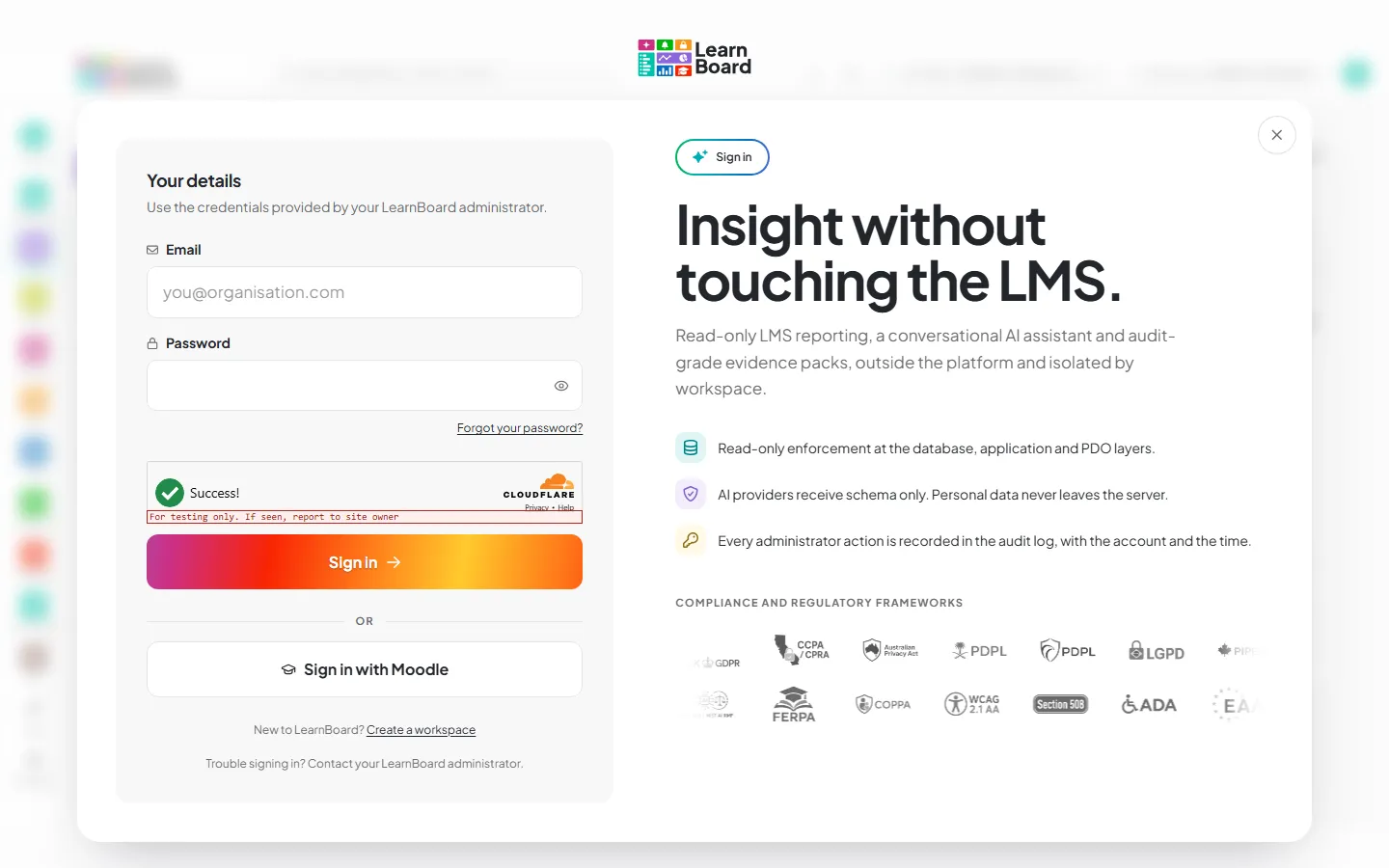
- Open the LearnBoard sign-in screen. The form is headed Your details.
- Type your Email and Password.
- Wait a moment for the check that confirms you are human to finish. If you press Sign in too early, the screen asks you to give it a moment and try again.
- Press Sign in.
If your account has two-factor sign-in turned on, the next screen asks for your code. Otherwise you go straight in.
Where do I land? Your home dashboard, if you have set one. Otherwise the Executive overview, or My team if you are a team lead, or My Learning if you are a learner.
What is the two-factor code?
Section titled “What is the two-factor code?”Two-factor sign-in asks for a code from an authenticator app on your phone as well as your password. You turn it on yourself in your account.
- On the Enter your code screen, open your authenticator app.
- Type the six-digit code it is showing. The code is checked as soon as the sixth digit is in, or press Sign in.
- On the Enter your code screen, press use a recovery code (after “Lost your phone?”).
- Type one of the recovery codes you saved when you set up two-factor sign-in. Each one works once.
- Press Sign in.
If the code is wrong the screen says That code did not match. and clears the boxes so you can try again. Press start again to go back to the email and password form.
Confirm your email
Section titled “Confirm your email”If your email address has not been confirmed yet, signing in shows Confirm your email instead. Type the code from the email into Verification code and press Confirm email. You can ask for a new code from the same screen.
I forgot my password
Section titled “I forgot my password”- On the sign-in screen, press Forgot your password?.
- Type the address you sign in with into Email address and press Email me a reset link.
- The screen says Check your email. The link in that email works once, and expires within the hour.
- Open the link. On Your new password, type a New password and the same again in Confirm new password.
- Press Set new password. The screen says Password changed and takes you back to sign in.
A new password must be at least 12 characters, with upper and lower case letters, a number and a symbol. LearnBoard also refuses a password that is known from public data breaches.
How do I accept an invitation?
Section titled “How do I accept an invitation?”A workspace administrator invites you by email. The invitation names the workspace and the role you are joining as.
- Open the link in the invitation email. The screen is headed Accept your invitation and shows the email address the invitation is for.
- Type a New password and the same again in Confirm password.
- Watch the checklist under the fields: At least 12 characters, Upper-case + lower-case letters, At least one number, At least one symbol and Both fields match. Each one ticks when it is met.
- Press Accept & sign in. You go straight into the workspace.
If the invitation cannot be used, the screen says Invitation can’t be used: it has expired, has already been used, or the link is incomplete. Ask your administrator to send a fresh one.
If you are already signed in as someone else in the same browser, the screen says so. Accepting signs you in as the invited address instead.
If your address already has a LearnBoard account in another workspace, the invitation cannot use it. Accept with a different address, or ask an administrator there to move the account across. Each LearnBoard account belongs to one workspace.
Signing in from Moodle
Section titled “Signing in from Moodle”If your organisation has installed the LearnBoard Moodle plugin and turned on sign-in from Moodle, you do not need a LearnBoard password.
Press Sign in with Moodle under the sign-in form. You sign in to Moodle as usual and come back to LearnBoard signed in.
Open LearnBoard from Moodle through the plugin. The screen says Signing you in from Moodle. while it exchanges a single-use ticket for a LearnBoard session, then opens the screens your role can see.
The ticket works once and only for a minute or two. If it has run out you see Sign-in link expired. Open LearnBoard from Moodle again to get a fresh one, or press Go to sign in.
What role do I get when I sign in from Moodle?
Section titled “What role do I get when I sign in from Moodle?”What Moodle says about you decides what you see. A site administrator or a site-level manager keeps the workspace-wide view. A person who leads courses, such as a teacher, a non-editing teacher or a course-level manager, becomes a Team lead and sees only the people in their own Moodle groups. Anyone else becomes a Learner and sees only their own learning. The plugin’s own role settings can give someone more than this. See Roles and what each person sees.
How do I sign out?
Section titled “How do I sign out?”Press your picture or initials at the top right, then Sign out.