

Block types and views
A LearnBoard block can show one of four things, chosen in Dashboard source in the block settings, or per role with What each role sees. This page explains each one and when to use it, for whoever sets up blocks.
At a glance
Section titled “At a glance”- Custom layout: charts you pick and arrange in Moodle. Starts with a starter layout.
- Linked to a LearnBoard dashboard: mirrors a dashboard built in LearnBoard, live and read-only.
- My team: each teacher or company manager sees the people in their own groups.
- My learning: each learner sees their own progress.
- My team and My learning read as the person viewing, so they need per-user sign-in.
Compared
Section titled “Compared”| Custom layout | Linked dashboard | My team | My learning | |
|---|---|---|---|---|
| Dashboard source option | Custom layout (edit here in Moodle) | Linked to a LearnBoard dashboard | My team (the viewer’s own groups) | My learning (the viewer’s own progress) |
| Who it is for | Anyone you choose | Anyone you choose | Teachers, company managers, team leads | Learners |
| Where you edit it | In the block, in Moodle | In LearnBoard | Nothing to edit | Nothing to edit |
| What it shows | The charts you add | The dashboard’s charts, in its layout | People in the viewer’s groups, their progress, last visit, risk and completions | The viewer’s enrolments, completions, activity and certificates |
| Same for everyone? | Same charts; with per-user sign-in, figures limited to the viewer’s role | Same; figures limited to the viewer’s role | Different for each viewer | Different for each viewer |
| Needs per-user sign-in | No | No | Yes | Yes |
| Can go in a rule | No | Yes, as Dashboard: name | Yes | Yes |
Custom layout
Section titled “Custom layout”The block holds its own set of charts. With Edit mode on, Add charts opens the chart picker, and you drag and resize charts on the grid. The layout is saved in the block, in Moodle. A new block starts with the starter layout.
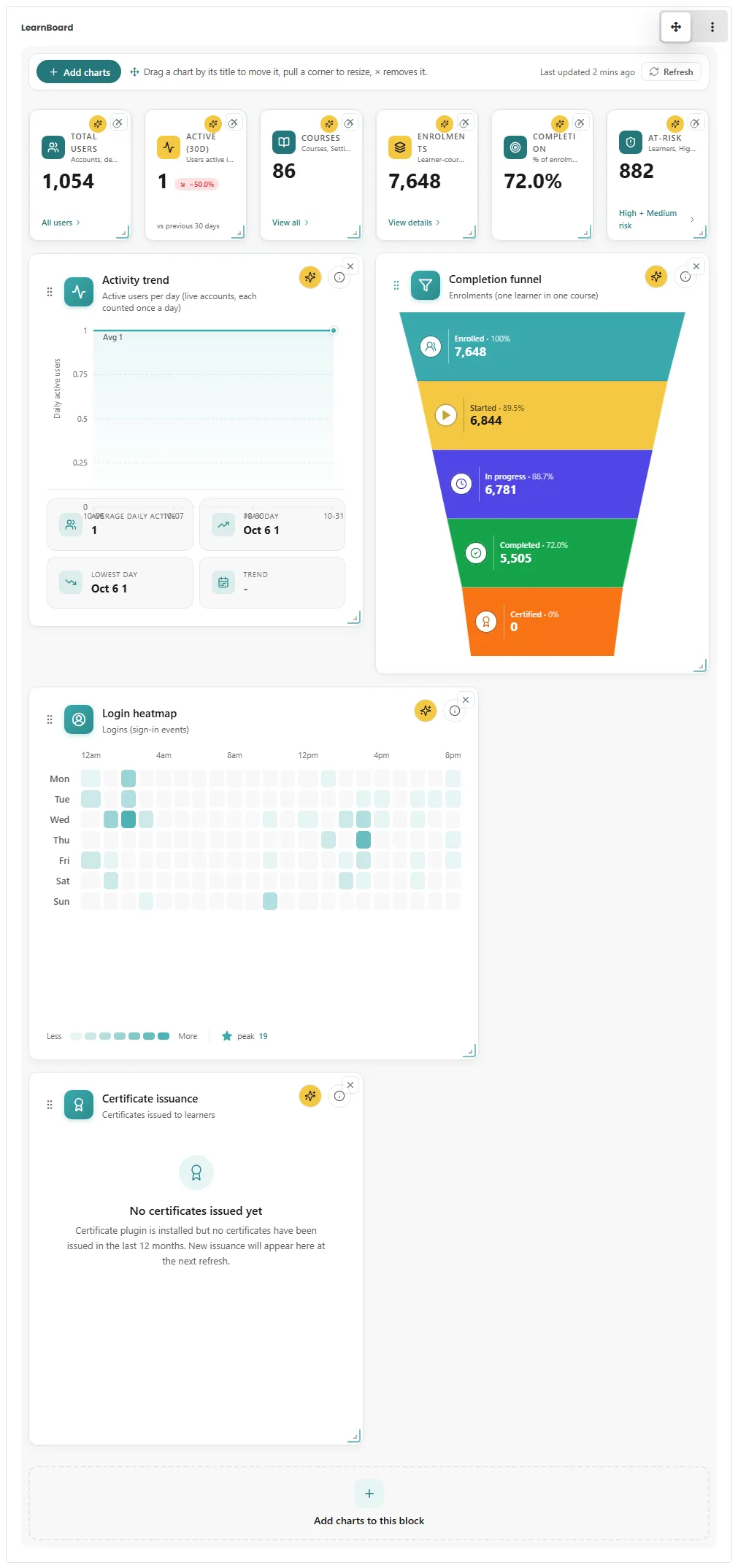
Use it when the charts are specific to one Moodle page, or when you do not want to build a dashboard in LearnBoard first.
Linked to a LearnBoard dashboard
Section titled “Linked to a LearnBoard dashboard”The block shows a dashboard built in LearnBoard, with the same charts in the same layout, live and read-only. Edits made in LearnBoard show up in Moodle on the next page load. There is nothing to arrange in Moodle.
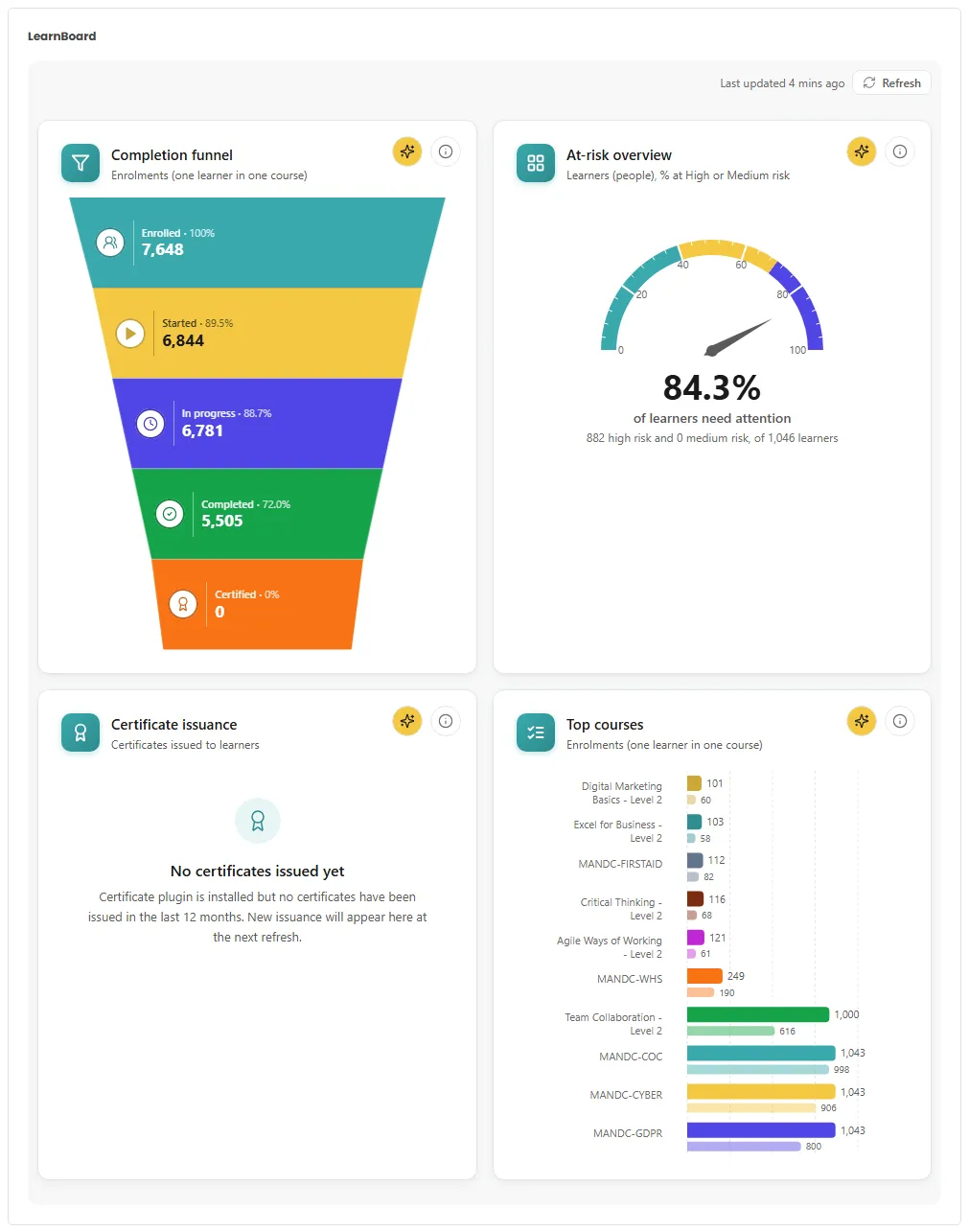
Use it when the same dashboard belongs on several Moodle pages, or when the person who designs dashboards works in LearnBoard. See Linked dashboards.
My team
Section titled “My team”Each person sees the people they lead: in the courses where they teach or manage, the members of their own groups, as Moodle’s separate groups would show them. In a course without separate groups, or for a role that sees all groups, it is everyone in that course.
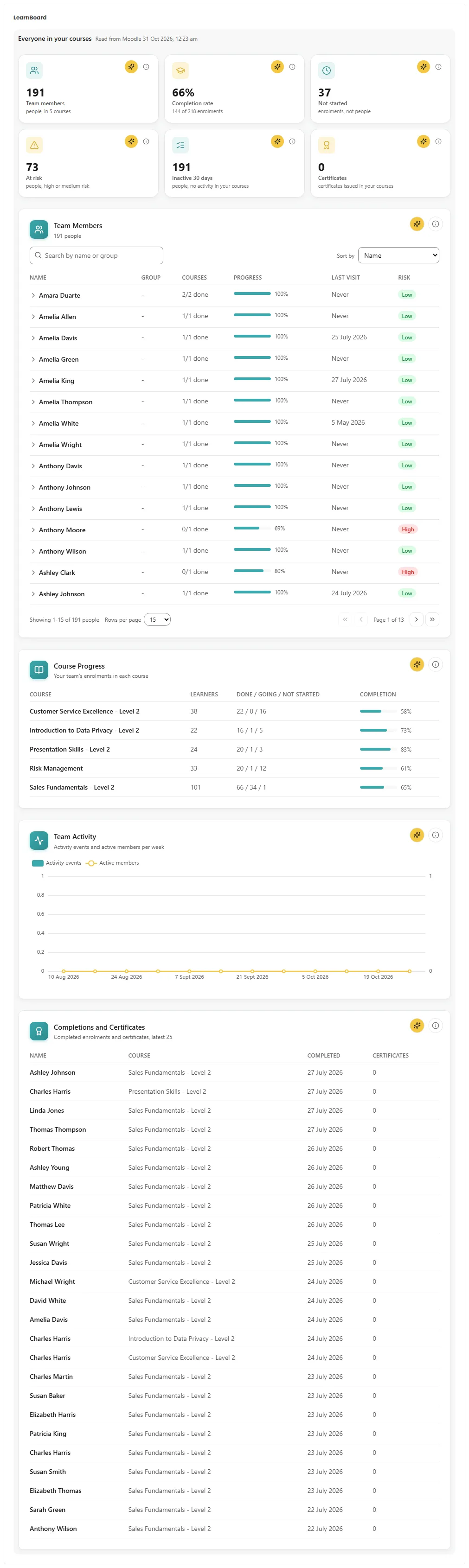
It shows:
- Figures for the team: Team members, Completion rate, Not started, At risk, Inactive 30 days, Certificates.
- Team Members: each person with their group, courses done, progress, last visit and risk. Search by name or group and sort.
- Course Progress: each course with its learners and how many are done, going and not started.
- Team Activity: activity events and active members per week.
- Completions and Certificates: the latest completions in the team’s courses.
If the viewer leads no group, the view says so instead of showing anyone’s data.
My learning
Section titled “My learning”Each learner sees their own progress, the same page they see in LearnBoard.
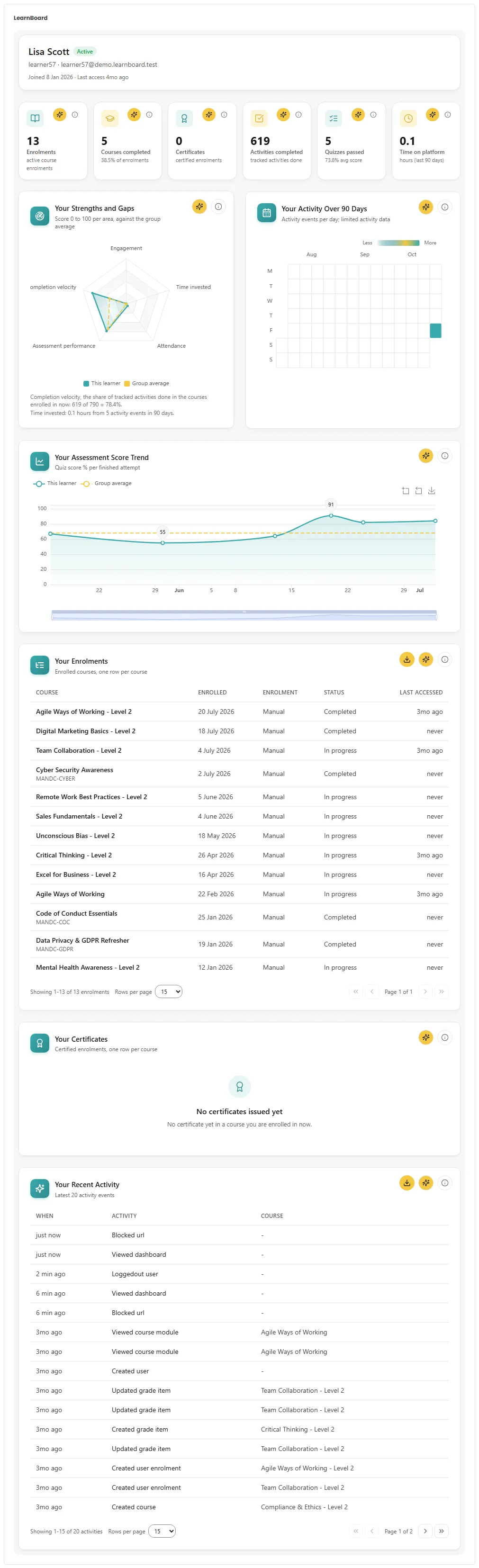
It shows their Enrolments, Courses completed, Certificates, Activities completed, Quizzes passed and Time on platform, then Your Strengths and Gaps, Your Activity Over 90 Days, Your Assessment Score Trend, Your Enrolments, Your Certificates and Your Recent Activity.
Personal views need per-user sign-in
Section titled “Personal views need per-user sign-in”My team and My learning read as the person viewing. The shared reader used without per-user sign-in has no team and no learning record of its own, so without per-user sign-in these views show nothing. A person editing the page sees: “My team and My learning show each person their own data, so they need per-user sign-in. Turn it on in Site administration, Plugins, Blocks, LearnBoard.”
