

Connect with a database account
A database connection points LearnBoard straight at your Moodle database, using a database account that can only read. LearnBoard then reads your courses, enrolments and results from where they already live. Nothing is copied out or sent anywhere else.
At a glance
- Who can do this: the Admin role, with Manage tenant data sources (
manage.data-sources). - You need: the database host, port, database name, and a read-only username and password.
- The database must be MySQL or MariaDB, and reachable from the LearnBoard server.
- The password is encrypted before it is stored and is never shown again.
- No database access to give? Use the Moodle plugin instead.
Before you start: create a read-only account
Section titled “Before you start: create a read-only account”Ask whoever runs your Moodle database (your hosting provider or IT team) for an account that LearnBoard can sign in with. Give it SELECT on the Moodle database and nothing else. LearnBoard never writes to your platform, and a read-only account means it could not even if something went wrong.
On MySQL or MariaDB, a database administrator would typically create such an account like this, with your own names, password and the address LearnBoard connects from:
CREATE USER 'learnboard_ro'@'learnboard-server-address' IDENTIFIED BY 'a-long-random-password';GRANT SELECT ON moodle.* TO 'learnboard_ro'@'learnboard-server-address';Let LearnBoard through
Section titled “Let LearnBoard through”LearnBoard’s server has to be able to open a connection to your database server on its port. If the database server, a firewall or your host only accepts connections from listed addresses, add the address of the LearnBoard server to that list. A blocked connection shows as “The server could not be reached.”
Add the connection
Section titled “Add the connection”-
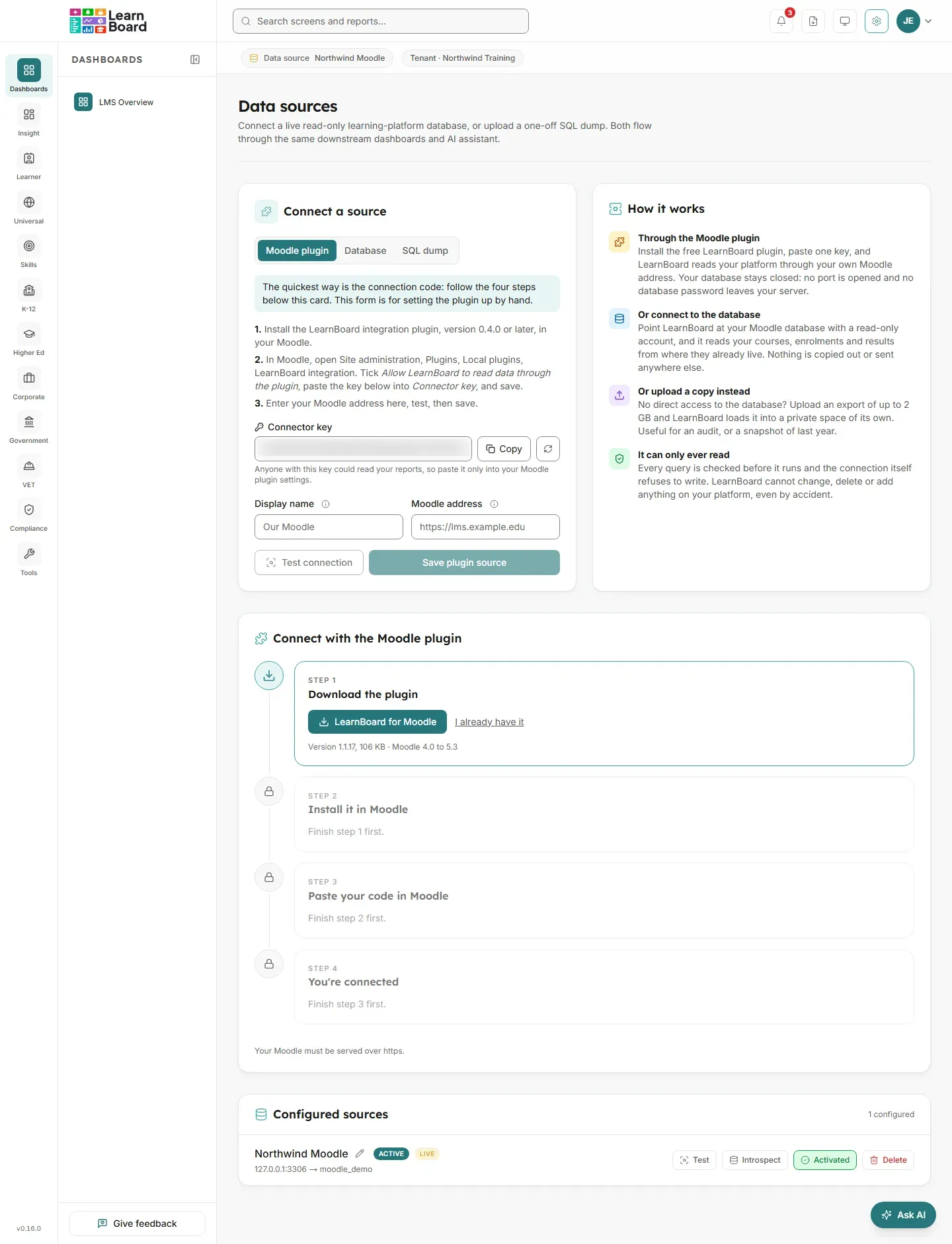
Open Admin console, Data sources.
-
Under Connect a source, choose the Database tab.
-
Fill in the form. Each field has an information icon beside its label with the same explanation as below.
Field What to enter Display name Your own name for this connection, used only inside LearnBoard. Helpful when you have more than one, for example a live platform and a copy of last year’s. Table prefix The prefix in front of every Moodle table name. Almost every installation uses mdl_, which is filled in. If yours is different, whoever installed Moodle will know it.Host The address of the machine your Moodle database runs on, as a name or an IP address. It is often not the same address as your Moodle website. Port The port the database answers on. MySQL and MariaDB use 3306 unless somebody changed it, so leave it if you are unsure. Database The name of the database holding your Moodle data, not the name of your Moodle site. Username The read-only database account. Password That account’s password. Use the eye icon to check it before saving, because it is never shown again. Encrypt the connection with SSL/TLS Tick to encrypt the connection between LearnBoard and your database. LearnBoard also checks the database’s certificate. See How does SSL work? CA certificate (optional) Shown when SSL is ticked. Paste the CA file your database provider publishes if its certificate is not signed by a public authority. Encrypt without checking the certificate Shown when SSL is ticked. Not recommended. The data is still encrypted, but LearnBoard cannot tell your server from an impostor. -
Press Save live source. LearnBoard says “Live source created. Click Test to verify connectivity.”
-
In Configured sources, find the new row and press Test. A label above the button reads “Test your connection” while it is the next thing to do. On success the button turns to Connected.
-
Press Activate (“Activate it to see your data”). The row gains the Active badge and your dashboards start reading this database.
How does SSL work?
Section titled “How does SSL work?”With Encrypt the connection with SSL/TLS ticked:
- The connection is always encrypted. If the database server does not offer encryption, LearnBoard refuses to connect rather than read your data in plain text.
- LearnBoard checks the database’s certificate, so nobody in between can pose as your server. A certificate from a public authority needs nothing more.
- Amazon RDS, Azure Database for MySQL and most cloud databases sign their certificates with their own authority. Paste the CA file they publish into CA certificate. For a self-signed server, paste its CA.
- Use the host name the certificate was issued for, not an IP address, or the check fails.
In Configured sources, a database source with SSL shows Encrypted when the certificate is checked, or Certificate not checked when it is encrypted only. To change this, add the source again with the new setting.
What happens when I activate it?
Section titled “What happens when I activate it?”- Any other source in the workspace is switched off. Only one source is read at a time.
- LearnBoard reads your platform to decide whether Moodle groups that share a name across courses are one cohort or several, and preselects the answer on Reporting configuration. It never overrides a choice you made yourself.
- LearnBoard starts working out the main dashboard figures in the background, and counts your learners again for your plan.
What do the error messages mean?
Section titled “What do the error messages mean?”LearnBoard never shows the database server’s raw error, because it names hosts and accounts. It shows a plain reason and one thing to change. The full detail goes to the server log.
| Message | What to check |
|---|---|
| The database refused those credentials. | The username and password, and that the account is granted SELECT on this database from the LearnBoard server. SELECT is enough. |
| That database does not exist on the server. | The database name for a typo. It is case-sensitive on most hosts. |
| The server could not be reached. | The host and port, and that the LearnBoard server is allowed to connect. A firewall or an allow-list is the usual cause. |
| The database server did not encrypt the connection. | SSL/TLS is not switched on at the database server. Turn it on there, or add the source again without SSL. |
| The database certificate could not be checked. | Add the source again with your provider’s CA certificate, and use the host name the certificate was issued for, not an IP address. |
| The database is reachable but does not look like a learning platform. | The table prefix. An expected table was missing. |
| This server cannot talk to that kind of database yet. | Nothing on your side. The LearnBoard server is missing a database driver, so contact whoever runs your LearnBoard installation. |
| The connection failed. | The host, port, database name, credentials and table prefix. |
Can I change the connection details later?
Section titled “Can I change the connection details later?”The Data sources screen lets you rename a source with the pencil beside its name, but not change its host, database or credentials. To move to new details, add a new database source, test and activate it, then delete the old one.