

Mandatory and Regulatory Training Audit
The Mandatory and Regulatory Training Audit turns “we think we are compliant” into “here is the record”. It gives compliance officers, auditors, risk managers and training administrators a complete table of exactly who completed what training, when, and on what evidence, with the counting rules stated on the page and an exportable evidence file carrying a SHA-256 integrity checksum.
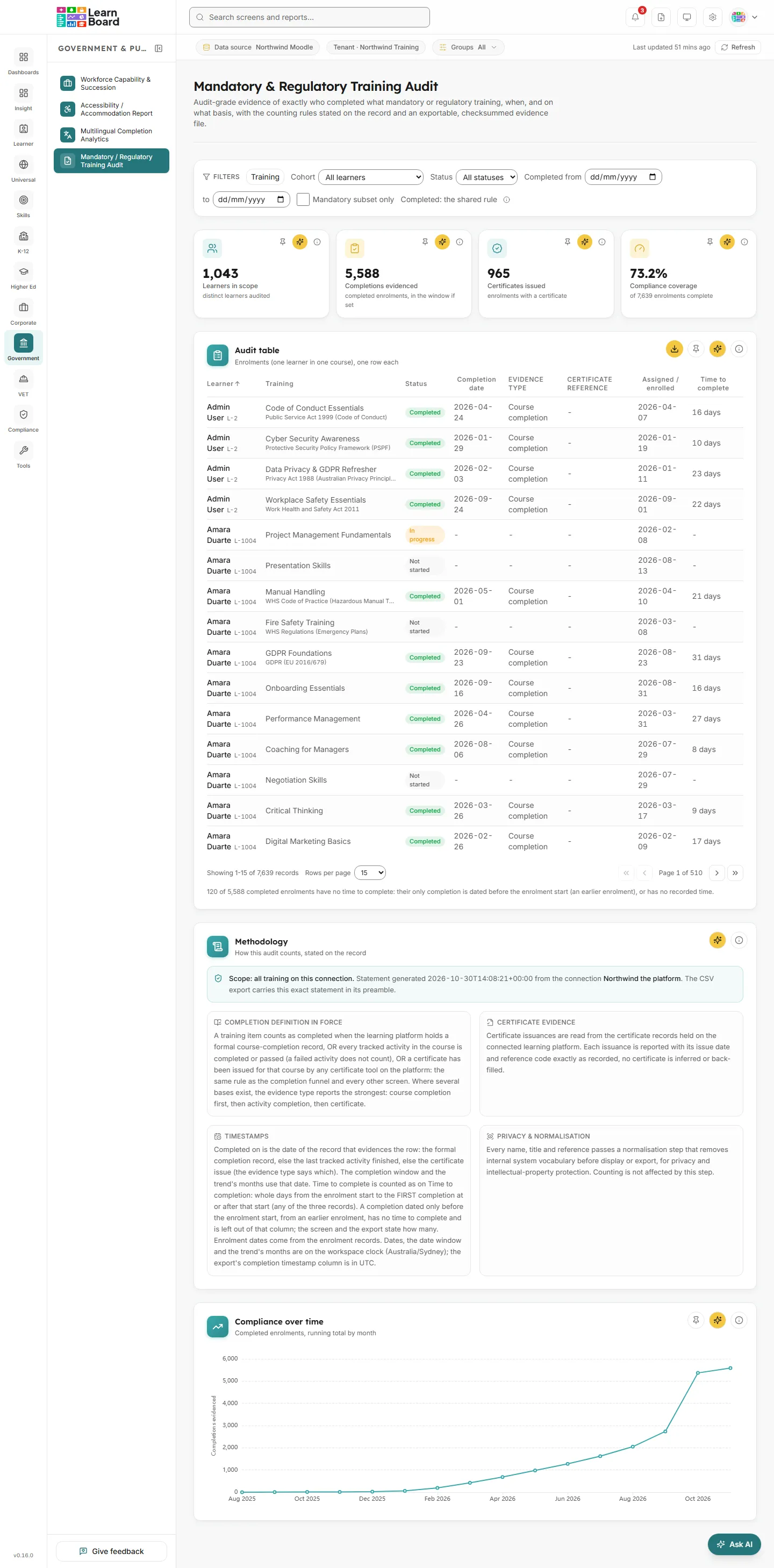
The screen is titled Mandatory & Regulatory Training Audit in the app. The audit table is the heart of the screen; the tiles, the methodology statement and the trend line support it.
At a glance
Section titled “At a glance”- Route:
/gov/regulatory-audit. In the sidebar: Government & Public Sector, then Mandatory / Regulatory Training Audit. - Who can open it: the Admin and Manager roles by default, and the Team lead role. The Viewer role does not include the specialist sector screens by default, and the Learner role cannot open it.
- Plan: part of the Government & Public Sector pack. Without the pack the screen is greyed out with a lock in the sidebar and opens to a locked page. The CSV export also needs a plan that includes CSV export; on a plan without it, the CSV button shows a padlock.
- What it needs: a connected Moodle data source. The audit reads real completion records and certificate issuances from Moodle, so it fills in as soon as a data source is connected. If your workspace has designated a set of regulatory courses, a Mandatory subset only checkbox appears; otherwise the screen audits all training on the connection.
- Filters: Training (searchable multi-select), Cohort, Status, a Completed from and to window, and Mandatory subset only when available. Filters, sort and page are kept in the page address, and every applied filter flows into the CSV export.
- Team leads: every row is limited to the people in the Team lead’s own Moodle groups. Team leads have no CSV export.
- Freshness: figures are refreshed at most every 15 minutes, shorter than most screens because audit state is time-sensitive. The CSV export is always computed fresh at the moment you download it.
How a row is judged complete
Section titled “How a row is judged complete”The audit uses the one completion rule used on every screen, with the same completed and certified enrolments as the course completion funnel:
A row is Completed when the platform records a formal course completion, OR every tracked activity shown in the course is completed or passed (a failed activity does not count), OR a certificate has been issued for that training by any certificate tool.
See the definitions page for Enrolments and Completion rate.
Stat tiles
Section titled “Stat tiles”Four tiles sit across the top. Each has Pin to dashboard, Ask AI and an info button.
Learners in scope
Section titled “Learners in scope”
The number of distinct learners in the audited set.
- How it is worked out: every learner with at least one enrolment matching the current filters. A completion window keeps everyone enrolled by its end, completers or not.
- What you can do: pin it, Ask AI about it, or open the info text.
Completions evidenced
Section titled “Completions evidenced”The number of enrolments with completion evidence.
- How it is worked out: enrolments (one learner in one course) that meet the shared completion rule. With a completion window, only completions whose Completed on date falls inside it count.
- What you can do: pin it, Ask AI about it, or open the info text. Completions are counted as completions, never as learners.
Certificates issued
Section titled “Certificates issued”The number of enrolment records in the audited set with a certificate issuance recorded on Moodle.
- How it is worked out: each issuance carries its recorded reference code. Nothing is inferred.
- What you can do: pin it, Ask AI about it, or open the info text.
Compliance coverage
Section titled “Compliance coverage”The share of assigned training with completion evidence.
- How to read it: a percentage, with a line such as “of 1,240 enrolments complete” underneath.
- How it is worked out: enrolments complete divided by enrolments in the audited set. With a completion window, every enrolment that existed by the window end counts, judged as at that date, so people who had not completed lower the figure; earlier completions still count as complete.
- What you can do: pin it, Ask AI about it, or open the info text.
The audit record
Section titled “The audit record”Audit table
Section titled “Audit table”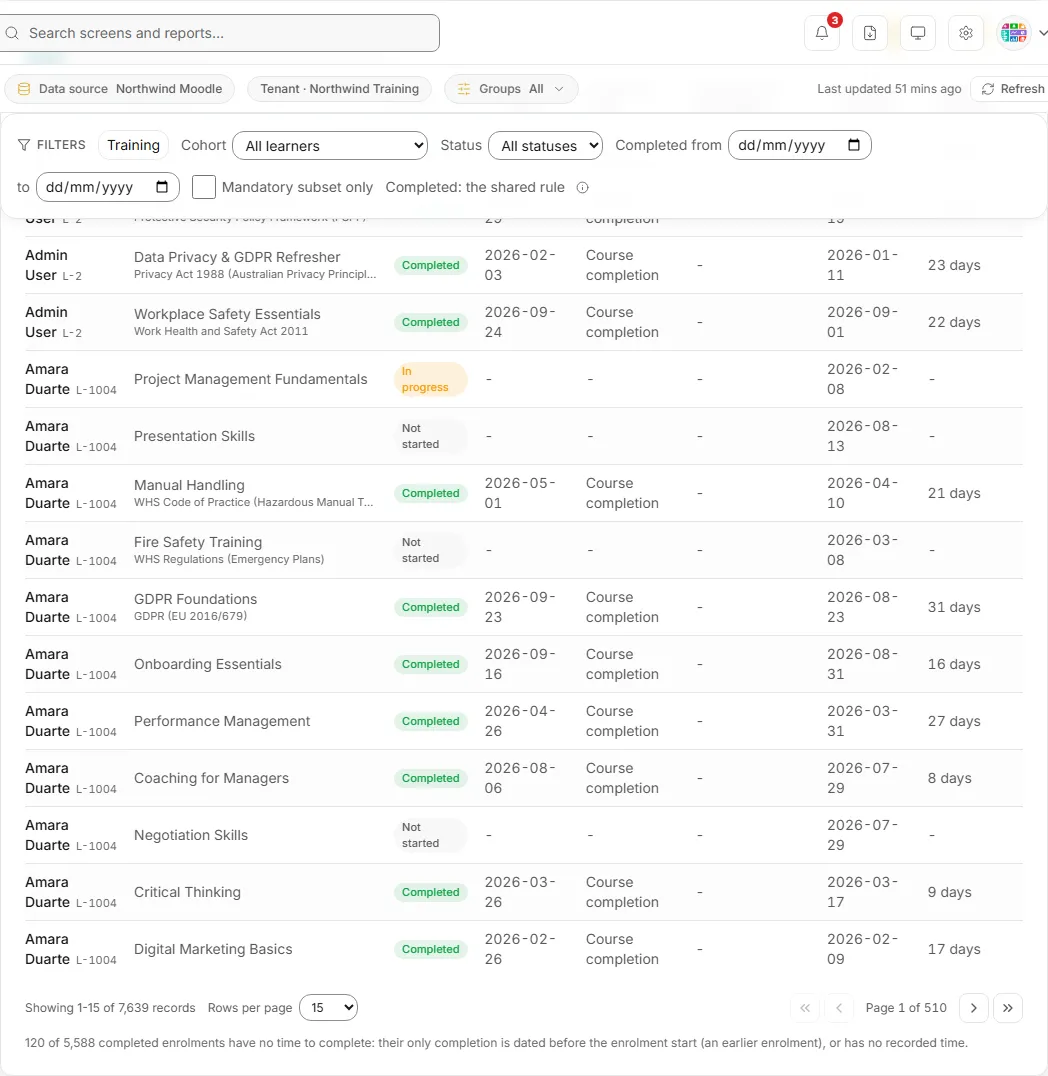
The complete audit record for the current scope: every learner and every enrolment, with completion status, the evidence it rests on, and exact dates.
- Columns:
- Learner.
- Training, with the framework label under it where your workspace has given the training one.
- Status: Completed, In progress, Started or Not started.
- Completion date, on the workspace clock. Hover it for the exact UTC time.
- Evidence type: Course completion, Module completion or Certificate, the basis on which Completed was determined.
- Certificate reference, the reference code recorded with the certificate.
- Assigned / enrolled, the enrolment date.
- Time to complete, in whole days.
- How status is worked out: Completed when the row meets the shared completion rule. In progress when at least one tracked activity is completed or passed (a failed one does not count) but the rule is not yet met. Started when the learner has any activity record (a failed attempt included) or a recorded course start but nothing completed or passed yet. Not started otherwise. These are the completion funnel’s stage words.
- How the dates are worked out: Completed on is the date of the record that evidences the row: the course completion record, else the last tracked activity finished, else the certificate issue. Time to complete is whole days from the enrolment start to the first completion at or after that start, the same rule as Time to completion, so it can be shorter than the completion date suggests. A completion dated only before the enrolment start, from an earlier enrolment, has no time to complete and shows a dash. A note under the table then says how many completed enrolments have no time to complete.
- What you can do: click a sortable header (Learner, Training, Status, Completion date, Assigned / enrolled, Time to complete) to sort ascending, again for descending, and a third time to return to the default sort by learner. Page with the first, previous, next and last page buttons and change the page size. Download the CSV, pin the table, Ask AI about it, or open the info text.
- Empty state: “No records match these filters.”
What is in the CSV evidence file?
Section titled “What is in the CSV evidence file?”The CSV button on the Audit table downloads regulatory-audit-evidence.csv. It is built for an auditor:
- It contains every row matching the current filters, not just the visible page.
- Rows are ordered by learner reference then training reference, so the same filters always produce an identical file.
- A preamble states the generation time, the connection, every applied filter, the full methodology, and a SHA-256 integrity checksum computed over the data rows, so a recipient can check the rows were not altered after export.
- The completion timestamp column in the export is in UTC.
- The export is computed fresh at the moment of download, not from the 15-minute cache.
The CSV button appears for roles with export rights (Admin and Manager by default). On a plan without CSV export it shows a padlock.
- Set the filters for the scope the auditor asked for, for example one training item and a completion window.
- Check the Methodology card states the scope you expect.
- Click the CSV button on the Audit table.
- Send the file. The recipient can recompute the SHA-256 checksum over the data rows to confirm nothing changed.
Methodology
Section titled “Methodology”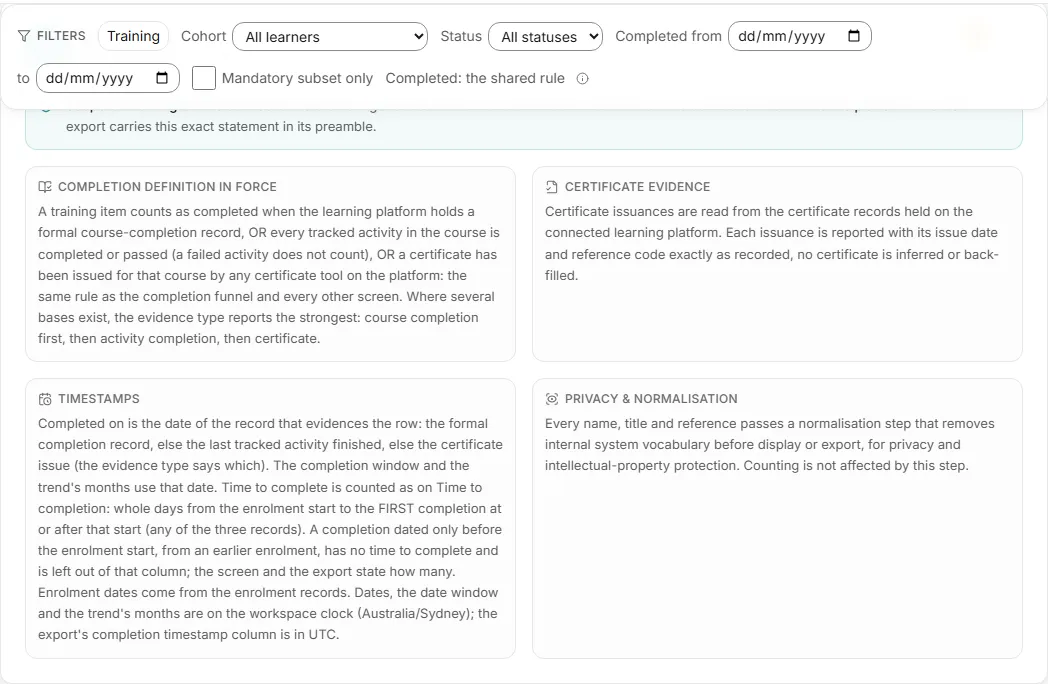
A plain-English statement of the counting rules behind the audit, generated from the same source as the CSV preamble, so the rules shown on screen and the rules written into exported evidence are always identical.
- What it shows: a scope line, either “Scope: all training on this connection.” or “Scope: designated regulatory subset (only training formally designated as mandatory or regulatory by this organisation).”, with the time the statement was generated and the connection name. Then four sections:
- Completion definition in force, the shared completion rule.
- Certificate evidence: certificate issuances are read from the certificate records on Moodle and reported with their issue date and reference code exactly as recorded; no certificate is inferred or back-filled.
- Timestamps: which date Completed on uses, how Time to complete is counted, and the workspace time zone the dates are shown in.
- Privacy & normalisation: every name, title and reference passes a normalisation step that removes internal system vocabulary before display or export. Counting is not affected.
- What you can do: Ask AI about it, or open the info text. This card cannot be pinned.
Compliance over time
Section titled “Compliance over time”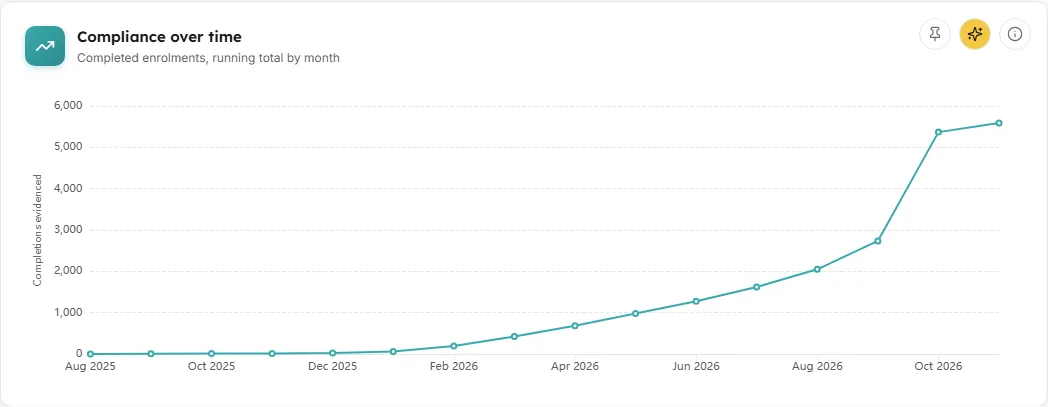
A cumulative line of evidenced completions month by month.
- How to read it: the line is the running total of completed enrolments. The lighter reading for each month is the completions evidenced in that month alone. A flattening line means completions have stalled; a step means a cohort completed together.
- How it is worked out: completed enrolments under the shared rule whose Completed on date falls within the selected window. Months run on the workspace clock, so a completion on the morning of the 1st counts in that month.
- What you can do: hover a month for its figures. Pin the chart, Ask AI about it, or open the info text.
- Empty state: “No evidenced completions fall inside the selected window.”
Filters and buttons
Section titled “Filters and buttons”- Training: a searchable multi-select of training items, each with its framework label where one exists. The button shows how many are picked, for example “Training (3)”. Type in Search training… to narrow the list.
- Cohort: “All learners” or one cohort, shown with its member count.
- Status: “All statuses”, Completed, In progress, Started or Not started.
- Completed from and to: the completion window.
- Mandatory subset only: appears only when your workspace has designated regulatory courses. Ticking it limits the audit to that designated set, and the Methodology scope line changes to say so.
- Completed: the shared rule: a label with an info button stating the completion rule. It is not a switch.
- Clear all: resets every filter. It appears once any filter is set.
Common questions
Section titled “Common questions”Why is there no Mandatory subset only checkbox?
Section titled “Why is there no Mandatory subset only checkbox?”No courses have been designated as regulatory for your workspace, so the audit covers all training on the connection. The Methodology card says “Scope: all training on this connection.”
Why does a completed row have no time to complete?
Section titled “Why does a completed row have no time to complete?”Its only completion is dated before the enrolment start, which means it came from an earlier enrolment, or it has no recorded time. The note under the table counts these rows.
Is the export the same as what I see?
Section titled “Is the export the same as what I see?”Yes, and more. It uses the same filters and the same methodology statement, but includes every matching row rather than one page, and it is computed fresh at download time.