

Multilingual Completion Analytics
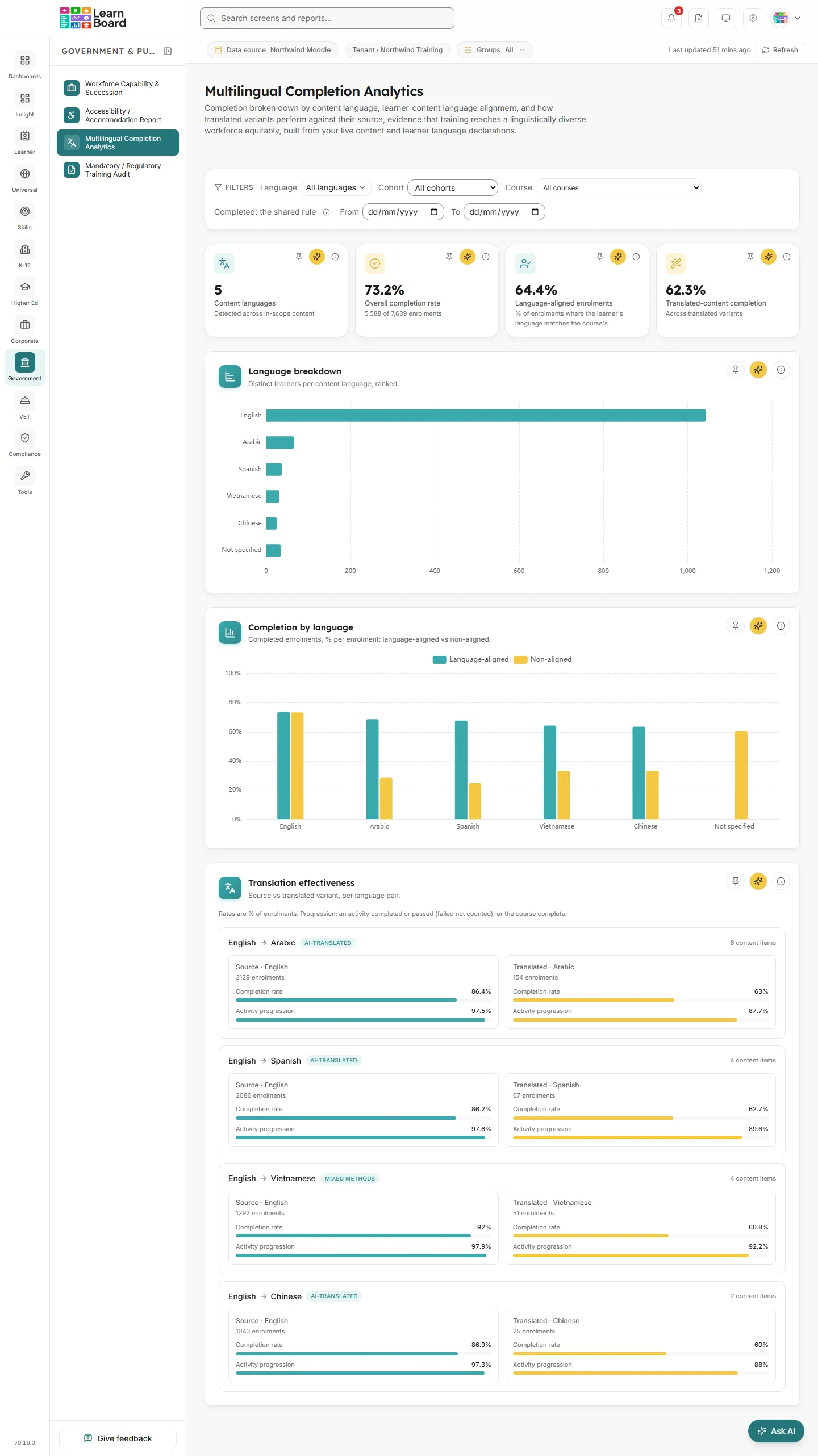
Multilingual Completion Analytics shows whether your training reaches a linguistically diverse workforce equitably. It is for public-sector training managers, diversity and inclusion leads and learning designers who need completion broken down by the language of each course, how often learners study in their own preferred language, and how translated versions of a course perform against the original.
Everything on this screen is built from your live Moodle courses and the languages learners and courses declare. Nothing is inferred or invented.
At a glance
Section titled “At a glance”- Route:
/gov/multilingual. In the sidebar: Government & Public Sector, then Multilingual Completion Analytics. - Who can open it: the Admin and Manager roles by default. The Team lead role does not include this screen. The Viewer role does not include the specialist sector screens by default, and the Learner role cannot open it.
- Plan: part of the Government & Public Sector pack. Without the pack the screen is greyed out with a lock in the sidebar and opens to a locked page.
- What it needs: a connected Moodle data source. For useful language figures, each Moodle course needs a declared language and learners need a preferred language on their Moodle profile.
- Filters: Language (multi-select), Cohort, Course, and a From and To completion window. Filters are kept in the page address.
- Exports: no CSV export on this screen.
Where the languages come from
Section titled “Where the languages come from”- Content language: the course’s declared language in Moodle (the course setting Force language). If a course has none, LearnBoard falls back to a course tag that names a language, such as
lang:fr,language:fr, a bare language code or a language name. If there is still nothing, the course is grouped as Not specified. - Learner language: the preferred language on the learner’s Moodle profile. If it is empty, the learner’s side is Not specified.
- Alignment: an enrolment is language-aligned when the learner’s language matches the course’s language, both reduced to their main language (so regional variants of one language match). Not specified on either side always counts as non-aligned.
- In Moodle, open a course’s settings.
- Set Force language to the course’s language. Alternatively, add a course tag with the language code, such as
lang:fr. - Repeat for each course.
- Make sure learners have a preferred language on their Moodle profile.
- Reload this screen once LearnBoard has refreshed its data.
How completion is counted
Section titled “How completion is counted”The screen uses the dashboard’s one completion rule: an enrolment is complete when a completion record exists, every completion-tracked activity shown in the course is done, or a certificate was issued. There is no second, stricter definition, and the filter bar says so with the label “Completed: the shared rule”. The optional From and To dates bound when the enrolment was first completed. See the definitions page for Enrolments and Completion rate.
The “no declared language” notice
Section titled “The “no declared language” notice”No course has a declared language yet
Section titled “No course has a declared language yet”A notice that appears above the tiles when every course on your connected Moodle site has its language left unset.
- What it says: every course has its language left unset, so all content falls into “Not specified” and learner-to-content alignment is 0%. That is the true reading, not a fault on this screen.
- What you can do: set the language on each course in Moodle (course settings, Force language), or tag courses with a language code. The notice goes away once at least one course declares a language.
Stat tiles
Section titled “Stat tiles”Four tiles sit across the top. Each has Pin to dashboard, Ask AI and an info button.
Content languages
Section titled “Content languages”
The number of distinct languages declared across the courses in scope.
- How to read it: a count of languages. Not specified is not counted as a language.
- How it is worked out: each course’s declared language, falling back to a language tag. With a cohort picked, the courses in scope are the courses that cohort’s groups sit in.
- What you can do: pin it, Ask AI about it, or open the info text.
Overall completion rate
Section titled “Overall completion rate”The completion rate across every language in scope.
- How to read it: a percentage, with a line such as “120 of 400 enrolments” underneath.
- How it is worked out: completions divided by enrolments across all languages in scope, using the shared completion rule. These are the same completed enrolments as the completion funnel.
- What you can do: pin it, Ask AI about it, or open the info text.
Language-aligned enrolments
Section titled “Language-aligned enrolments”How often learners are studying a course in their own preferred language.
- How to read it: a percentage of enrolments. 0% usually means course languages are not set (see the notice above).
- How it is worked out: the share of enrolments where the learner’s preferred language matches the course language, both normalised to their main language. Not specified on either side counts as non-aligned.
- What you can do: pin it, Ask AI about it, or open the info text.
Translated-content completion
Section titled “Translated-content completion”The completion rate across translated versions of your courses.
- How to read it: a percentage with the line “Across translated variants”. If no translated pairs are found, the tile reads “No translated content” with the line “No source→translated pairing detected”.
- How it is worked out: completion across translated course variants using the shared completion rule. Where no pairing exists, no figure is made up.
- What you can do: pin it, Ask AI about it, or open the info text.
Charts
Section titled “Charts”Language breakdown
Section titled “Language breakdown”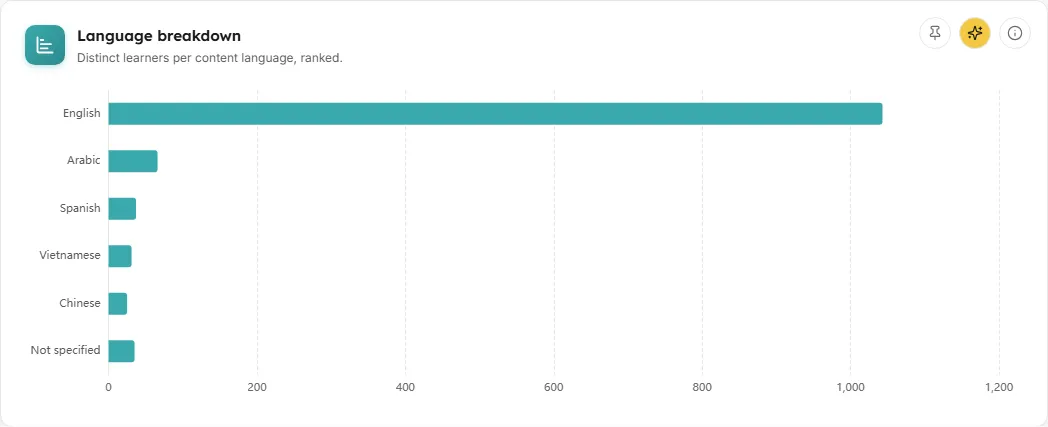
A ranked bar chart of how many learners study in each course language.
- How to read it: one bar per content language, longest first. Hover a bar for its learners, enrolments and completion rate. A site with one language shows one bar.
- How it is worked out: distinct learners enrolled in courses declared in that language. Courses with no declared language form the Not specified bar.
- What you can do: pin the chart, Ask AI about it, or open the info text.
- Empty state: “No enrolments in scope. No enrolments match the current filters. Widen the language, cohort or date selection to see the breakdown.”
Completion by language
Section titled “Completion by language”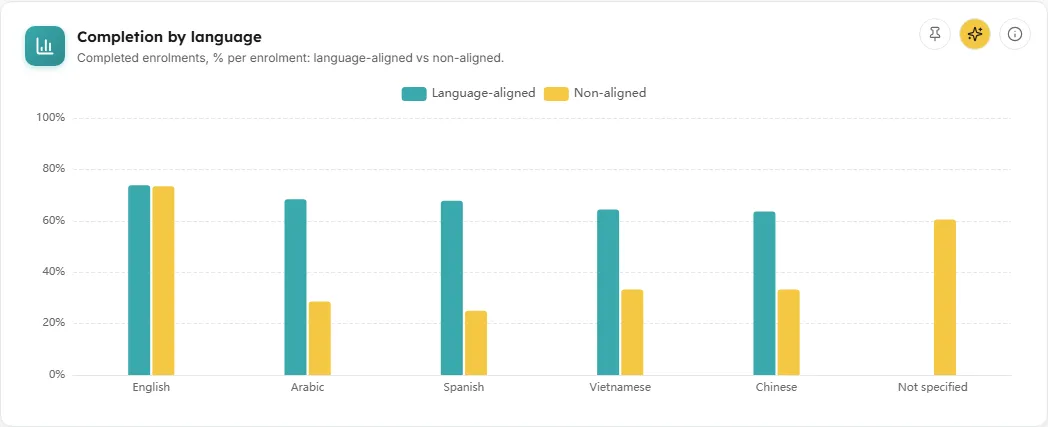
Paired bars comparing completion for language-aligned and non-aligned enrolments in each course language.
- How to read it: each language has a Language-aligned bar and a Non-aligned bar on a 0 to 100% scale. Hover for “N% of N enrolments”. Where a language has only one of the two groups, the missing bar is left out rather than shown as zero.
- How it is worked out: for each content language, completed enrolments divided by enrolments for aligned and non-aligned enrolments separately. Rates are normalised to 0 to 100 so languages of very different sizes stay comparable.
- What you can do: pin the chart, Ask AI about it, or open the info text. A clear gap between the two bars suggests learners do better, or worse, when the course is in their own language.
- Empty state: “No enrolments in scope. No enrolments match the current filters, so there is nothing to compare yet.”
Translation effectiveness
Section titled “Translation effectiveness”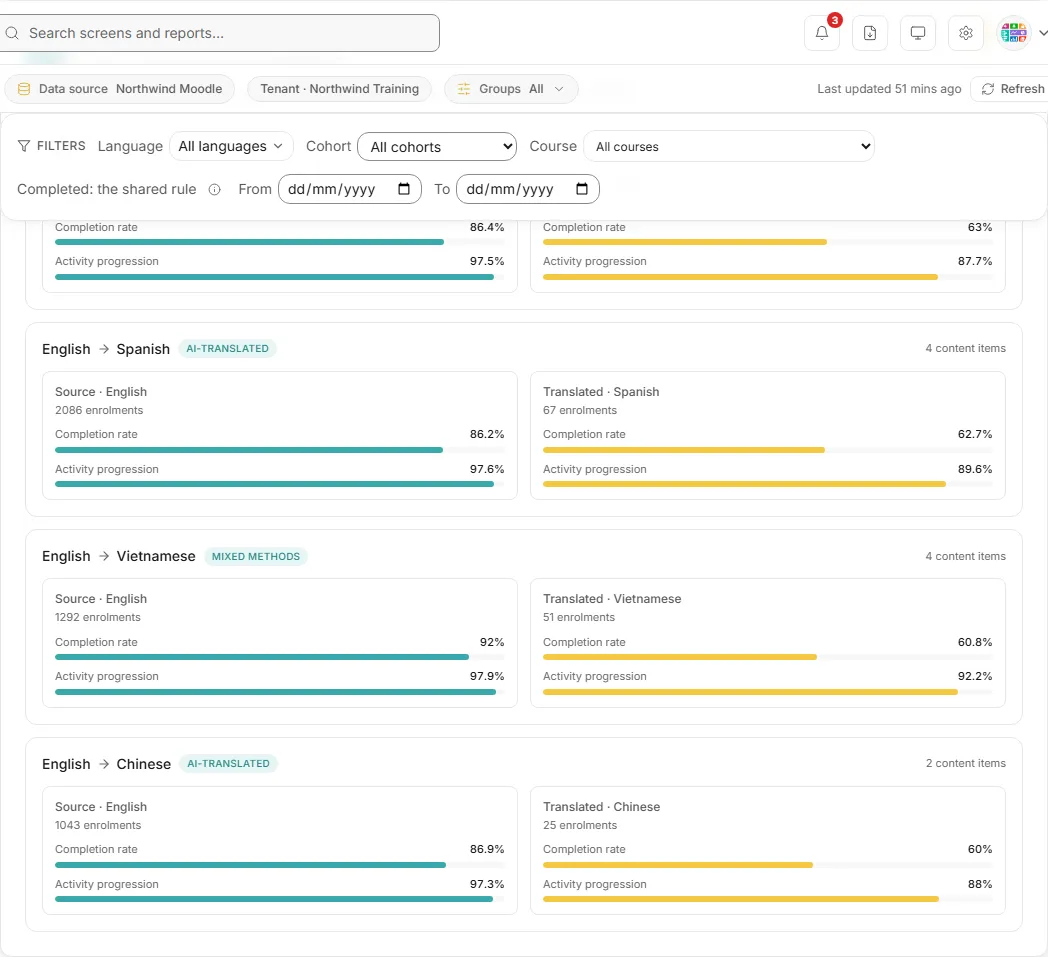
A side-by-side comparison of the original course against its translated version, per language pair.
- How to read it: each pair shows the source and translated language, an optional method badge (AI-translated, Human-translated or Mixed methods), the number of content items, and two panels, Source and Translated. Each panel shows its enrolments, Completion rate and Activity progression, both as % of enrolments.
- How it is worked out: activity progression is the share of enrolments where the learner completed or passed at least one activity, or completed the course. A failed activity, one hidden in the course or being deleted, or one with completion tracking switched off does not count. Pairs come from your configured translation links where present. Otherwise LearnBoard pairs courses that share the same short name stem but declare different languages, and the card says “Estimated pairing” so you treat the figures as an estimate.
- What you can do: pin the card, Ask AI about it, or open the info text. This card follows the Cohort, Course and date filters.
- Empty state: “No translated content variants detected.” The language breakdown and completion comparison above still reflect your live content.
Filters and buttons
Section titled “Filters and buttons”- Language: a multi-select of the content languages found, each with its course count. “All languages” by default. Clear selection resets it.
- Cohort: “All cohorts” or one cohort.
- Course: one course or all courses.
- Completed: the shared rule: a label with an info button explaining the completion rule. It is not a switch.
- From and To: a completion window. Only completions first recorded inside the window count.
Common questions
Section titled “Common questions”Why is everything under “Not specified”?
Section titled “Why is everything under “Not specified”?”Your Moodle courses do not declare a language. LearnBoard reads the course language setting and language tags, and it never guesses. Set Force language on each course, or tag courses with a language code.
Why is language alignment 0%?
Section titled “Why is language alignment 0%?”Either course languages or learner preferred languages are not set. Not specified on either side counts as non-aligned, so a site with no course languages always reads 0%.
Where do translation pairs come from?
Section titled “Where do translation pairs come from?”From translation links configured for your workspace where present. Without them, LearnBoard matches courses that share a short name stem but declare different languages, and labels the result as an estimate.