

Users and invitations
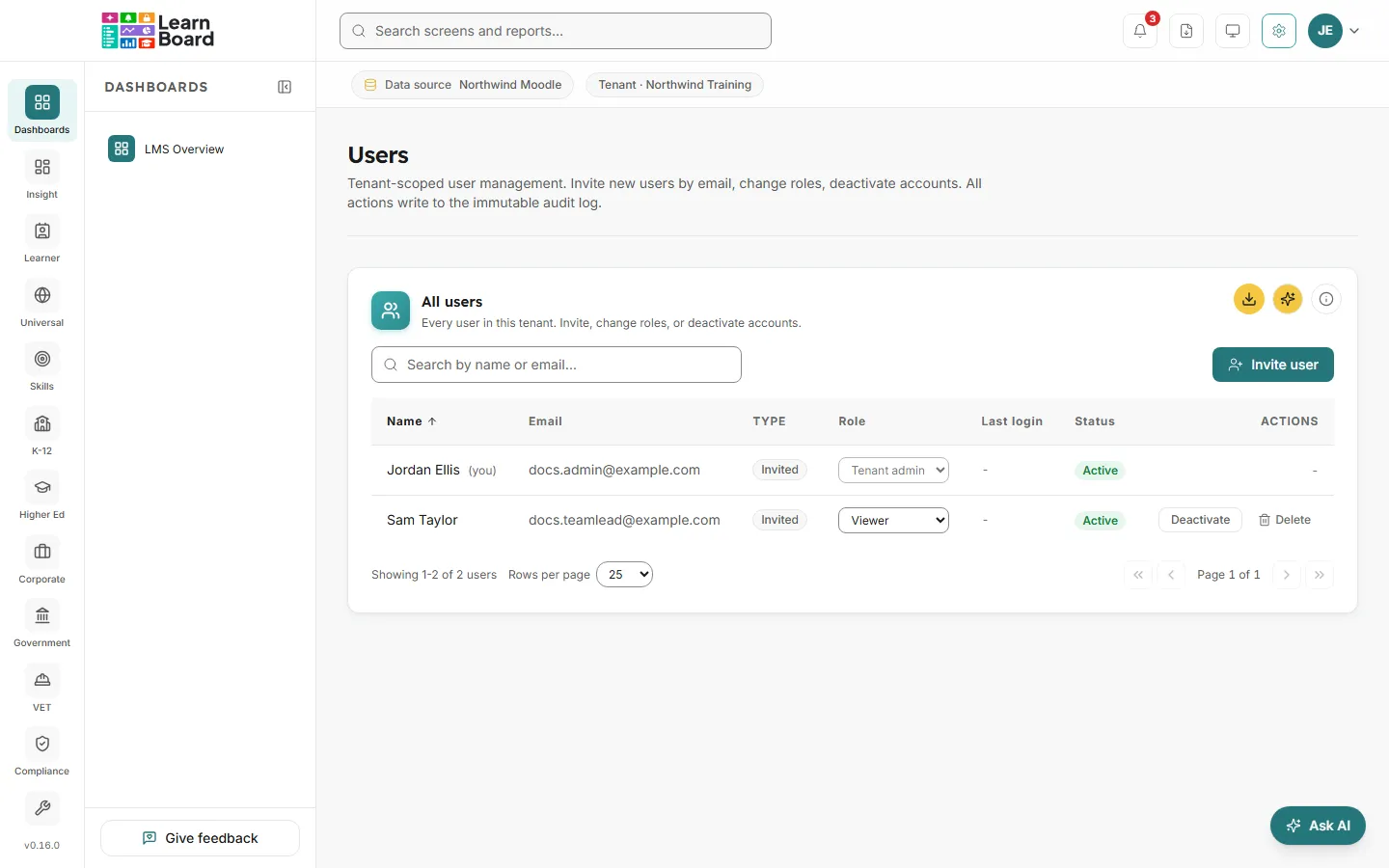
Users is where a workspace administrator manages the people in their workspace: inviting colleagues by email, choosing each person’s role, and switching accounts off. Every change is written to the audit log.
At a glance
- Who can open it: the Admin role. Each action has its own permission: List users (
manage.users.view), Invite users (manage.users.invite), Assign / unassign user roles (manage.users.role_assign), Deactivate / reactivate users (manage.users.deactivate) and Delete user accounts permanently (manage.users.delete). - Where: Admin console, Users, at
/admin/users. - Invitations are emailed as a single-use link that expires after 7 days.
- Viewer and Learner accounts are free. Every other role uses a seat from your plan.
Invite someone
Section titled “Invite someone”-
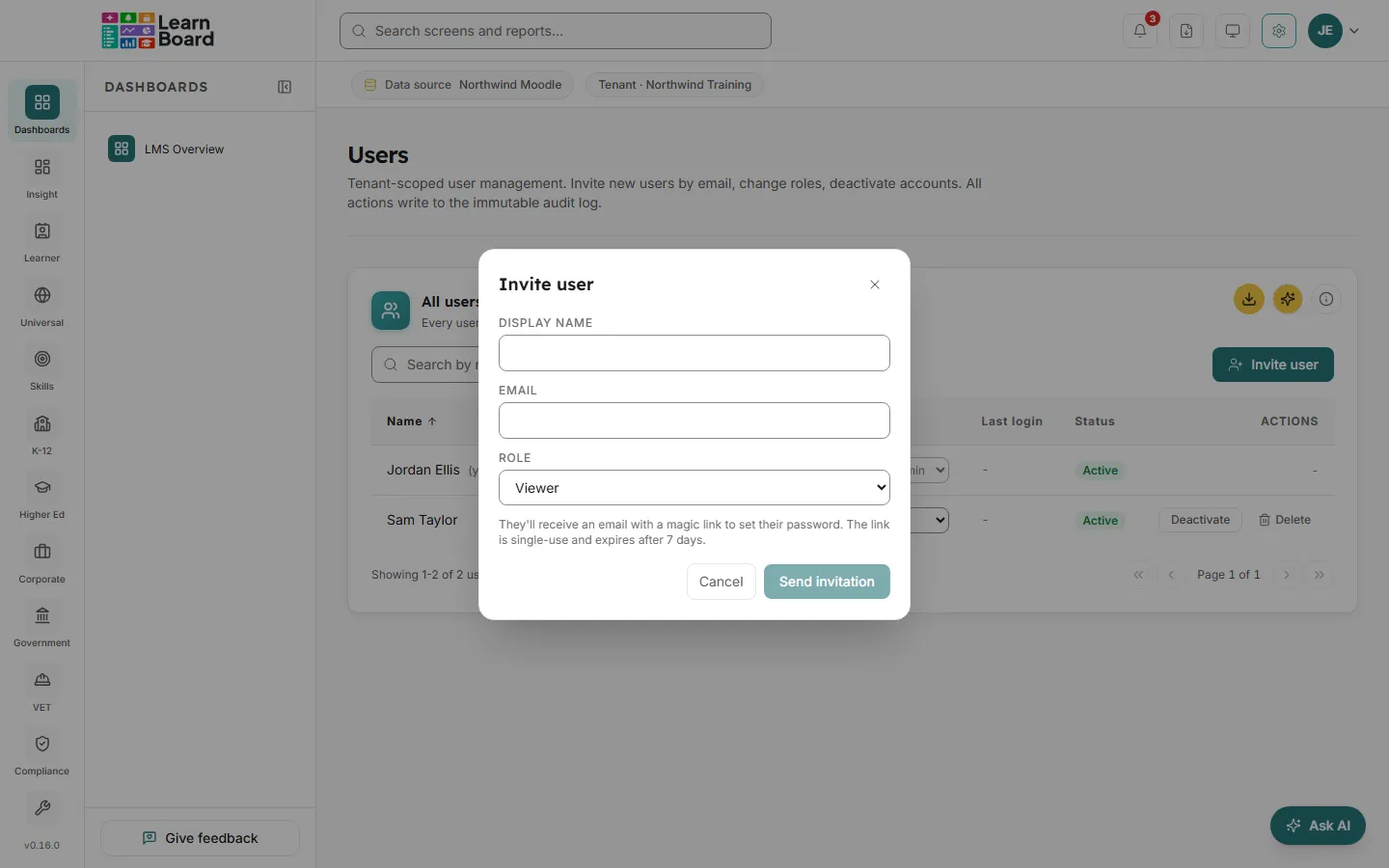
On Users, press Invite user.
-
Fill in the dialog.
Field What to enter Display name The person’s name as it should appear in LearnBoard. Email The address the invitation goes to. They will sign in with it. Role What they can see and do. Viewer is chosen to start with. See Roles and permissions. -
Press Send invitation. LearnBoard says “Invitation sent to” the address.
-
The person opens the link in the email, sees which workspace and role they were invited to, and sets a password: at least 12 characters, with upper and lower case letters, a number and a symbol. They then land on the dashboard.
Why was an invitation refused?
Section titled “Why was an invitation refused?”- Out of seats. Inviting a role that uses a seat when your plan’s seats are all taken is refused, with See plans to go to Your subscription. Pending invitations hold a seat until they are accepted, withdrawn or expire.
- A pending invitation already exists for that address. Resend or withdraw it instead.
- The address belongs to another workspace. One email address can have one LearnBoard account. The person sees “already has a LearnBoard account in another workspace” when accepting, and can accept with a different address instead.
Pending invitations
Section titled “Pending invitations”Shown above the user table while any invitation is waiting, with a count. Each row gives the name, email, role and expiry date.
- What you can do: Resend sends the email again. Withdraw cancels the invitation and frees the seat it held: “Withdrew the invitation to” the address. “The seat it held is free again.”
All users
Section titled “All users”Every user in this workspace, with their role, last sign-in and status.
- How to read it: columns are Name, Email, Type, Role, Last login, Status and Actions. Your own row says “(you)” and cannot be changed from here.
- Type says what kind of account a row is: Signed up (created the workspace), Invited (added by an administrator), From Moodle (created on first sign-in from Moodle) or Service account (used by the Moodle plugin to show charts, not a person).
- Status is Active or Deactivated. Email not confirmed means the person has not confirmed their address yet, so they cannot sign in.
- What you can do: search by name or email, sort by Name, Email, Role, Last login or Status, page through 25, 50 or 100 at a time, download the table as CSV, and use the row actions below.
Change someone’s role
Section titled “Change someone’s role”- Choose a new role in the person’s Role dropdown.
- Confirm in Change role?, which says the change is logged to the audit trail. Press Change role.
You cannot change your own role, or the role of a deactivated account. A Team lead shows as “Team lead” with the number of courses they lead instead of a dropdown, because that role is set from Moodle each time they sign in. See People who sign in from Moodle.
Deactivate, reactivate or delete
Section titled “Deactivate, reactivate or delete”| Action | What happens |
|---|---|
| Deactivate | The person can no longer sign in and all their active sessions end at once. Their name stays against everything they did. You can undo it. |
| Reactivate | Shown on a deactivated account. Lets them sign in again. |
| Delete | Removes the account permanently: their sign-in, API tokens, saved dashboards (including any they shared with the workspace, which colleagues lose) and AI conversations. This cannot be undone. Needs Delete user accounts permanently. |
If the person you delete has sent invitations that nobody has accepted yet, LearnBoard asks a second time, naming how many will be cancelled: Delete and cancel the invitations, or cancel.