

Resource / Library Access Analytics
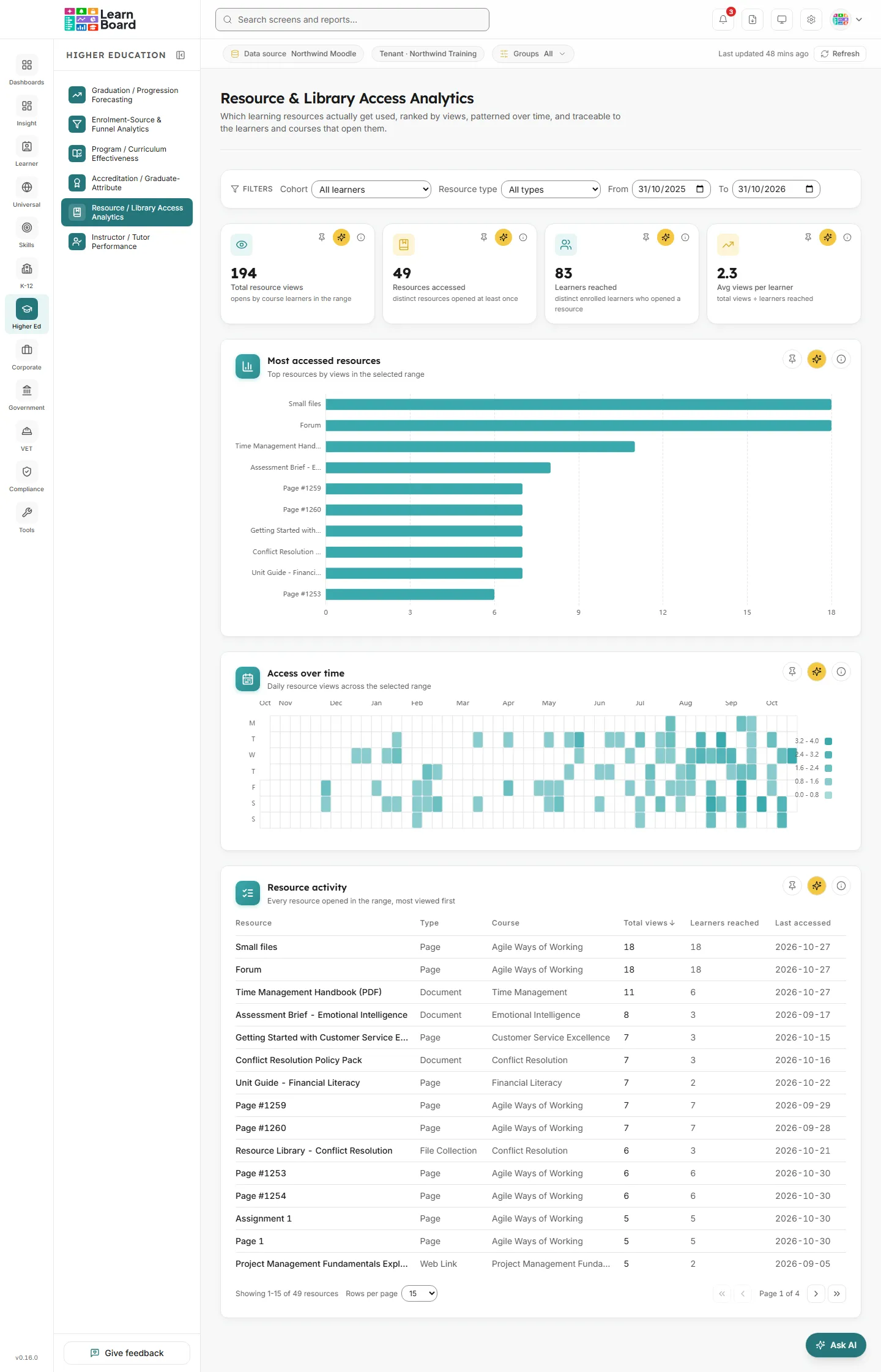
The Resource & Library Access Analytics screen shows which learning resources in your Moodle courses actually get used: ranked by views, patterned day by day, and traceable to the learners and courses that open them. Course teams, librarians and learning designers use it to see which documents, links, books and pages earn their place, and which nobody opens.
At a glance
Section titled “At a glance”- Route:
/he/library-access. In the sidebar it sits under Higher Education as Resource / Library Access Analytics. - Who can open it: the Admin and Manager roles by default. The Viewer role does not get it by default, because the sector screens are granted to Viewers deliberately. The Team lead role includes this screen, and every figure a Team lead sees is limited to the learners in their own Moodle groups. A Learner never sees it: opening the link sends them to their home page with the notice “You don’t have access to that screen”. See roles and permissions.
- Plan: part of the Higher Education sector pack. If your plan does not include the pack, the page shows “Library Access is locked” with an upgrade prompt instead of the screen.
- Filters: Cohort, Resource type, From and To. The default range is the last 12 months ending today. Every filter, sort and page choice is kept in the page address, so a refreshed or shared link opens the same view.
- Data it needs: nothing to set up. The screen reads the resource-view events in Moodle’s standard activity log, so it fills in on any connected Moodle site where learners have opened resources. If your Moodle site does not keep its standard log, the screen has nothing to count.
What counts as a view
Section titled “What counts as a view”Every card on this screen counts the same thing, so the calendar and the table add up to the Total resource views tile.
- A view is one recorded open of a learning resource by a learner of that resource’s course: someone with an active learner enrolment in the course. See definitions.
- Admins, teachers and other staff, suspended or deleted accounts, and courses hidden from analytics are left out. System and automated activity is left out too.
- Repeat opens by the same learner all count. A learner who opens a reading five times adds five views but is one learner reached.
- Learning resources are the Moodle resource activities, shown under plain-English types: Document, Web Link, Interactive Book, Page, File Collection and Learning Resource. Quizzes, assignments, forums and other activities are not resources and are not counted here.
Filters
Section titled “Filters”The filter bar is labelled Filters and stays at the top of the page as you scroll.
- Cohort: All learners, or one cohort. Cohorts are your Moodle groups, listed with their member count, grouped the way your workspace matches groups. Choosing one keeps only views by that cohort’s members.
- Resource type: All types, or one of Document, Web Link, Interactive Book, Page, File Collection or Learning Resource.
- From and To: the start and end dates of the range. Days run midnight to midnight on your workspace’s clock. The longest range the screen reads is 400 days; a longer range is shortened from the start.
- Clear all: appears once you change any filter, and puts the cohort, type and the default 12-month range back.
Changing a filter takes the resource table back to its first page. Every card on the screen, and the drawer, follows the same filters.
KPI strip
Section titled “KPI strip”Four tiles sit under the filter bar. Each has a Pin to dashboard button, an Ask AI about this button and an info button that explains the count. See Ask AI and pinning.
Total resource views
Section titled “Total resource views”
Every recorded open of a learning resource by a learner of its course in the selected range.
- How to read it: a count of views, not of learners. Repeat opens all count.
- How it is worked out: resource-view events in the range, by learners with an active learner enrolment in the resource’s course. Staff, suspended accounts and courses hidden from analytics are left out.
- What you can do: read the info text, Ask AI, or pin the tile.
Resources accessed
Section titled “Resources accessed”How many different learning resources were opened at least once in the range.
- How to read it: a count of resources. Compare it with how many resources your courses hold to see how much of the material is touched at all.
- How it is worked out: distinct resources with at least one view by a learner in the range.
- What you can do: read the info text, Ask AI, or pin the tile.
Learners reached
Section titled “Learners reached”How many different learners opened at least one resource in the range.
- How to read it: a count of learners. Each person counts once, however many resources they opened.
- How it is worked out: distinct learners who opened at least one resource in a course where they hold an active learner enrolment. Admins, teachers, other staff, suspended accounts and courses hidden from analytics are not counted.
- What you can do: read the info text, Ask AI, or pin the tile.
Avg views per learner
Section titled “Avg views per learner”How often, on average, each learner who used resources opened one.
- How to read it: a figure with one decimal place. It shows a hyphen when no learner was reached, because there is nothing to average; that is not the same as an average of zero.
- How it is worked out: Total resource views divided by Learners reached, both counting course learners only, so staff views never raise the average.
- What you can do: read the info text, Ask AI, or pin the tile.
Most accessed resources
Section titled “Most accessed resources”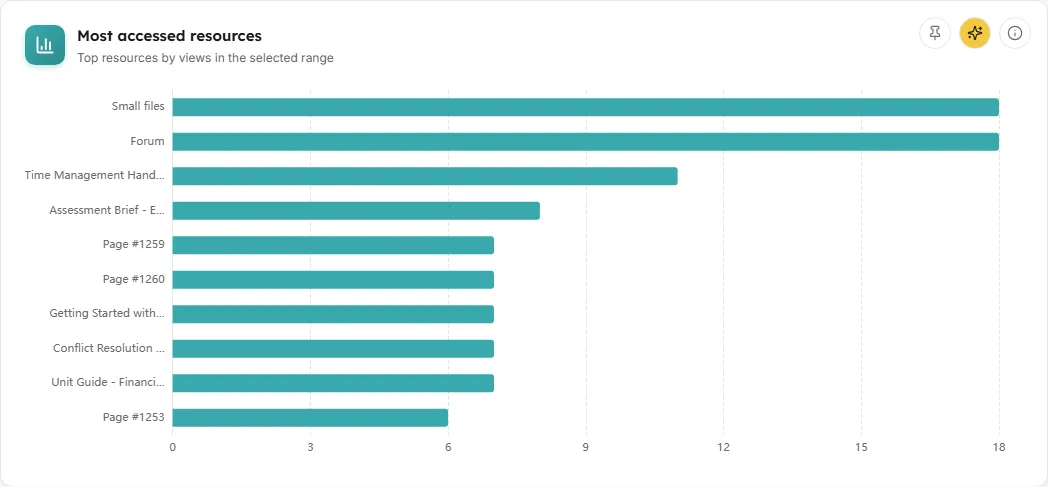
A horizontal bar chart of the ten most viewed resources, most viewed at the top.
- How to read it: each bar is one resource, its length the number of views. Labels are shortened to fit; hover a bar for the full name, its type and course, and its views and learners.
- How it is worked out: resources ranked by total views in the selected range and scope, using the view rule above.
- What you can do: click a bar to open that resource’s detail drawer. Read the info text, Ask AI, or pin the chart to a dashboard; the pinned copy keeps your cohort, type and range.
- Empty state: “No resource activity recorded in this period” when no learner opened a resource in the range and scope. Try a wider date range, clearing the resource type, or another cohort.
Access over time
Section titled “Access over time”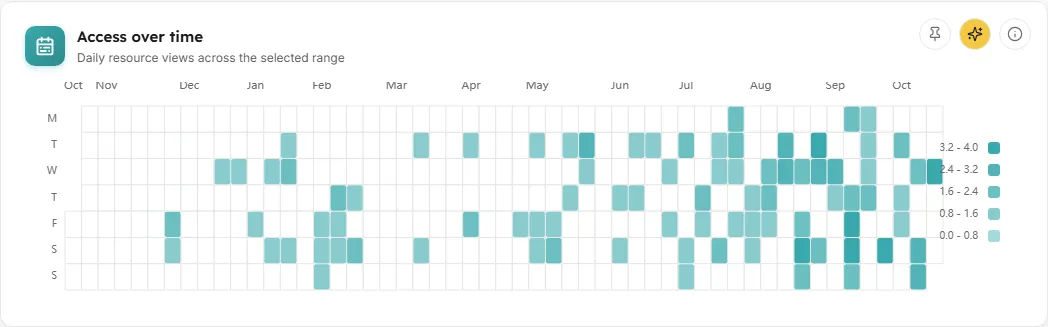
A calendar heatmap with one cell per day across the selected range, a year at a glance with the default range.
- How to read it: the darker the cell, the more resource views that day. Weeks start on Monday. The colour scale is set so typical active days spread across the shades and the busiest days share the darkest one; the tooltip always gives the true count. Hover a day for the date and weekday, its resource views, and how many distinct learners opened resources that day.
- How it is worked out: each day’s total views across every resource in scope. Days run midnight to midnight on your workspace’s clock; the info text names the time zone.
- What you can do: spot term rhythms, assessment peaks and quiet weeks. Read the info text, Ask AI, or pin the chart.
- Empty state: “No resource activity recorded in this period” when no day in the range has a view.
Resource activity
Section titled “Resource activity”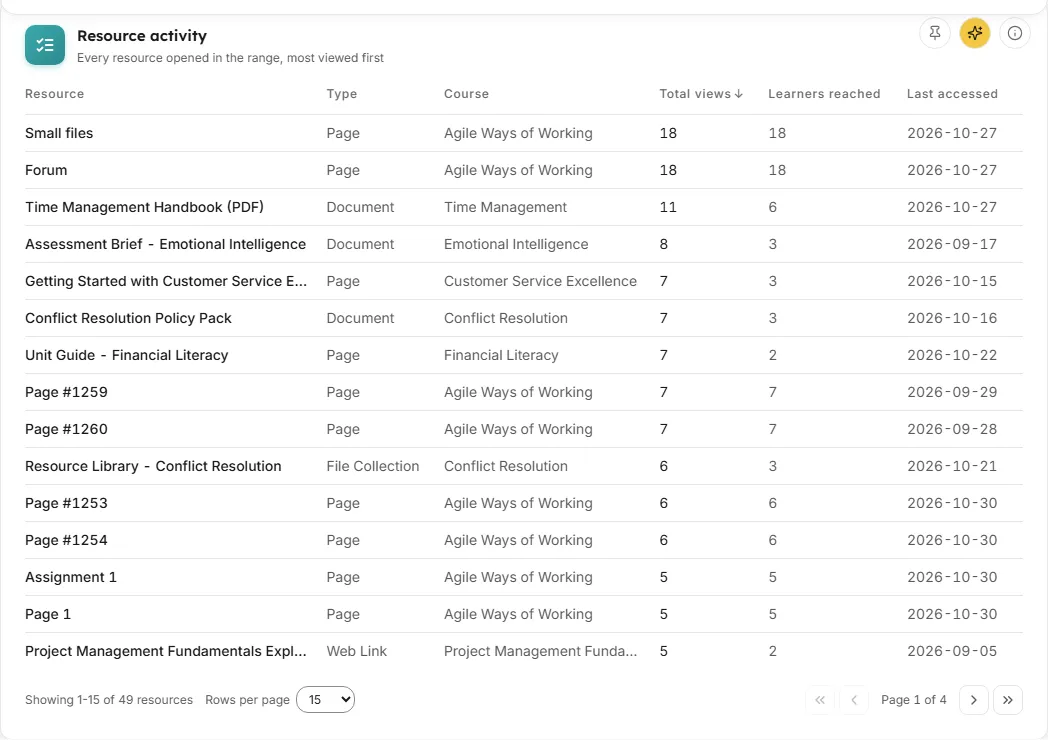
A table with one row for every resource opened in the selected range.
- Columns: Resource, Type, Course, Total views, Learners reached and Last accessed (the date of the most recent open).
- Sorting: click any column heading to sort by it; click again to reverse. Total views, Learners reached and Last accessed sort largest first when you pick them; Resource, Type and Course sort A to Z. The default is most viewed first.
- Paging: “Showing a-b of N resources”, a rows-per-page choice of 15, 50 or 100, and First, Previous, Next and Last page buttons.
- How it is worked out: the same views as the tiles, grouped by resource, with distinct learners and the latest open date for each.
- What you can do: click a row, or press Enter on it, to open the resource’s detail drawer. Read the info text, Ask AI, or pin the table; the pinned copy keeps the filters, sort and page size.
- Empty state: “No resources were opened in this range or scope.”
Resource access detail drawer
Section titled “Resource access detail drawer”Resource access detail
Section titled “Resource access detail”A side panel for one resource, opened from a bar in Most accessed resources or a row in Resource activity. It follows the same filters as the page.
- Header: the resource name, its type and its course.
- Three figures: Views, Learners and Last access for this resource in the range.
- Access over time: a line of daily views for this one resource. “No opens recorded for this resource in the selected range.” when there are none.
- Top accessing learners: up to eight learners who opened it most, with their view counts. “No learner opens in the selected range.” when there are none.
- Access by course: shown only when the views of the same resource are recorded against more than one course, with views and learners per course.
- Closing it: the close button, a click on the shaded background, or the Escape key.
Common questions
Section titled “Common questions”Why are my own views as a teacher not counted?
Section titled “Why are my own views as a teacher not counted?”Only learners of the resource’s course count. Admins, teachers and other staff are left out on purpose, so staff checking their own materials never inflate the figures.
Why do the calendar and the table add up to the same number?
Section titled “Why do the calendar and the table add up to the same number?”Every card counts the same views under the same rule, so the daily cells, the table rows and the Total resource views tile all agree for the same filters.
Why is a resource missing from the table?
Section titled “Why is a resource missing from the table?”The table lists only resources opened at least once in the range and scope. A resource nobody opened does not appear. Also check that its course is not hidden from analytics and that it is one of the resource types listed above.
Does a Team lead see the whole workspace?
Section titled “Does a Team lead see the whole workspace?”No. A Team lead sees only views by the learners in their own Moodle groups, on every card and in the drawer.
How fresh are the figures?
Section titled “How fresh are the figures?”Resource-access figures are cached for up to an hour.