

Behaviour / Incident Correlation
The Behaviour / Incident Correlation screen cross-references behaviour and incident records against academic performance. It shows who carries both a behaviour load and an academic decline, when incidents cluster, and whether the two track together across the cohort. It is for pastoral leads, deputy principals and year coordinators.
It is the depth companion to ABC Early-Warning: it reads the same behaviour records and counts incidents exactly the same way, so the two screens never disagree about a student.
At a glance
Section titled “At a glance”- Route:
/k12/behaviour-correlation. In the sidebar it sits under K-12 as Behaviour / Incident Correlation, the same as the page header. - Who can open it: the Admin and Manager roles by default. The Viewer role does not get it by default, because the specialist modules are held back from Viewer. Roles are managed for the whole LearnBoard installation, not from your workspace admin screens. The Learner role never sees it.
- Team leads: can open it. Every figure, dot, day and row is limited to the learners in their own Moodle groups.
- Plan: part of the K-12 pack. On the standard plans, Business includes one sector pack of your choice, and Scale and Enterprise include K-12. Without the pack the screen shows “Part of the K-12 pack, not included in your current plan.”
- Filters: Cohort, From, To and Academic axis.
- Data it needs: behaviour incident records for your workspace (date, type, severity and an optional note), plus Moodle course-total grades and completions for the academic side. Without behaviour records every card shows its “awaiting” state.
- Who is counted: learners, people with an active student enrolment, each on their own enrolments only. Teachers are never plotted, and incidents recorded against anyone who is not a learner are left out.
- Freshness: results are kept for an hour.
Why does every card say “Awaiting behaviour data”?
Section titled “Why does every card say “Awaiting behaviour data”?”This screen needs behaviour records, and until your workspace has some, each card shows: “No behaviour or incident data is connected yet. This view activates once behaviour records are added for this organisation, the entry screen for behaviour records is coming in a follow-up release.”
In place of the tiles you see a card titled Behaviour & incident data with “No behaviour or incident data yet”. This is the expected starting state, not an error, and nothing is made up to fill the space.
Filters
Section titled “Filters”The bar at the top of the screen stays in view as you scroll. Every choice is kept in the page address.
- Cohort: “All learners” or one cohort, each shown with its member count. Cohorts are your Moodle groups, grouped by name or kept separate according to your workspace’s reporting configuration.
- From and To: the date range. The default is the last 90 days ending today. A range longer than 400 days is cut to the 400 days ending on the To date.
- Academic axis: Grade % (the default) or Completion %.
- Grade % is each learner’s average overall course grade, as a percentage, across their enrolments.
- Completion % is the share of their enrolments completed. A course counts as complete when it has a completion record, every tracked activity shown in the course is done, or a certificate was issued in it.
- If no learner in scope has a grade yet, the axis switches to Completion % on its own.
- The info icon beside it explains both.
- Clear all: resets cohort, date range and axis.
How the four groups are worked out
Section titled “How the four groups are worked out”Every learner with a score on the chosen axis falls into one of four concern bands, set by two lines:
- Performance line: 50% (the pass mark) on the Grade % axis, or the cohort median on the Completion % axis.
- Incident line: the upper-quartile incident count among learners with incidents (rounded up, at least 1). When nobody has an incident, it falls back to 2, the ABC behaviour flag.
| Band | Academic score | Incidents |
|---|---|---|
| High concern | below the performance line | at or above the incident line |
| Behaviour watch | at or above the performance line | at or above the incident line |
| Academic watch | below the performance line | below the incident line |
| On track | at or above the performance line | below the incident line |
A learner with no score on the chosen axis has no band and is not plotted. There is no control on this screen to move the two lines.
Severity is weighted minor = 1, moderate = 2, major = 3. Weighting only sizes the dots and ranks the table. Incident counts, the correlation and both lines count each incident once.
Stat tiles
Section titled “Stat tiles”Each tile has an info icon with its “How we count” text, Ask AI, and Pin to dashboard.
Students with incidents
Section titled “Students with incidents”
Learners in the current scope with at least one recorded behaviour incident in the date range.
Total incidents
Section titled “Total incidents”Every behaviour incident recorded in the date range for the learners in scope.
- How it is worked out: each record counts once regardless of severity, the same rule as the ABC Early-Warning behaviour indicator. The days of the Incident timeline add up to this figure.
High-concern students
Section titled “High-concern students”Learners below the performance line and at or above the incident line.
- How to read it: the number turns red when it is above zero. It always equals the High concern (top-left) quadrant of the scatter below.
Behaviour-performance link
Section titled “Behaviour-performance link”A plain-words summary of whether incident load and academic score move together across the cohort.
- How to read it: the tile reads “Strong”, “Moderate” or “Weak” followed by “inverse link” or “direct link”, or “No clear link”, or “Not enough data”. The line under it says what that means:
- inverse: “more incidents track with lower performance”
- direct: “more incidents track with higher performance”
- no clear link: “incident load does not track performance”
- not enough data: “needs 12+ students with incidents and a score”
- How it is worked out: a rank (Spearman) correlation between each learner’s incident count and their academic score, across every learner with a score (learners with no incidents anchor the baseline). Rank correlation is used because incident counts are heavily skewed. Strong is 0.6 or more either way, moderate 0.4 or more, weak 0.2 or more, and anything smaller is no clear link. Below 12 learners with both an incident and a score, the result is withheld.
- Association, not cause: a link between behaviour and performance does not tell you which drives which.
Charts
Section titled “Charts”Behaviour vs academic performance
Section titled “Behaviour vs academic performance”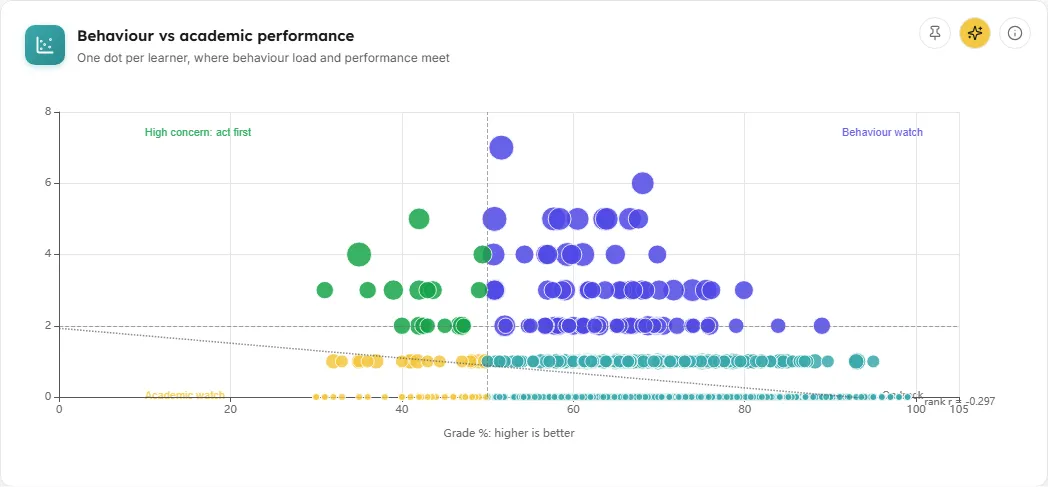
A scatter chart with one dot per learner: academic score across, incidents in the range up.
- How to read it:
- The horizontal axis is labelled with the chosen axis and “higher is better”, for example “Grade %: higher is better”. The vertical axis is “Incidents in range”.
- Dot size grows with the learner’s total incident severity, so a few serious incidents still read large. Colour is the concern band.
- Dashed lines mark the performance and incident lines, and each quadrant is labelled: “High concern: act first” (top-left), “Behaviour watch” (top-right), “Academic watch” (bottom-left) and “On track” (bottom-right).
- When the correlation is published (12 or more learners), a dotted trend line shows its direction, labelled with the rank coefficient, for example “rank r = -0.42”. It shows the direction of association only; it is not a prediction and never implies cause.
- Hover a dot for the learner’s score, incidents, severity total, band and last incident date.
- Large sites: above 2,000 learners a note under the chart says how many are drawn, for example “Showing 2,000 of 5,000 learners as dots: every learner with an incident, then an even spread of the rest. The link and the thresholds use all of them.” When more learners have incidents than can be drawn, the dots are those with the heaviest incident load (highest severity total, then most incidents), and the note says so.
- What you can do: click a dot to highlight that learner and open their behaviour detail. Ask AI, pin the chart, or read the info icon.
- Empty states: “Awaiting behaviour data” without records, or “No learners in this scope. Adjust the cohort or date-range filters to see learners.”
Incident timeline
Section titled “Incident timeline”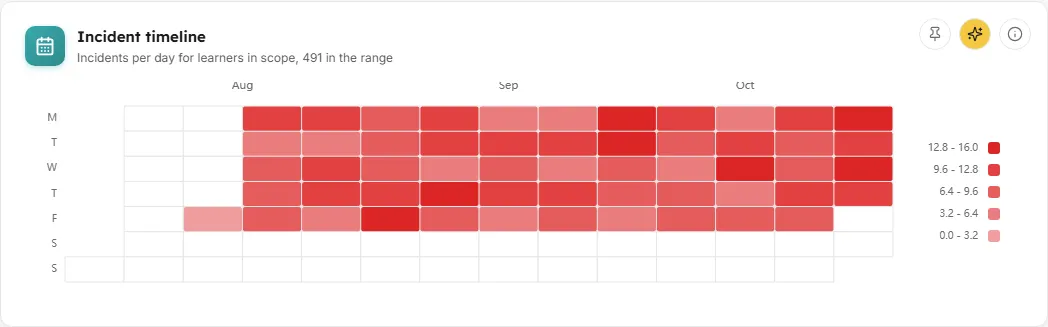
A calendar with one cell per day, coloured by the number of behaviour incidents recorded that day.
- How to read it: darker cells mean more incidents. Clusters reveal patterns such as spikes before a break or a difficult week. Weeks start on Monday, and months are labelled along the top.
- Hover a day for the date and weekday, the number of incidents, and the severity-weighted total.
- How it is worked out: the same incidents as the Total incidents tile, so the days add up to it. The subtitle gives the total in the range.
- What you can do: Ask AI, pin the chart, or read the info icon.
- Empty states: “Awaiting behaviour data” without records, or “No incidents in this range. No incidents were recorded inside the selected date range.”
Affected students
Section titled “Affected students”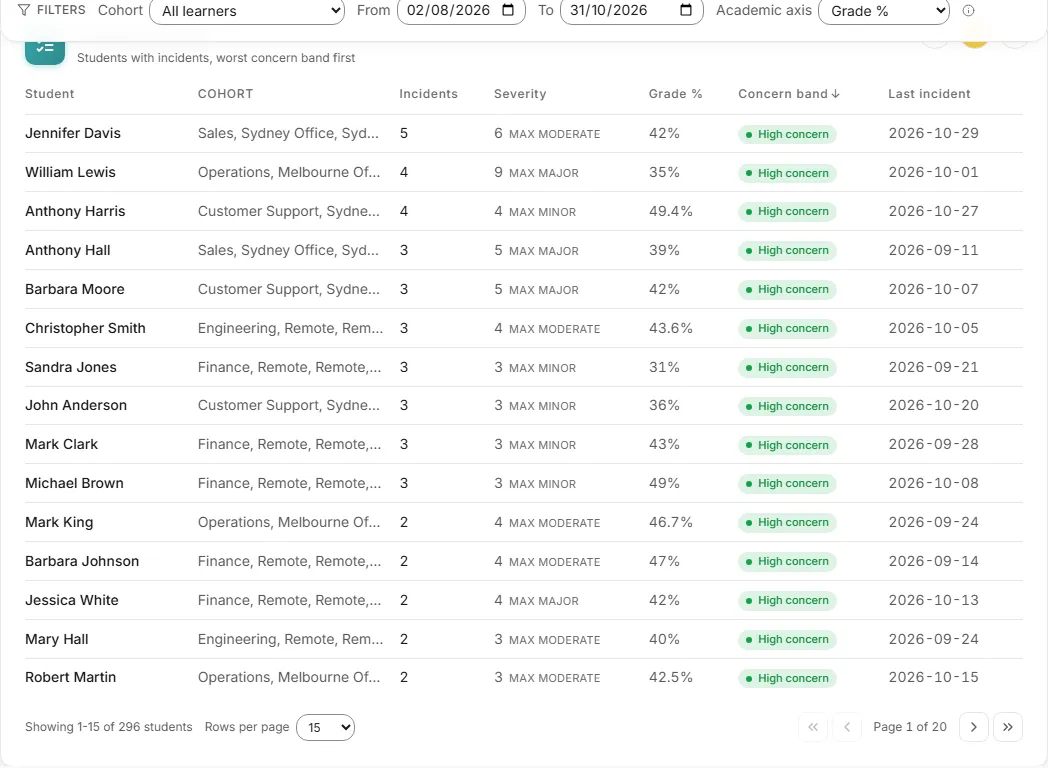
Every learner with at least one incident in the date range, worst concern band first and most incidents within a band.
- Columns:
- Student: the learner’s name.
- Cohort: their cohorts.
- Incidents: how many in the range.
- Severity: the severity-weighted total, with the highest severity they had (for example “max major”).
- Academic: their score on the chosen axis (the header shows Grade % or Completion %), or a dash when they have none.
- Concern band: High concern, Behaviour watch, Academic watch or On track.
- Last incident: the date of their most recent incident.
- How it is worked out: learners without incidents appear on the scatter but not in this list.
- What you can do:
- Sort by any column except Cohort (click again to reverse).
- Page through and choose 15, 50 or 100 rows per page. The footer reads “Showing 1-15 of N students”.
- Click a row to open the learner’s behaviour detail and highlight their dot.
- Ask AI, pin the table, or read the info icon.
- Empty states: “Awaiting behaviour data” without records, or “No students with recorded incidents in this range or scope.”
Behaviour detail
Section titled “Behaviour detail”A panel that slides in from the right when you click a dot or a row. It shows the learner’s name, concern band and cohorts.
- Position: a sentence such as “High concern - 5 incidents against a threshold of 3, and an academic score of 42% against a threshold of 50%.” When the learner has no score on the chosen axis: “No academic score on the selected axis yet, so this student has no quadrant position.”
- Academic snapshot: their Grade % (or “No grades yet”) and Completion %.
- Incident history: each incident in the range with its type, date, severity and any note. When there are none: “No incidents recorded for this student in the selected range.”
- Close it with the X, by clicking outside it, or with Escape.
Common questions
Section titled “Common questions”Does a strong inverse link mean behaviour is causing poor grades? No. The link shows association only. It cannot tell you which drives which, or whether something else drives both.
Why does the incident line move when I change the dates? It is the upper quartile of the incident counts in the range you picked, so a busier range raises it.
Why is the performance line not 50% on the Completion axis? On Completion % the line is the cohort median, so half the plotted learners sit on each side of it.