

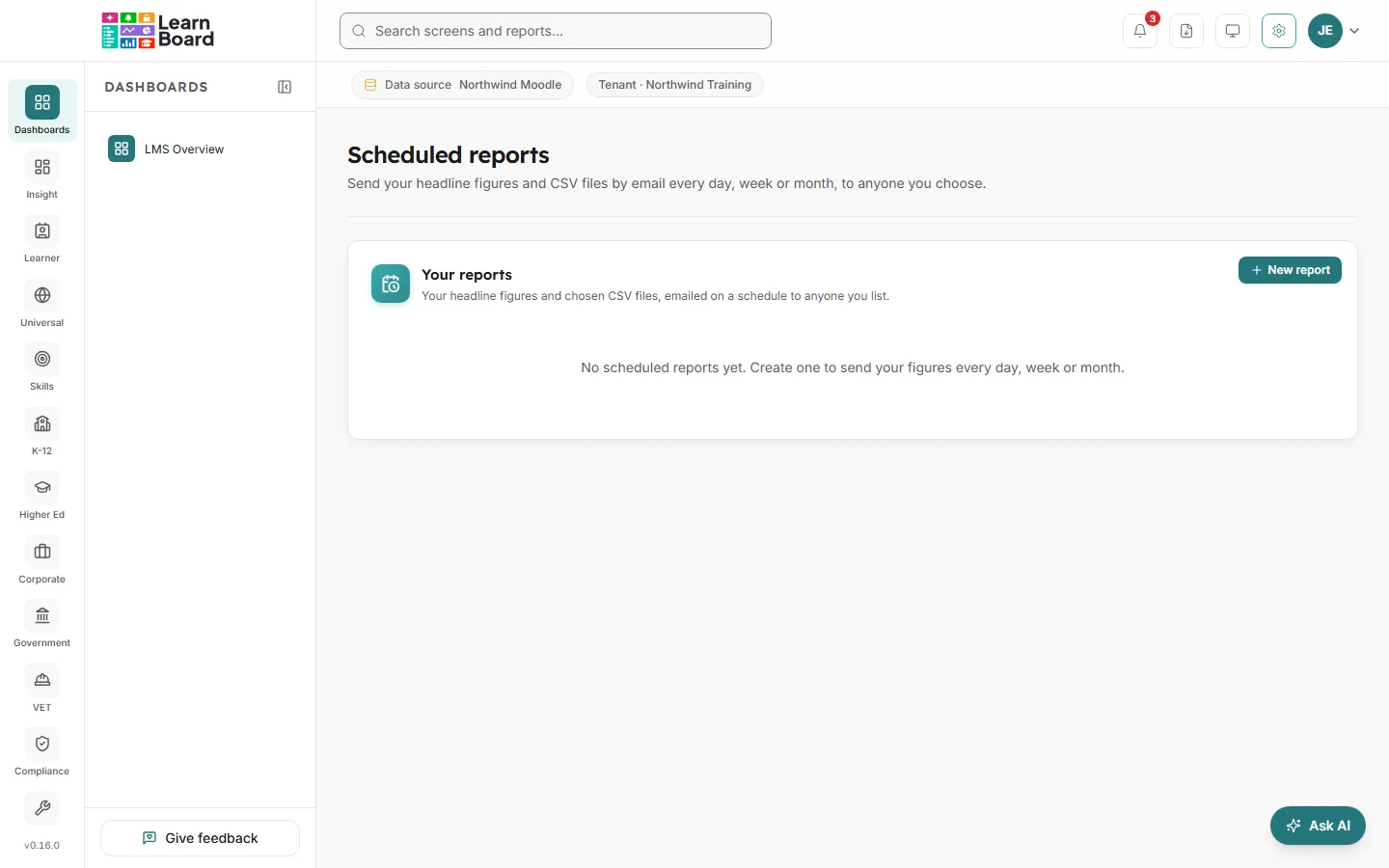
Scheduled reports
Scheduled reports emails your headline figures, and any CSV files you choose, on a schedule to anyone you list. Recipients do not need a LearnBoard login, which makes it a simple way to keep a board, a manager or a funder up to date.
At a glance
- Who can open it: the Admin role, with Edit per-tenant reporting configuration (
manage.reporting-config). Anyone else sees “You do not have permission to manage scheduled reports.” - Where: Admin console, Scheduled reports, at
/admin/scheduled-reports. - Needs a plan that includes scheduled reports. Without it, the Admin console tile is locked.
- Up to 20 addresses per report.
- The report is built as you, so it holds what your role can see.
Create a report
Section titled “Create a report”-
Press New report.
-
Fill in the form.
Field What to enter Report name Up to 120 characters. “Weekly overview” is filled in. How often Every day, Every week or Every month. On For a weekly report, the day of the week. On day For a monthly report, a day from 1 to 28. At The hour to send it. Time zone The time zone that hour is in. Send to Email addresses, one per line or separated by commas. Anyone you list receives the figures and the files, whether or not they have a LearnBoard login. Attach as CSV Tick the files to attach. The headline figures are always in the email. -
Press Save report.
The CSV files you can attach
Section titled “The CSV files you can attach”Each is the same file a person would download from that screen with no filter chosen.
- Activity trend
- Top courses by enrolment
- Completion funnel
- Enrolment vs completion
- Learners at risk
- Certificate issuance
- Average quiz score
- Engagement by category
- Inactive users
- All courses
Your reports
Section titled “Your reports”The table lists each report with:
| Column | What it shows |
|---|---|
| Report | The name, the schedule, and “Figures only” or “Figures +” the attached files. |
| Sent to | The first address, and how many more. |
| Next send | When it goes next, or Paused. |
| Last send | “Sent” with when, or “Not sent:” with the reason. |
| On | A switch to pause or resume the report. |
The buttons at the end of each row are Send now, Edit report and Delete report. Deleting asks first: “Nobody will receive it again.”
LearnBoard checks for reports due every fifteen minutes, so a report leaves within a quarter of an hour of the time you set, in its own time zone.
Related
Section titled “Related”BrandingThe sender name on report emails.
Your subscriptionPlans that include scheduled reports.
Roles and permissionsWhy a report holds what your role can see.