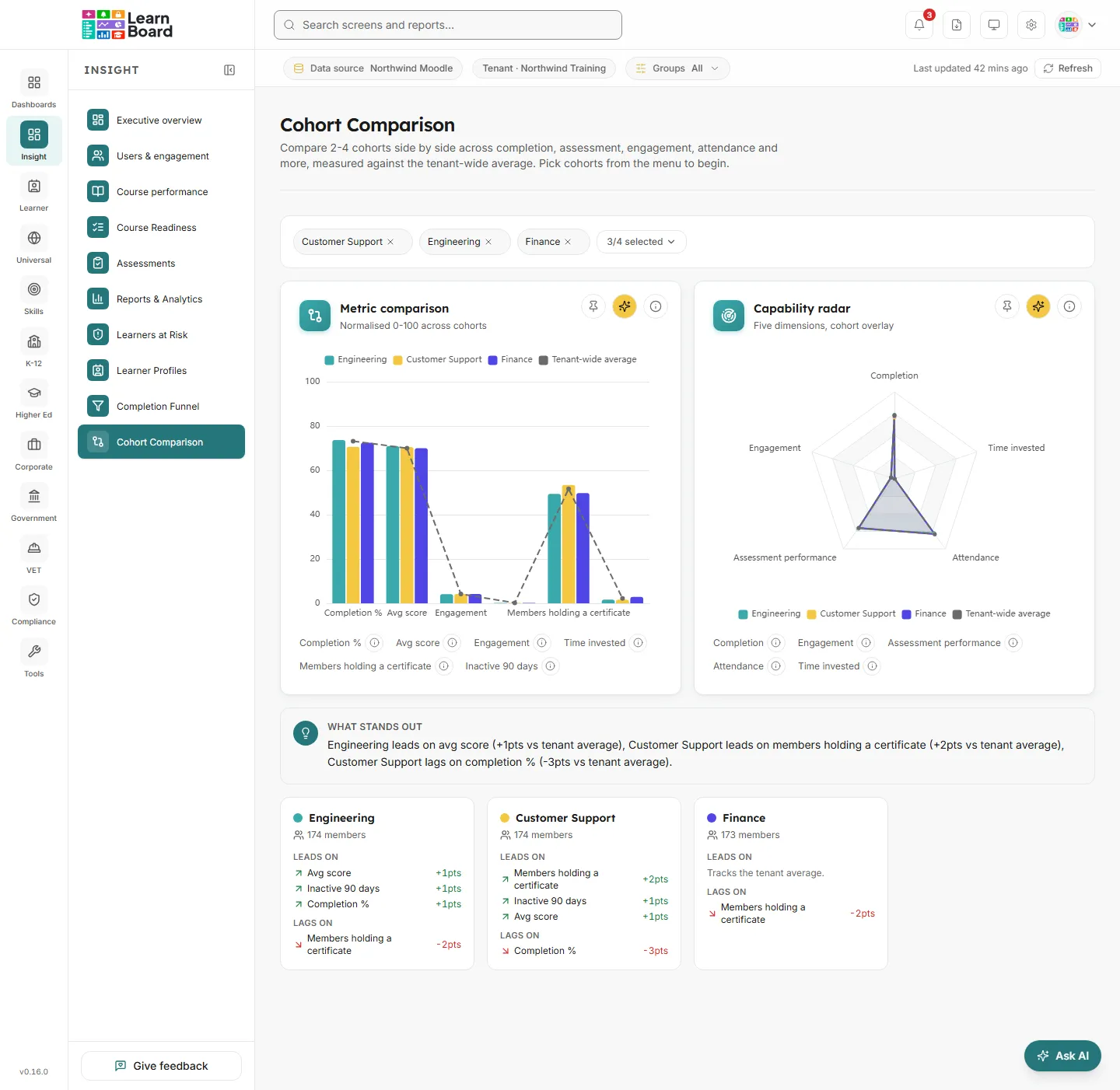
Cohort Comparison puts two to four cohorts side by side on the same measures, completion, quiz scores, engagement, time invested, certificates, attendance and inactivity, with the average across your whole workspace drawn as a reference line. Programme leads and managers use it to see which class, intake or client group is ahead, which is behind, and on what.
Where: Insight, then Cohort Comparison. The address is /cohort-comparison.
Who can open it: anyone whose role holds the Cohort Comparison permission. By default that is Admin, Manager and Viewer.
Team leads: do not have this screen. It is left out of the Team lead role on purpose, and a Team lead who follows a link here is taken to their home page with the note “You don’t have access to that screen, so you are on your home page instead.”
Learners: cannot open it either, and see the same note.
Plan: part of the Insight pack. The Free plan leaves this screen out, and Pro and above include it. On a plan without it you see “Cohort Comparison is locked”.
What a cohort is here: a Moodle course group. Depending on how your workspace matches groups, groups with the same name in different courses are either one cohort or kept apart. A cohort’s figures count its members who have an active learner enrolment; teachers in the group are left out.
Filters: the cohort picker at the top of the screen, and the Groups filter in the bar under the top bar. Your chosen cohorts are kept in the address, so you can bookmark or share the comparison.
Press the button that reads 0/4 selected to open the list of cohorts. Each cohort shows its number of group members on the right.
Type in Search cohorts… to find one, and tick it. Tick at least two and at most four; once four are ticked the rest are greyed out.
The charts, the summary and one card per cohort appear as soon as two are ticked. Until then the screen reads “Select at least 2 cohorts to compare. Pick two to four cohorts from the menu above to see them side by side.”
Remove a cohort with the small cross on its chip, next to the selection button.
The control at the top of the screen that chooses which cohorts are compared.
How it works: chosen cohorts show as chips, each with a cross to remove it, beside a button that counts them, for example 2/4 selected. The list opens with a search box, Search cohorts…, and every cohort with its member count.
What the count means: the number in the list is every member of the group in Moodle. The summary cards further down count only members with an active learner enrolment, so they can be lower.
Empty states: “No cohorts available.” when your Moodle site has no course groups, and “No cohorts match” followed by your search when nothing matches. With the Groups filter set, cohorts with nobody inside that filter are not offered.
A grouped bar chart: six measures along the bottom, one bar per cohort for each, and a dashed line for the Tenant-wide average.
How to read it: every measure is on the same 0 to 100 scale, so you can compare across them. A cohort bar above the dashed line is ahead of the workspace on that measure. For Inactive 90 days lower is better, so a shorter bar is the stronger result.
The six measures: a key under the chart repeats each name with its own info icon.
Completion %: completed enrolments divided by enrolments for the cohort’s members, the same rule as the Completion tile. A course counts as completed with a course completion, every tracked activity shown in the course done, or a certificate.
Avg score: the average score of finished quiz attempts across the cohort’s members, as a percentage of the maximum mark. Unfinished attempts and quizzes hidden in their course are left out.
Engagement: activity events per member over the last 90 days; 500 events per member is 100. The key uses your workspace’s own name for activities.
Time invested: session hours per member over the last 90 days. A new session starts after 30 minutes without activity; 40 hours per member is 100.
Members holding a certificate: the share of members with at least one certificate, from any certificate tool LearnBoard finds on your site. This counts people, not enrolments.
Inactive 90 days: the share of members with no recorded activity in the last 90 days.
The reference line: the same six measures for learners across the whole workspace, read for up to 5,000 learners.
What you can do: hover a measure to see every cohort’s value and the average, to one decimal place; click a cohort in the legend to hide or show it; Info; Ask AI; Pin to dashboard (the pinned chart keeps your chosen cohorts).
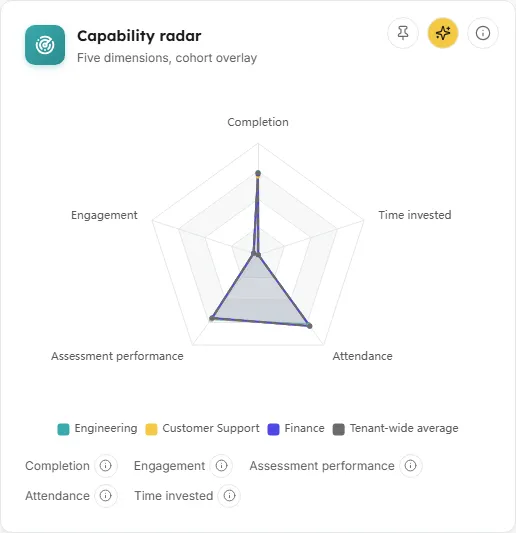
A radar chart with one shape per cohort across five dimensions, and the Tenant-wide average as a dashed, unfilled shape.
How to read it: the radar shows a cohort’s shape at a glance: a cohort strong on engagement but weak on assessment leans one way. Compare each shape with the dashed average.
The five dimensions: each on a 0 to 100 scale, with a key under the chart.
Completion: completed enrolments as a share of the cohort’s enrolments.
Engagement: activity events per member over 90 days; 500 is 100.
Assessment performance: the average finished quiz score across the cohort’s members.
Attendance: distinct days each member was active over the last 90 days, on average; 20 active days is 100. Moodle keeps no attendance register, so this is days with any activity.
Time invested: session hours per member over 90 days with a 30 minute idle limit; 40 hours is 100.
How it is worked out: these are the same dimensions as the Strengths and Gaps radar on a learner profile, averaged over the cohort.
What you can do: hover for each cohort’s values; click a name in the legend to hide or show it; Info; Ask AI; Pin to dashboard.
A short written summary of the comparison, for example “Year 10 leads on completion % (+12pts vs tenant average), Year 11 lags on avg score (-8pts vs tenant average).”
How it is worked out: written by fixed rules from the six measures, not by AI. For each measure, the cohort furthest ahead of the workspace average is named, as long as it is at least 1 point ahead and has not already been named for another measure. Then the single largest shortfall of any cohort on any measure is added, as long as it is at least 1 point behind. Differences are in points on the 0 to 100 scale. Inactive 90 days is turned round, so being ahead always means better.
When nothing stands out: “The selected cohorts track close to the tenant-wide average across every metric, no standout leaders or laggards.”
A cohort with nobody in it, for example a group deleted in Moodle, is left out of the summary.
One card per chosen cohort, its colour dot matching the cohort’s colour in both charts.
How to read it: the cohort’s name; how many members it has, counting members with an active learner enrolment; Leads on, up to three measures where it is furthest ahead of the workspace average, each with its lead in points, for example “+12pts”; and Lags on, the one measure where it is furthest behind, for example “-8pts”.
When it has no lead: “Tracks the tenant average.”
Very large cohorts: a cohort with 5,000 or more members is worked out over its first 5,000, and the card says “(figures from the first 5,000)”.
The picker counts every member of the Moodle group, teachers included. The figures, and the count on the summary card, use only members with an active learner enrolment.
Why does Engagement or Time invested look low for every cohort?
Both are scaled against fixed reference points (500 events and 40 hours per member over 90 days), not against your busiest cohort. A cohort can be ahead of the workspace and still sit low on the scale.
Why does Completion here differ from Moodle’s course completion report?
Completion % counts completed enrolments across every course the members take, by any of three routes: a course completion, every tracked activity done, or a certificate. Moodle’s report counts its own completion records one course at a time.
If a group has been renamed or deleted in Moodle since the figures were saved, a banner reads “These figures are from before the latest changes in your LMS, such as a renamed or deleted group. Refreshing now.” and the screen reads them again a few seconds later. Figures are otherwise saved for five minutes.
Choose two to four cohorts. The choice is kept in the address, so a bookmark opens the same comparison.
Groups
The Groups button in the bar under the top bar narrows every figure to a programme, department, campus, learner category or cohort, until you clear it.
Refresh
Last updated shows how old the figures are. Refresh works them out again and reloads every chart on the screen.
Card buttons
Info, Ask AI and Pin to dashboard on both charts. There is no CSV download on this screen.