

Total VET Activity (TVA) Readiness
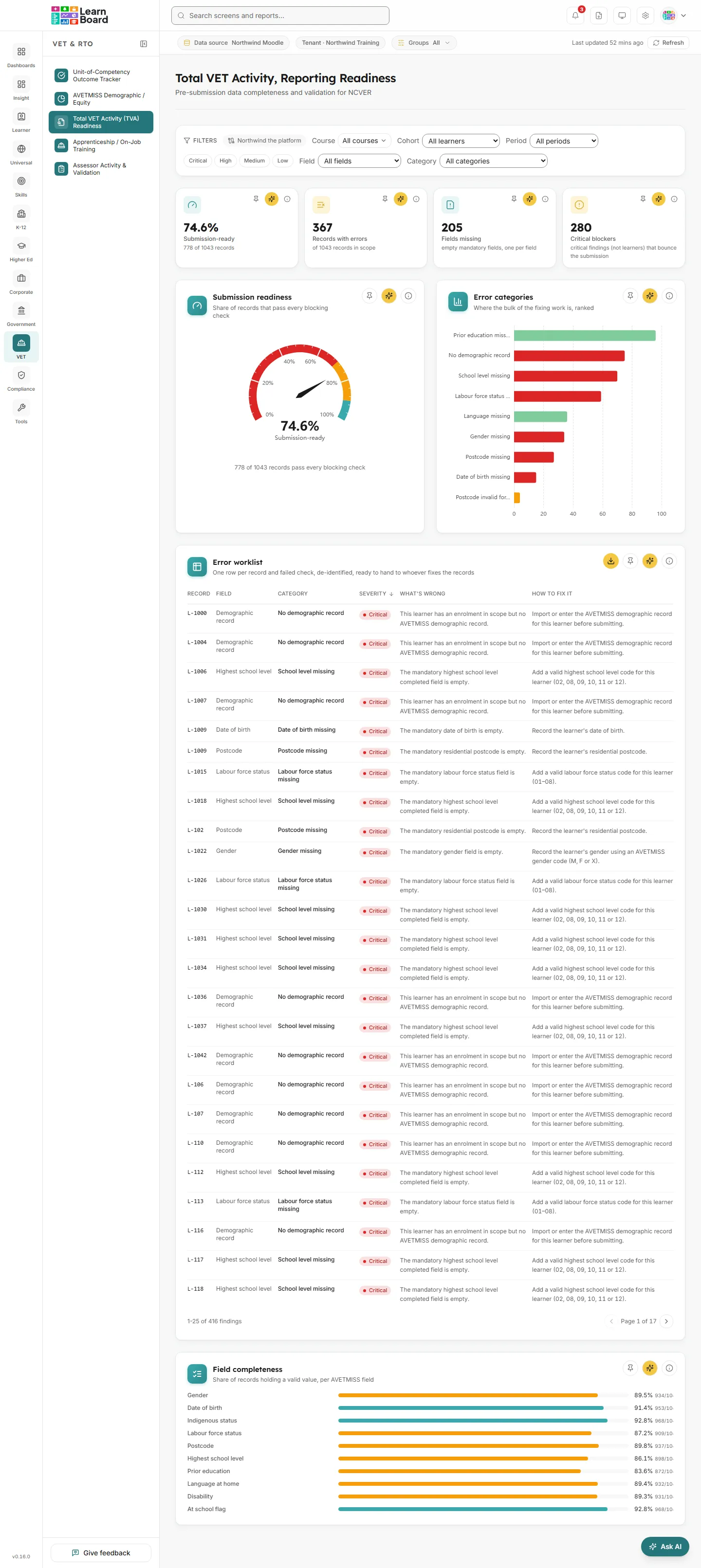
The Total VET Activity (TVA) Readiness screen runs pre-submission completeness and validation checks over the records an RTO reports for the annual Total VET Activity collection, so you can catch the errors that would bounce a submission before the data leaves your organisation. It is for RTO compliance and data officers, student administration teams and anyone who prepares or fixes AVETMISS data.
The screen is titled Total VET Activity, Reporting Readiness in the app, with the description “Pre-submission data completeness and validation for NCVER”. It is a readiness check over your own records. It does not submit data to NCVER, and a clean result here is not an acceptance by NCVER.
At a glance
Section titled “At a glance”- Route:
/vet/tva-readiness. In the sidebar: VET & RTO, then Total VET Activity (TVA) Readiness. - Who can open it: the Admin and Manager roles by default. The Team lead role does not include this screen. The Viewer role does not include the specialist sector screens by default, and the Learner role cannot open it.
- Plan: part of the VET & RTO pack. Without the pack the screen is greyed out with a lock in the sidebar and opens to a locked page. The CSV export also needs a plan that includes CSV export.
- What it needs: a connected Moodle data source for enrolments, plus AVETMISS demographic records for that connection, the same records that feed the AVETMISS Demographic and Equity screen. Without records, the field-level checks cannot run, but the enrolment-level check still does: every in-scope record needs a demographic record before it can be submitted.
- Filters: Course or program, Cohort, Period (collection year), and Severity, Field and Category to narrow the findings. The connection name shows at the start of the filter bar. Filters are kept in the page address.
- Freshness: figures refresh within 15 minutes, so corrected records clear promptly.
- Privacy: the worklist and its CSV carry an internal learner reference only, no names and no contact details. Every view is logged.
What is a record?
Section titled “What is a record?”From the screen’s counting notes:
One record is one person with at least one student enrolment inside the current filters. Staff in that course and courses hidden from analytics are left out; suspended, disabled and ended enrolments stay in, because withdrawn learners are reportable activity for the collection year, so Records can be more than Learners.
A record is withdrawn when none of its enrolments in scope is active and at least one ended without a completion, the same Withdrawn rule as the Unit-of-Competency Outcome Tracker. A record whose enrolments all ended after a completion is finished, not withdrawn. When there are withdrawn or finished records, the tiles say how many, for example “120 of 140 records, 12 withdrawn, 3 finished”. See the definitions page for the shared word Learners.
The checks and their severity
Section titled “The checks and their severity”Each check is applied to every in-scope record and its AVETMISS demographic record. There are four severities:
- Critical: a mandatory field that blocks submission is missing, or the learner has no demographic record at all.
- High: a value is present but is not in the AVETMISS code set.
- Medium: a format or cross-field consistency problem.
- Low: advisory, a recommended field is absent.
A record is submission-ready when it has no Critical or High finding. Medium and Low findings stay on the worklist but do not block readiness.
The checks cover these fields and categories:
- Demographic record: No demographic record (Critical).
- Gender: Gender missing (Critical), Gender code invalid (High).
- Date of birth: Date of birth missing (Critical), Date of birth implausible (Medium).
- Indigenous status: Indigenous status missing (Critical), Indigenous status invalid (High).
- Labour force status: Labour force status missing (Critical), Labour force status invalid (High).
- Postcode: Postcode missing (Critical), Postcode invalid format (Medium).
- Highest school level: School level missing (Critical), School level invalid (High).
- Prior education: Prior education missing (Low), Prior education invalid (High).
- Language at home: Language missing (Low).
- Disability type: Disability type missing (High).
- At school flag: At-school flag vs age (Medium), which queries a learner flagged as still at school whose age is 25 or more.
Stat tiles
Section titled “Stat tiles”Four tiles sit across the top. Each has Pin to dashboard, Ask AI and an info button.
Submission-ready
Section titled “Submission-ready”
The share of in-scope records that pass every blocking check.
- How to read it: a percentage, with “N of N records” underneath, plus the withdrawn and finished counts when there are any.
- How it is worked out: ready records over all in-scope records. A record is ready when it fails no Critical or High check.
- What you can do: pin it, Ask AI about it, or open the info text.
Records with errors
Section titled “Records with errors”The number of records with at least one finding of any severity.
- How to read it: a count of records, with “of N records in scope” underneath.
- How it is worked out: in-scope records with at least one validation finding, from Critical blockers down to Low advisories.
- What you can do: pin it, Ask AI about it, or open the info text.
Fields missing
Section titled “Fields missing”The number of empty mandatory fields across learners who have a demographic record.
- How it is worked out: one per empty mandatory (Critical) field, so one learner missing three mandatory fields adds three. A learner with no demographic record at all is not broken into fields here; that learner counts once under Critical blockers. Optional (Low) absences are not counted.
- What you can do: pin it, Ask AI about it, or open the info text.
Critical blockers
Section titled “Critical blockers”The number of Critical findings, the ones that bounce a submission.
- How it is worked out: findings, not learners: every empty mandatory field (the Fields missing count) plus one for each enrolled learner with no demographic record at all. One learner can contribute several.
- What you can do: pin it, Ask AI about it, or open the info text.
When no demographic records are imported
Section titled “When no demographic records are imported”No demographic records available
Section titled “No demographic records available”A notice shown under the tiles until AVETMISS demographic data exists for the connection.
- What it says: import AVETMISS demographic data for this connection to run the field-level readiness checks. The enrolment-level check below already reflects the real gap: every in-scope record still needs a demographic record before it can be submitted.
- What you can do: the rest of the screen stays live. Expect the worklist to show a No demographic record finding for each learner.
Charts and tables
Section titled “Charts and tables”Submission readiness
Section titled “Submission readiness”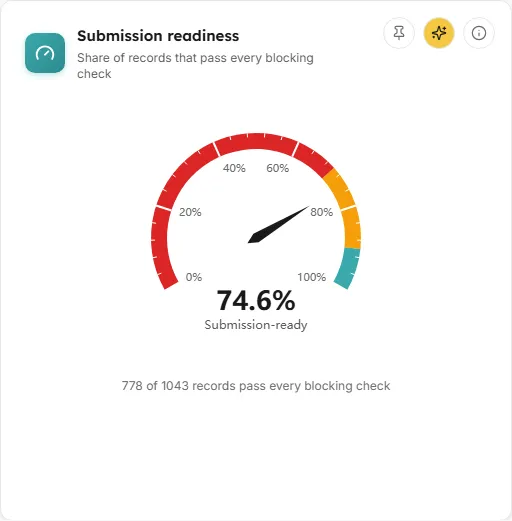
A gauge giving the at-a-glance signal for whether the collection is ready to file.
- How to read it: the needle is the share of in-scope records with no Critical or High finding. Red is below 70% ready, amber 70 to 90%, teal 90% and above. The line under the gauge reads “N of N records pass every blocking check”.
- How it is worked out: the same figure as the Submission-ready tile. It updates as records are corrected; demographic fixes show immediately.
- What you can do: pin the gauge, Ask AI about it, or open the info text.
Error categories
Section titled “Error categories”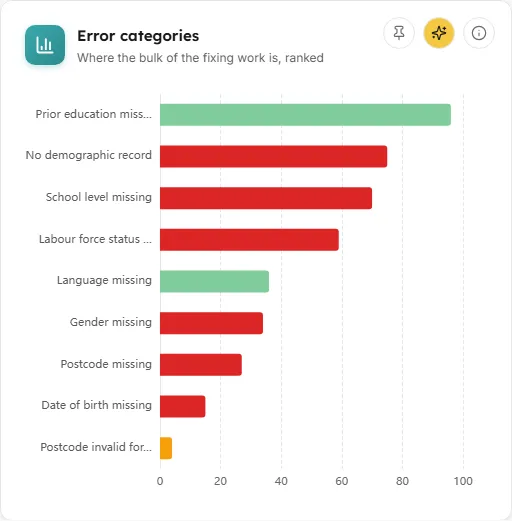
A ranked bar chart of every failing check and how many records it affects.
- How to read it: one bar per failing check, the biggest chunk of work at the top. Bar colour is the check’s severity. Hover a bar for the check name, “N records · severity” and how to fix it.
- How it is worked out: for each check, the number of in-scope records that fail it.
- What you can do: pin the chart, Ask AI about it, or open the info text. Use the Category filter to show just one check in the worklist.
- Empty state: “No validation errors in scope. Every in-scope record passes the active rule set under the current filters.”
Error worklist
Section titled “Error worklist”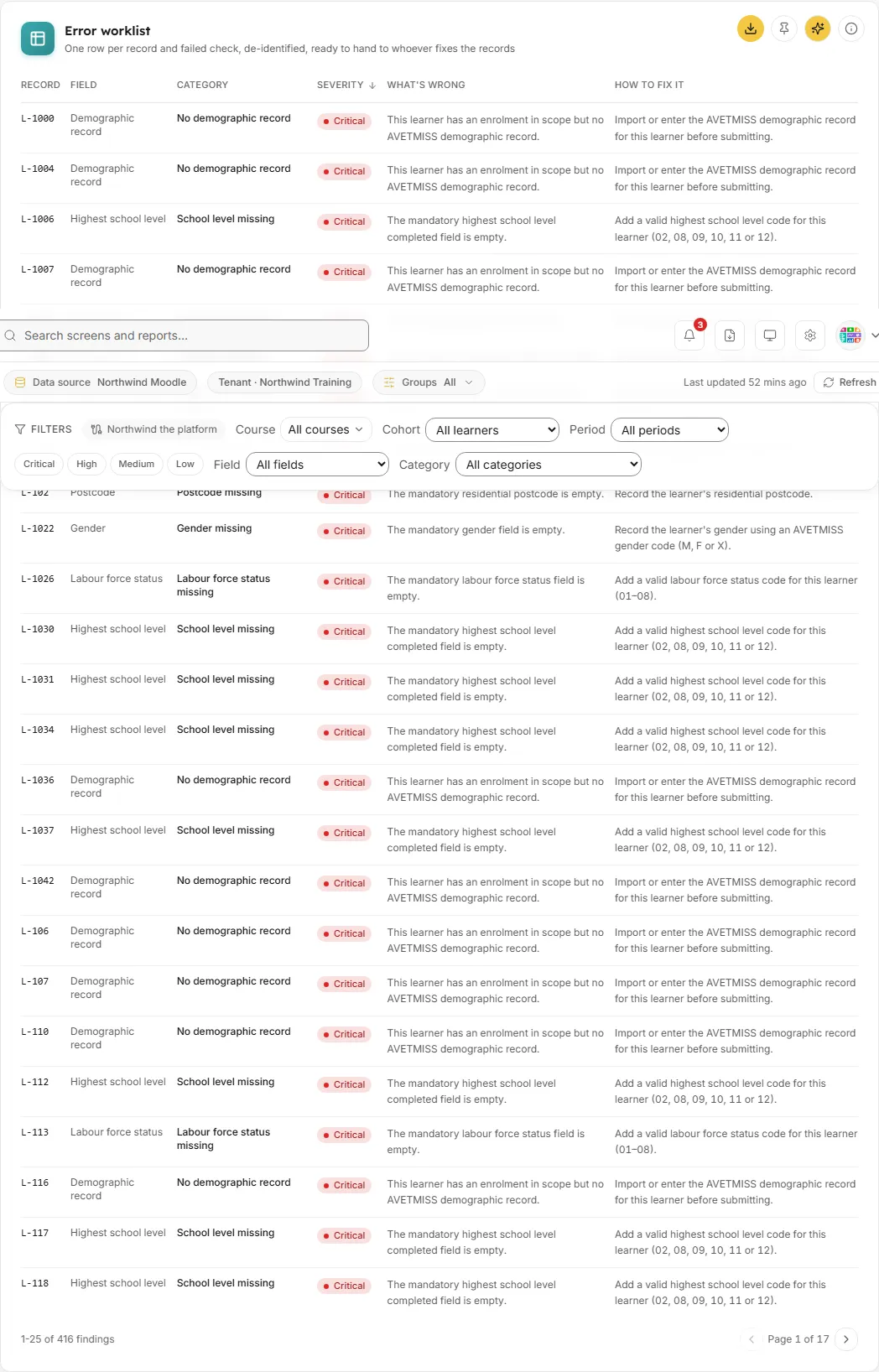
The fixable list this screen exists for.
- Columns: Record (an internal learner reference), Field, Category, Severity, What’s wrong and How to fix it.
- How it is worked out: one row per record and failed check. Records are referenced by an internal learner reference only, never by name, so the list can be handed to whoever fixes the records without exposing personal details.
- What you can do: click the Severity header to switch between worst first and least severe first. Page through with the previous and next buttons (“Page N of N”), 25 rows a page. Click the CSV button to download
tva-readiness-errors.csv, which uses the same filters and is de-identified the same way. Pin the table, Ask AI about it, or open the info text. - Empty state: “Nothing to fix. No findings match the current filters, records in scope are clean.”
Field completeness
Section titled “Field completeness”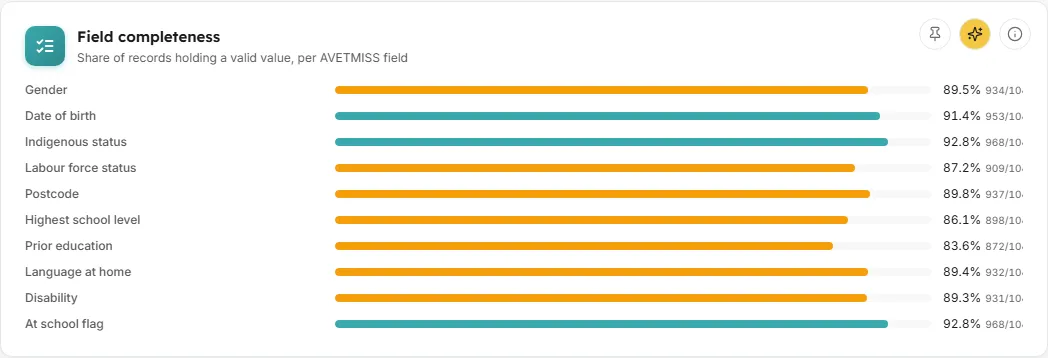
A completeness map: for each AVETMISS field, how much of the collection already holds a valid value.
- How to read it: one bar per field with its percentage. Bars are red below 70%, amber from 70% and teal from 90%, the same bands as the gauge.
- How it is worked out: for each field, the share of in-scope records holding a valid value: present, in the field’s code set, and passing its format and consistency checks. Records with no demographic record count as invalid for every field.
- What you can do: pin the list, Ask AI about it, or open the info text. Use the Field filter to see that field’s findings in the worklist.
Filters and buttons
Section titled “Filters and buttons”- Connection: the name of the connected data source, shown at the start of the filter bar.
- Course or program: “All courses” or one or more courses.
- Cohort: “All learners” or one cohort.
- Period: “All periods” or one collection year, shown as for example “2026 collection”. It limits records to learners with enrolment activity in that calendar year, matching the annual collection window. Enrolments with no recorded start date only appear when no period is picked.
- Severity: toggle buttons for Critical, High, Medium and Low. They narrow the worklist only.
- Field: “All fields” or one AVETMISS field. Narrows the worklist.
- Category: “All categories” or one check. Narrows the worklist.
- Pick the Period you are about to report.
- Read the Submission readiness gauge and the Critical blockers tile.
- In Error categories, find the biggest bar and pick it in the Category filter.
- Download the worklist with the CSV button and hand it to whoever fixes the records.
- Once the records are corrected, come back. Fixes show within 15 minutes.
Common questions
Section titled “Common questions”Does LearnBoard submit my data to NCVER?
Section titled “Does LearnBoard submit my data to NCVER?”No. This screen checks your records before you submit them through your own process. It does not create or send a submission.
Why does every learner show “No demographic record”?
Section titled “Why does every learner show “No demographic record”?”No AVETMISS demographic records have been imported for this connection yet. Every record needs one before it can be submitted, so this is the true gap.
Why can Records be more than Learners?
Section titled “Why can Records be more than Learners?”Records include withdrawn and finished people, because they are reportable activity for the collection year. Learners are only people with an active learner enrolment.