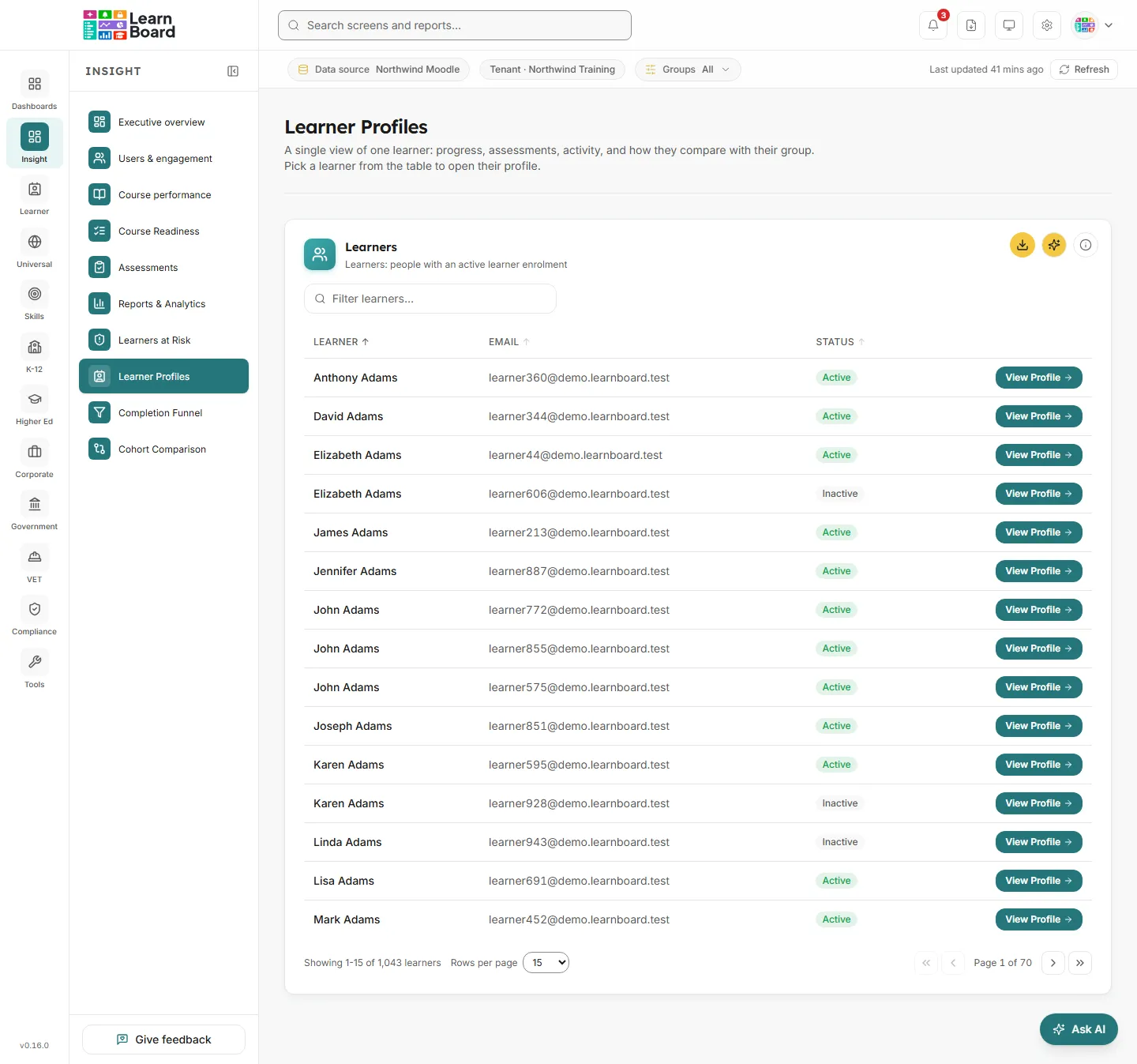
Learner Profiles is where you look up one learner. It opens on a searchable list of every learner in your workspace; choose View Profile on a row to open that person’s single view of progress, assessments, certificates, activity and how they compare with their group. Teachers, managers, team leads and support staff use it before a conversation with a learner or a parent, or after spotting a name on Learners at Risk.
Where: Insight, then Learner Profiles. The address is /learners.
Who can open it: anyone whose role holds the Learner Profiles permission. By default that is Admin, Manager, Viewer and Team lead.
Plan: part of the Insight pack. The Free plan leaves this screen out, and Pro and above include it. On a plan without it you see “Learner Profiles is locked”.
Team leads: the list holds only the people in their own Moodle groups, and the bar under the top bar shows Your groups only.
Learners: cannot open this screen and are taken to their own home page with the note “You don’t have access to that screen, so you are on your home page instead.” A learner’s view of their own record is My Learning, in the Learner section.
Filters: the Filter learners search box on the list, and the Groups filter in the bar under the top bar.
The profile itself: opens on the same screen, without changing the address. It is described on its own page, Learner profile.
TableLearners: people with an active learner enrolment
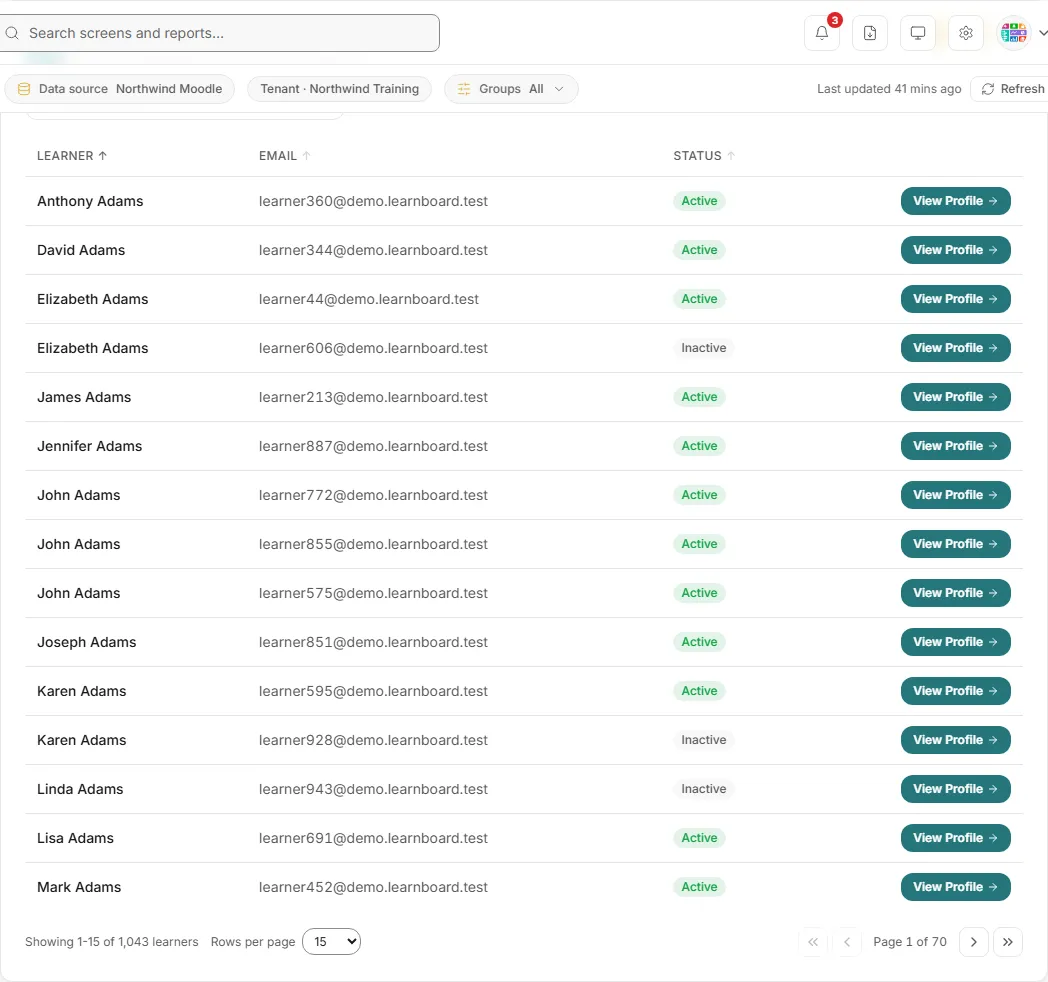
A paged list of every learner in the workspace, with a button to open each one’s profile.
Columns:
Learner: first name and last name, or the username when the name is blank.
Email: the Moodle email address, or the username when there is no email.
Status:Active means any activity in the last 30 days; Inactive means none in that time; Suspended means the Moodle account is suspended; Hidden means the account has been deleted in Moodle.
View Profile: opens the learner’s profile.
How it is worked out: the people with an active enrolment as a learner in at least one course, the same people as every Learners figure in LearnBoard. A course they teach, a suspended enrolment or account, or a course hidden from analytics in Settings does not make someone a learner; a course hidden in Moodle still counts. The guest account is never listed.
What you can do:
Filter learners: type part of a first name, last name, full name, email or username. The list returns to page one and narrows as you type.
Sort: click Learner, Email or Status to sort, and again to reverse. Sorting happens across the whole list, not just the page you are on. Learner sorts by last name, then first name. Status puts suspended accounts apart from the rest and then orders by last access.
Page through with 15, 50 or 100 rows per page; the footer reads, for example, “Showing 1-15 of 240 learners”.
Download CSV: saves the rows on the current page as learners.csv, with Learner, Email and Status. Set 100 rows per page first to take more at once.
Info explains who counts as a learner. Ask AI opens the assistant with the rows shown at that moment.
Empty states: “No learners match that filter.” when your search finds nobody, and “No learners on this workspace yet.” when there is no search and nobody to list.
While it loads: “Loading learners…”.
Why is this number different from Moodle’s user list? Moodle’s Browse list of users shows every account, including staff, people with no enrolment and suspended accounts. This list holds only people with an active learner enrolment.
Type part of the learner’s name, email or username in Filter learners.
Choose View Profile on their row. The profile opens on the same screen with “Loading learner profile…” while LearnBoard gathers their progress, assessments, certificates and activity.
Use Back to learners at the top to return to the list.
The search box above the table. Matches first name, last name, full name, email and username.
Groups
The Groups button in the bar under the top bar narrows the list and every profile to a programme, department, campus, learner category or cohort, until you clear it.
Refresh
Last updated shows how old the figures are. Refresh works them out again and reloads the screen’s data.
View Profile
Opens the learner’s profile in place. Back to learners returns you to the list.