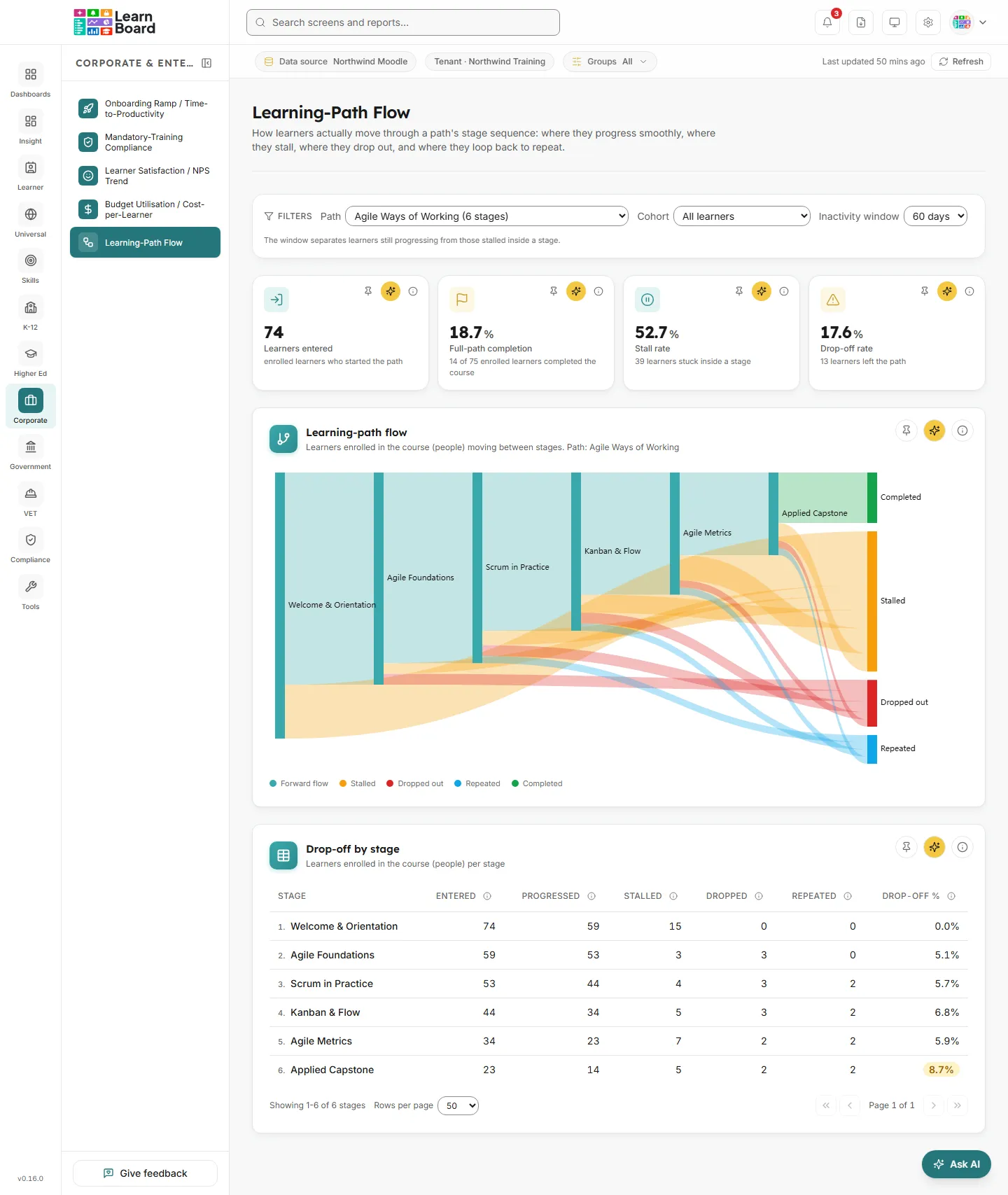
Learning-Path Flow shows how learners actually move through a learning path’s stages: where they progress smoothly, where they stall, where they drop out and where they loop back to repeat a stage. L&D managers, course designers and team leads use it to find the stage where a path leaks, then open that stage to see exactly who is stuck there.
Route:/corp/learning-path-flow, in the sidebar under Corporate & Enterprise as Learning-Path Flow.
Who can open it: the Admin and Manager roles by default. The Viewer role does not include it by default. A Learner never sees it: opening the link sends them to their home page with the notice “You don’t have access to that screen, so you are on your home page instead.” See roles and permissions.
Team leads: a Team lead can open this screen. Every figure on it, and every name in the stage drill-down, is limited to the people in their own Moodle groups.
Plan: part of the Corporate & Enterprise sector pack. If your plan does not include the pack, the page shows “Learning-Path Flow is locked” and “Part of the Corporate & Enterprise pack, not included in your current plan.” A billing administrator sees View plans & upgrade; everyone sees Compare plans and Back to Executive Overview.
Filters:Path, Cohort and Inactivity window. All three are kept in the page address, with the table page, so a refresh or a shared link opens the same view.
Data it needs: nothing to set up. The screen reads the course’s sections, completion-tracked activities, activity completions, course completions, certificates, enrolments, groups and the activity log from your connected Moodle site. See Data sources.
The Learning-Path Flow screen: filters, four stat tiles, the flow diagram and the drop-off by stage table.
A path is one Moodle course. Its stages are the course’s visible sections that hold at least one visible activity with completion tracking, in the order they appear in the course. A section with no tracked activity is not a stage. A stage takes its section name; an unnamed section shows as “Stage 1”, “Stage 2” and so on.
A stage is done when its tracked activities are complete or passed. A failed activity is an attempt, not a completion.
Each learner sits at their first unfinished stage: every stage before it is done. A skipped stage holds them there even when later stages are done.
The whole path is completed under the shared completion rule: a course completion, every tracked activity shown in the course done, or a certificate issued in the course. This is the same rule as the Completion Funnel.
Only the course’s learners are counted: people with an active learner enrolment in the course. Staff, suspended enrolments and accounts, and people with activity but no enrolment are left out. Every figure is a count of distinct people, never of events, and each person appears in the flow once.
A path needs at least two stages and at least five learners who have entered it before its flow means anything. Below that, the flow diagram and the stage table show Not enough path activity to chart flow yet: “This path needs at least two stages and a handful of active learners before its flow is meaningful. Pick another path, or check back once more learners are moving through it.” The stat tiles show zero while the path is in this state.
The filter bar stays near the top of the page as you scroll.
Path: the course whose stage order defines the flow. Each option shows the course name and its number of stages, for example “Induction (6 stages)”. When you open the screen, the first path in the list is picked for you, so the page shows real flows straight away. Courses hidden from analytics in your workspace settings are not listed; a course hidden in Moodle itself still is. Picking a new path clears the cohort.
Cohort: “All learners” by default, or one cohort. Each option shows the cohort name and its member count. Cohorts are built from your Moodle course groups.
Inactivity window: 30, 60 or 90 days, 60 by default. The note beside it reads “The window separates learners still progressing from those stalled inside a stage.” The window is used in the stage drill-down only: it marks which learners at a stage were active inside it (Progressing). It does not change the tiles, the flow diagram or the table.
Clear cohort: appears once a cohort is picked and puts the cohort back to “All learners”.
Changing a filter takes the stage table back to page 1.
Four tiles sit under the filters. Each has Pin to dashboard, Ask AI about this and an info (i) button that explains how the figure is counted. See Pin to dashboard and Ask AI.
How to read it: the number of people the flow diagram starts with. It can never be higher than the course’s enrolments.
How it is worked out: distinct learners enrolled in the course who have any tracked completion or learning activity inside the path. Learners with an enrolment and no activity are not counted here.
What you can do: pin it, ask AI about it, or open the info (i) text.
The completion rate for the course: the share of its enrolled learners who completed it.
How to read it: the line underneath gives the counts, for example “18 of 40 enrolled learners completed the course”.
How it is worked out: completed enrolments divided by the course’s learner enrolments, the same rate as the Completion Funnel for this course. Enrolled learners who never started the path still count in the base, so this can be lower than the share of entered learners who reached Completed in the diagram.
What you can do: pin it, ask AI about it, or open the info (i) text.
The share of entered learners who are stuck inside a stage.
How to read it: the line underneath gives the head count, for example “7 learners stuck inside a stage”. A high stall rate points to a stage that is hard to finish rather than one people abandon.
How it is worked out: stalled learners divided by Learners entered. A stalled learner has activity in their first unfinished stage or a later one but has not finished that stage, and the path is not complete. The Inactivity window does not change this figure.
What you can do: pin it, ask AI about it, or open the info (i) text.
How to read it: the line underneath gives the head count, for example “5 learners left the path”.
How it is worked out: dropped-out learners divided by Learners entered. A dropped-out learner has no learning activity after their last completed stage.
What you can do: pin it, ask AI about it, or open the info (i) text.
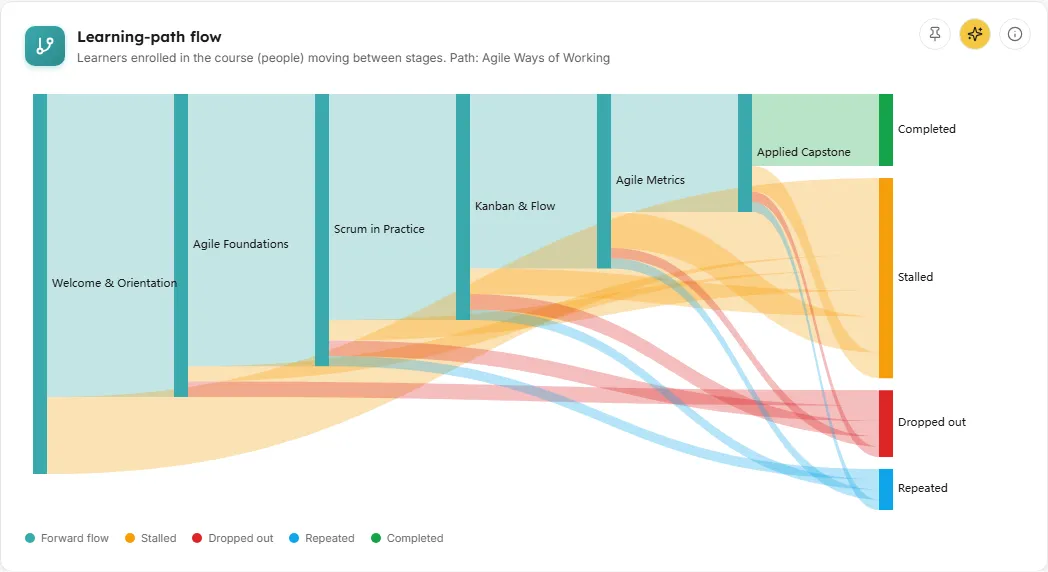
ChartLearners enrolled in the course (people) moving between stages
A flow diagram (Sankey) of learners moving from stage to stage, with every exit drawn as its own end point. When a path is picked, the unit line adds its name, for example “Path: Induction”.
How to read it: stages run left to right in course order. The width of each band is the number of learners it carries. Forward flow from one stage to the next is in your brand colour; the four end points on the right are Completed (green), Stalled (amber), Dropped out (red) and Repeated (blue). A legend under the chart names each colour. A wide band into Dropped out from one stage marks the stage where the path leaks.
How it is worked out: each band counts distinct learners, worked out from the order and timing of their activity completions. A forward band from stage N to stage N+1 carries everyone who reached stage N+1 or beyond. Each learner leaves the diagram from the stage they sit at, into exactly one end point, so each stage’s outgoing bands add up to what came in. The diagram never draws a band going backwards: repeating a stage is the Repeated end point instead.
What you can do:
Hover a band to see “From → To” and its learner count; hover a stage to see its total.
Click a stage to highlight it and its bands (the rest fade), and jump to its row in Drop-off by stage, which flashes for a moment.
Pin it to a dashboard, ask AI about it, or open the info (i) text.
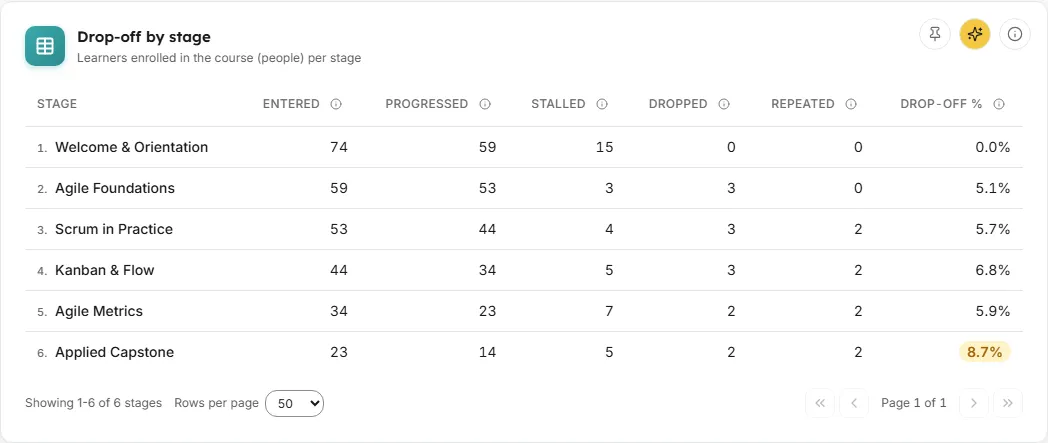
TableLearners enrolled in the course (people) per stage
One row per stage, in path order, with how many learners reached it and what happened to them there.
How to read it: the columns are Stage (numbered in order), Entered, Progressed, Stalled, Dropped, Repeated and Drop-off %. Each column heading has its own info (i). The stage with the highest drop-off on the current page is flagged with a highlighted Drop-off % and the hint “Highest drop-off stage on this path”.
How it is worked out:
Entered: distinct learners who reached the stage, meaning every stage before it is done.
Progressed: learners who moved past the stage; at the final stage, learners who completed the path.
Stalled, Dropped and Repeated: learners whose journey currently ends at this stage, split by behaviour, using the same rules as the end points in the diagram.
Drop-off %: Dropped divided by Entered, the Drop-off rate tile’s rule applied to one stage. Stalled and repeating learners have not left the path, so they are not drop-off.
What you can do:
Click a row, or press Enter on it, to highlight its stage in the diagram and open the stage drill-down.
Page through long paths with the controls under the table, and choose 15, 50 or 100 rows per page. The table shows 50 rows by default.
Pin it to a dashboard, ask AI about it, or open the info (i) text.
Empty state: “Not enough path activity to chart flow yet”.
A panel that opens from the right when you click a row in Drop-off by stage. Its heading is the stage number and name, for example “3. Compliance basics”.
How to read it: a list of the learners whose journey currently sits at this stage (their first unfinished stage), most recently active first. Learners who completed the path are not listed. Each entry shows:
the learner’s name;
time in stage, for example “12 days in stage”, or “Time in stage unavailable”;
when they were last active;
a status badge: Progressing (active within the selected Inactivity window), Stalled, Dropped or Repeated.
How it is worked out: time in stage runs from when they finished the stage before it. For a progressing learner it runs to today; otherwise it runs to their last activity. The cohort and path you picked apply.
What you can do: page through 25 learners at a time, open the info (i) text, and close the panel with the close button, the Escape key or a click outside it.
Empty state: “No learners at this stage”: “Everyone who reached this stage has already moved on.”
The list shows every course with at least one stage. A path needs two stages before its flow can be charted, so picking a one-stage course shows the not-enough-activity message.
Why is Full-path completion lower than the Completed band suggests?
The tile divides by everyone enrolled in the course, including people who never started. The diagram starts from Learners entered, the people who did start.
Why do the stall figures not change when I change the Inactivity window?
The window only separates Progressing learners from the rest in the stage drill-down. The tiles, diagram and table classify every learner by what they have finished, not by how recently they were active.
A learner has done later stages. Why are they shown at an earlier one?